Math Symbols on Keyboard: Alt Codes for Every Sign
Most maths symbols — ± × ÷ √ π ∞ ≈ ≤ ≥ ° and dozens more — aren’t printed on a keyboard, so you need another way to type them. On Windows that way is Alt codes: hold the Alt key, type a number on the numeric keypad, and the symbol appears. This page is a full reference of those codes, grouped by kind, with a click-to-copy grid and the details other guides leave out.
If you just need a symbol now, copy it from the grid below. If you want to understand the codes — why Alt+241 and Alt+0177 both make ±, why they fail on a laptop, and what to do on a Mac — the sections after it explain all of that.
In a hurry?
- Copy any symbol: click it in the grid below.
- Type an Alt code: turn on Num Lock, hold Alt, type the number on the numeric keypad, release.
- No numpad? use the on-screen keyboard or Windows + . instead (see below).
- On a Mac? Alt codes don’t work — use the Option-key shortcuts in the table further down.
- In Word: type the hex code then press Alt + X.
Click to copy: math symbols
Tap any symbol to copy it. The label is its Windows Alt code.
Table of Contents
How Alt codes actually work (and why they’re not Unicode)
Alt codes feel like magic, but the mechanism is worth understanding because it explains every weird thing about them. When you hold Alt and type a number on the numeric keypad, Windows looks that number up in a character table and inserts whatever it finds. The catch is that which table it uses depends on how you type the number.
If you type a plain number like Alt + 241, Windows uses the old code page 437, the original IBM PC character set, and 241 there is ±. If you add a leading zero, Alt + 0177, Windows instead uses Windows-1252 (the Latin-1 set), where 177 is also ±. That’s why the same symbol often has two codes — a short one and a zero-padded one — and, more confusingly, why the same number can give different characters with and without the zero.
| You type | Table used | Example |
|---|---|---|
| Alt + 241 | Code page 437 | ± (no leading zero) |
| Alt + 0177 | Windows-1252 | ± (with leading zero) |
| Alt + 065 | Windows-1252 | A (0 + Latin-1 code) |
| Alt + 65 | Code page 437 | A |
Neither of those tables is Unicode, which is the modern universal character set. That’s why classic Alt codes only reach a few hundred symbols. To get any character, newer Windows also accepts the decimal Unicode code point directly — for instance Alt + 8800 for ≠ — though this needs app support and, for some symbols, a registry tweak. The practical takeaway: the short codes are legacy, the big numbers are Unicode, and if a code “gives the wrong symbol,” you’ve probably crossed between the two systems.
Alt codes for basic operators
The everyday arithmetic signs. Plus and equals are already on the keyboard; the rest need a code or a copy.
| Symbol | Name | Alt code | Unicode | HTML |
|---|---|---|---|---|
| × | multiply | Alt + 0215 | U+00D7 | × |
| ÷ | divide | Alt + 0247 | U+00F7 | ÷ |
| − | minus (true) | Alt + 8722 | U+2212 | − |
| ± | plus-minus | Alt + 0177 | U+00B1 | ± |
| ∓ | minus-plus | Alt + 8723 | U+2213 | ∓ |
| · | dot multiply | Alt + 0183 | U+00B7 | · |
| √ | square root | Alt + 251 | U+221A | √ |
A note on the minus: the true minus sign − (Alt + 8722) is slightly longer than the hyphen on your keyboard, and lines up better with the plus. For full guides, see the plus-minus symbol and the square root symbol.
Alt codes for comparison and relation signs
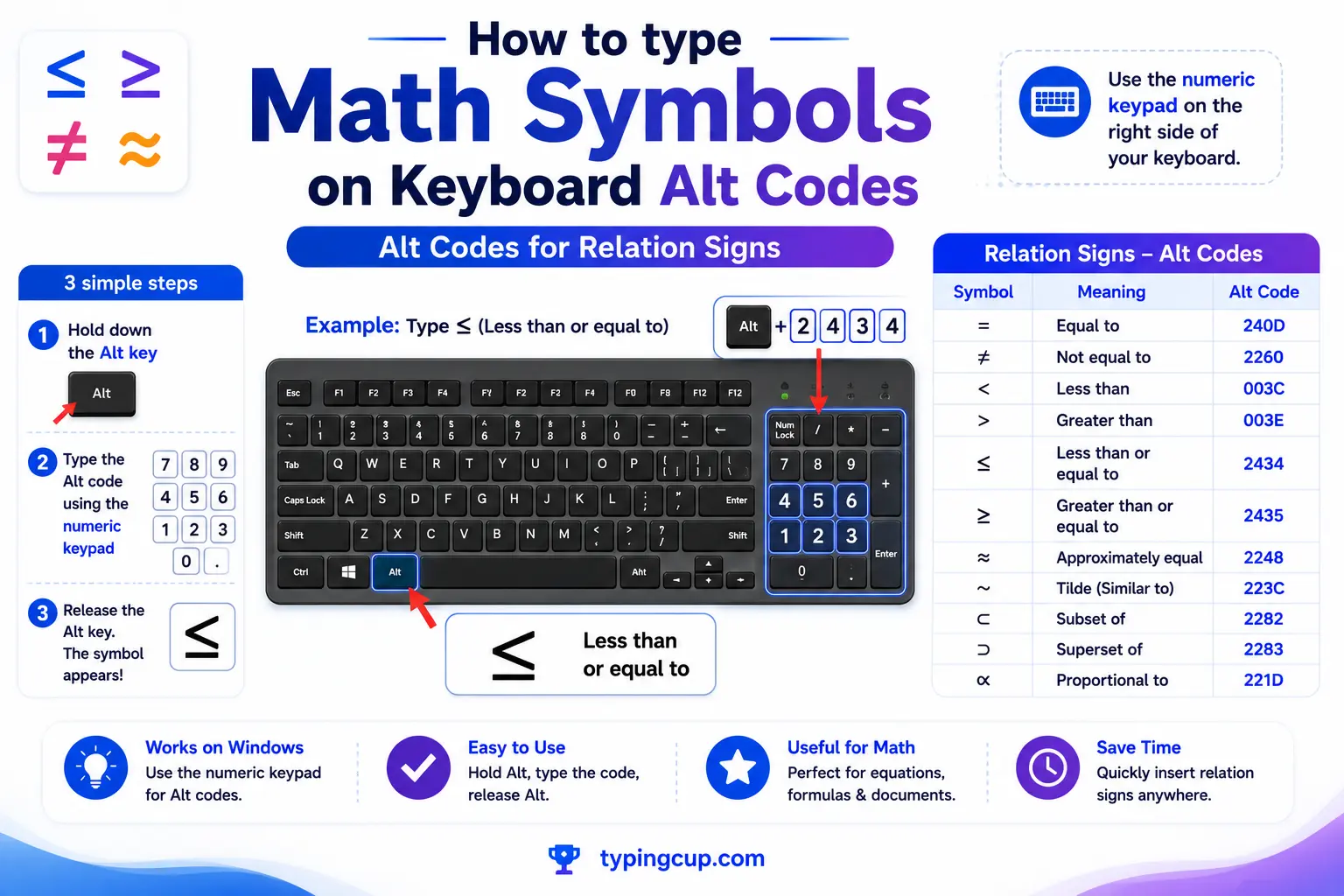
The signs that compare two quantities. Less-than and greater-than are on the keyboard; these are the ones that aren’t.
| Symbol | Name | Alt code | Unicode | HTML |
|---|---|---|---|---|
| ≠ | not equal | Alt + 8800 | U+2260 | ≠ |
| ≈ | approximately | Alt + 247 | U+2248 | ≈ |
| ≤ | less or equal | Alt + 243 | U+2264 | ≤ |
| ≥ | greater or equal | Alt + 242 | U+2265 | ≥ |
| ≡ | identical to | Alt + 8801 | U+2261 | ≡ |
| ∝ | proportional to | Alt + 8733 | U+221D | ∝ |
| ∞ | infinity | Alt + 236 | U+221E | ∞ |
The infinity sign gets its own deep dive in the infinity symbol guide.
Alt codes for powers, fractions, and degrees
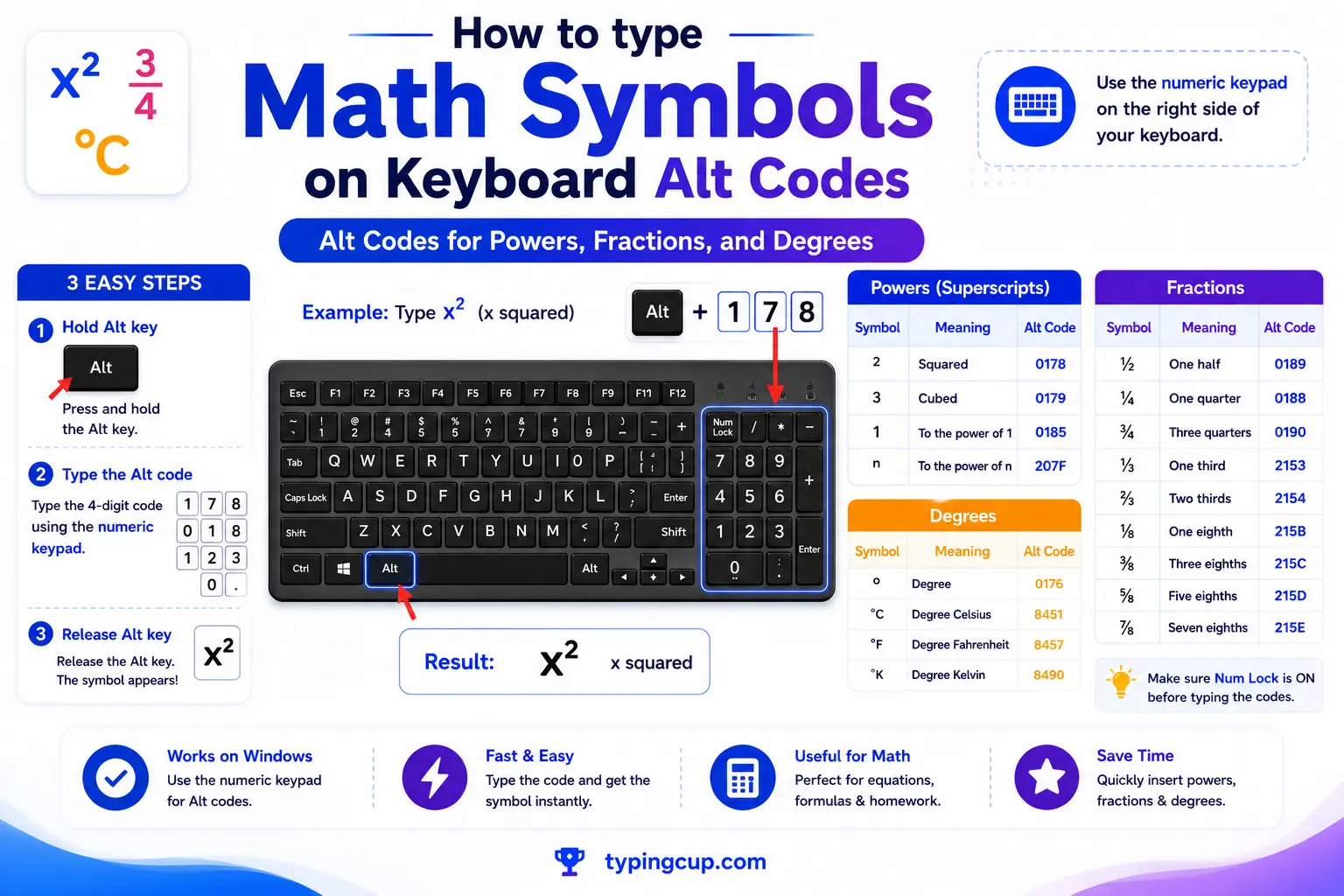
Superscripts, common fractions, and the degree sign — the symbols that turn up in units, measurements, and simple formulas.
| Symbol | Name | Alt code | Unicode | HTML |
|---|---|---|---|---|
| ° | degree | Alt + 0176 | U+00B0 | ° |
| ¹ | superscript 1 | Alt + 0185 | U+00B9 | ¹ |
| ² | squared | Alt + 0178 | U+00B2 | ² |
| ³ | cubed | Alt + 0179 | U+00B3 | ³ |
| ½ | one half | Alt + 0189 | U+00BD | ½ |
| ¼ | one quarter | Alt + 0188 | U+00BC | ¼ |
| ¾ | three quarters | Alt + 0190 | U+00BE | ¾ |
The degree symbol and squared symbol each have a full guide, including the spacing rules and the difference between the ² character and a formatted superscript.
Alt codes for Greek letters used in maths
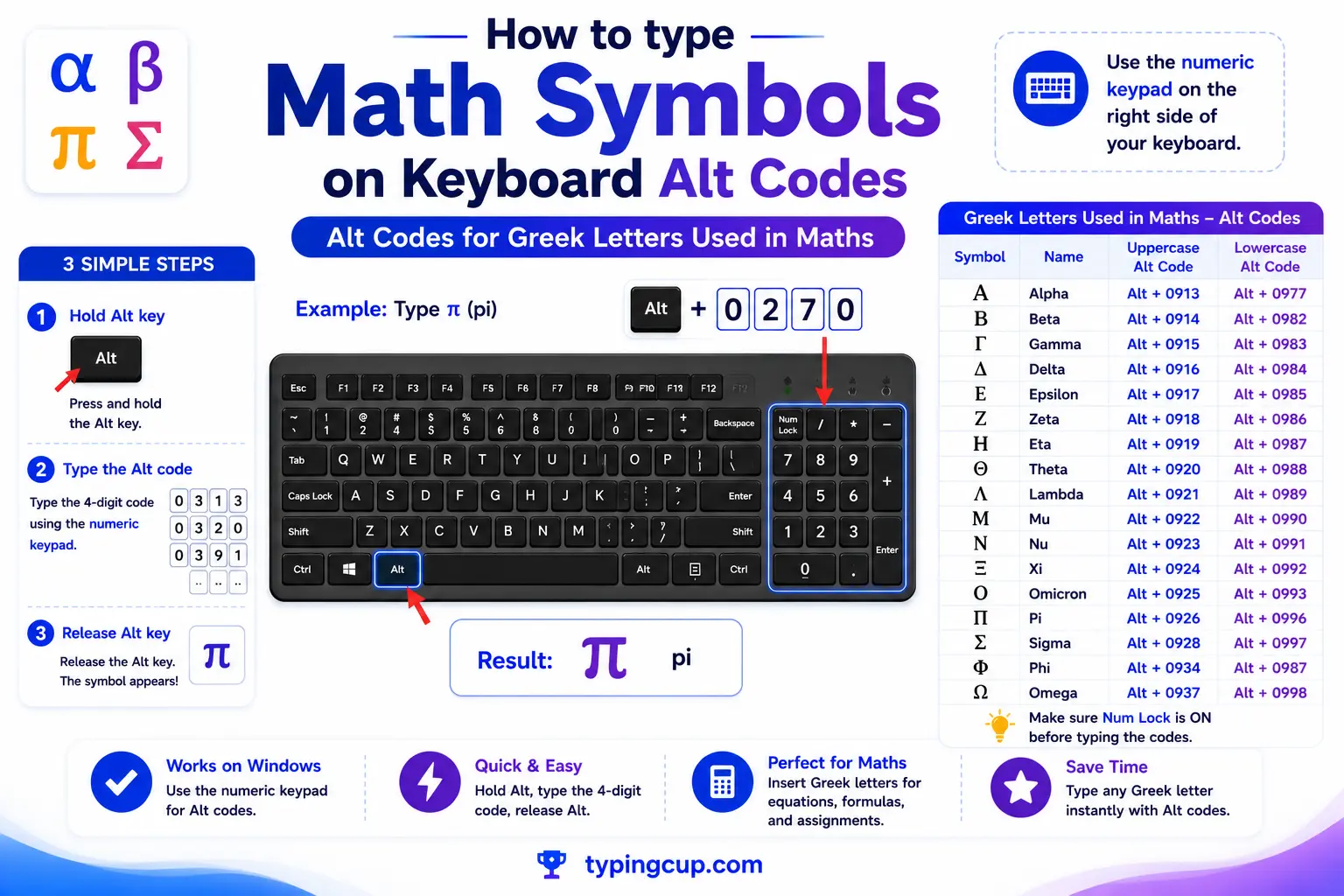
Greek letters carry a lot of meaning in maths and science. These are the ones that come up most, from pi to the summation sign.
| Symbol | Name | Alt code | Unicode | HTML |
|---|---|---|---|---|
| π | pi | Alt + 227 | U+03C0 | π |
| Σ | sigma (sum) | Alt + 228 | U+03A3 | Σ |
| µ | mu (micro) | Alt + 0181 | U+00B5 | µ |
| Ω | omega (ohm) | Alt + 234 | U+03A9 | Ω |
| Δ | delta (change) | Alt + 916 | U+0394 | Δ |
| θ | theta | Alt + 952 | U+03B8 | θ |
| λ | lambda | Alt + 955 | U+03BB | λ |
Pi has its own page covering the symbol, the number, and the capital Π: see the pi symbol guide.
Alt codes for calculus and set theory
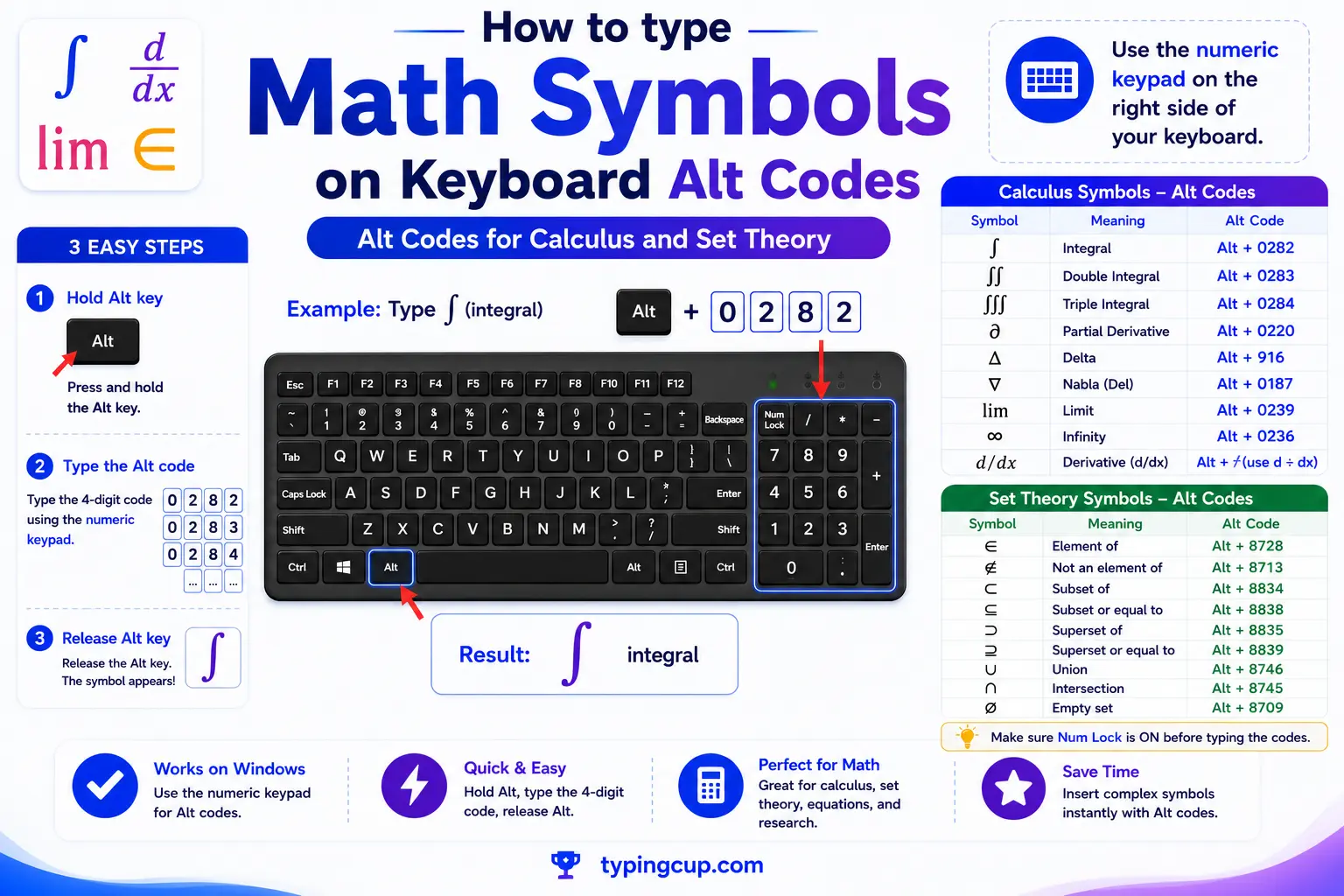
The heavier symbols from calculus, logic, and set theory. Most of these have no short legacy code, so they use the decimal Unicode value.
| Symbol | Name | Alt code | Unicode | HTML |
|---|---|---|---|---|
| ∫ | integral | Alt + 8747 | U+222B | ∫ |
| ∂ | partial derivative | Alt + 8706 | U+2202 | ∂ |
| ∑ | n-ary sum | Alt + 8721 | U+2211 | ∑ |
| ∏ | n-ary product | Alt + 8719 | U+220F | ∏ |
| ∈ | element of | Alt + 8712 | U+2208 | ∈ |
| ∪ | union | Alt + 8746 | U+222A | ∪ |
| ∩ | intersection | Alt + 8745 | U+2229 | ∩ |
| ∀ | for all | Alt + 8704 | U+2200 | ∀ |
| ∴ | therefore | Alt + 8756 | U+2234 | ∴ |
The laptop problem: Alt codes with no numeric keypad
Here’s the single most common reason Alt codes “don’t work”: they require the numeric keypad, the separate block of number keys on a full keyboard, and most laptops don’t have one. The number row above the letters does not work for Alt codes, which catches almost everyone out.
If you’re on a laptop, you have a few options. Many laptops hide a numeric keypad under the right-hand letters (often 7 8 9 / U I O / J K L) that you switch on with a Fn key or Fn + Num Lock; then hold Fn + Alt and type the code on those keys. If that’s too fiddly, skip Alt codes entirely: press Windows + . (period) to open the emoji and symbol panel and search by name, or open the on-screen keyboard (which has a real numpad you can click). Honestly, for most people on a laptop, the copy grid at the top of this page or Windows + . is faster than fighting the Fn key.
| Situation | Best method |
|---|---|
| Full keyboard | Alt code on the numpad |
| Laptop, occasional symbol | Copy from the grid above |
| Laptop, by name | Windows + . (emoji panel) |
| Laptop, many codes | Fn layer or on-screen keyboard |
Alt codes are Windows-only: Mac, Chromebook, and phones
A detail that trips up a lot of people: Alt codes are a Windows feature. Typing Alt + 0177 on a Mac does not give you ±; it triggers a menu shortcut or does nothing. Every other system has its own method, so here’s the quick translation.
On a Mac, many maths symbols have Option-key shortcuts — Option + V for √, Option + P for π, Shift + Option + = for ±, Option + 5 for ∞ — and for anything else, Control + Command + Space opens the Character Viewer. On a Chromebook, press Ctrl + Shift + U, type the hex code point, and press Enter. On iPhone and Android, there’s no code system at all — you copy the symbol or add a specialised keyboard. So Alt codes are the Windows answer to a problem every platform solves differently.
| System | How to type symbols |
|---|---|
| Windows | Alt codes on the numpad |
| Mac | Option-key shortcuts / Character Viewer |
| Chromebook | Ctrl + Shift + U, then hex |
| Linux | Ctrl + Shift + U, then hex |
| iPhone / Android | copy, or a maths keyboard app |
The Alt + X trick in Word (better than memorising codes)
If you mostly type maths in Microsoft Word, there’s a method that beats Alt codes for almost everything: type the symbol’s hex Unicode value, then press Alt + X, and Word converts it in place. So 221A then Alt + X becomes √, 2260 becomes ≠, and 03C0 becomes π.
Why it’s better: it works for any Unicode character, not just the few hundred in the legacy Alt tables, and the hex codes are the same ones listed as “Unicode” in every table on this page — so you only have to know one number per symbol. Press Alt + X right after a character and it toggles back to show you its code, which is a handy way to look one up. For serious equations, Word’s equation editor (Alt + =) is better still, with named symbols you can type like \pi and \times.
Troubleshooting Alt codes
My Alt code does nothing or opens a menu
Two usual causes. Either Num Lock is off, or you’re using the number row instead of the numeric keypad — Alt codes only work on the keypad. On a laptop without one, use the copy grid above or Windows + . instead.
I get the wrong symbol
You’ve probably crossed the two code systems. A plain number (Alt + 241) uses code page 437; a zero-padded number (Alt + 0177) uses Windows-1252. If a code gives an unexpected character, try it with or without the leading zero.
The big decimal codes (like Alt + 8800) don’t work
Those are decimal Unicode values, and not every app supports them; some need the EnableHexNumpad registry setting. If they fail, use the Word Alt + X method, or simply copy the symbol from the grid above.
The symbol shows as a box
The character came through, but the current font has no glyph for it. Switch to a broad font (like Segoe UI Symbol or Arial Unicode) and make sure the document is saved as UTF-8.
Full guides for the trickiest symbols
Some of these symbols have enough going on — spacing rules, look-alikes, coding quirks — to need a page of their own. If you’re working with one of these, the dedicated guide goes deeper than a single row in a table can:
- Square root symbol √ — the radical, the missing overbar, and cube/nth roots.
- Plus-minus symbol ± — tolerance vs two solutions, and the minus-plus ∓.
- Squared symbol ² — the ² character vs formatted superscript, and m² vs m2.
- Pi symbol π — the symbol vs the number, and the capital Π product operator.
- Infinity symbol ∞ — why infinity isn’t a number, and sizes of infinity.
- Degree symbol ° — the spacing rule and the ordinal º look-alike.
FAQ
How do I type math symbols on a keyboard?
On Windows, use Alt codes: hold Alt and type the number on the numeric keypad (with Num Lock on). For example, Alt + 0177 gives ±. On a Mac, use Option-key shortcuts. Or copy any symbol from the grid at the top of this page.
Why won’t my Alt codes work?
Almost always because Num Lock is off or you’re using the top number row instead of the numeric keypad, which is the only part that works for Alt codes. On a laptop without a keypad, use the copy grid or Windows + . instead.
What’s the difference between Alt + 241 and Alt + 0177?
A plain number uses the old code page 437; a zero-padded number uses Windows-1252. Both happen to give ± here, but in general the leading zero changes which character table Windows reads, so the same number can produce different symbols.
Do Alt codes work on a Mac?
No. Alt codes are Windows-only. On a Mac, use Option-key shortcuts (Option + V for √, Option + P for π) or the Character Viewer (Control + Command + Space).
How do I type any symbol in Word?
Type the symbol’s hex Unicode value and press Alt + X. For example, 221A then Alt + X becomes √. It works for any character, so you only need one code per symbol.
