Bullet Point Symbol (•): How to Type, Copy, and Use It
The bullet point, •, is the small round dot that starts each item in a list. It’s simple to copy, easy to type, and comes in a whole family of shapes, but there’s a catch most guides never mention: a lot of the time, you shouldn’t type it by hand at all.
If you just need the symbol, copy • from the grid below, along with its HTML entity or URL code.
Below you’ll find how to type • on every device, when to make a real list instead of typing bullets, the other bullet shapes you can use, why password boxes show dots, and how to restyle bullets in Word, Docs, and CSS.
In a hurry?
- Copy it: click • in the grid below.
- On Windows: hold Alt and type 0149 on the numeric keypad.
- On a Mac: press Option + 8.
- Making a list? Use your app’s bulleted-list button, or start Markdown lines with – , instead of typing •.
- In HTML the bullet is • or •; in a URL it’s %E2%80%A2.
Click to copy: the bullet point
Grab •, its HTML entity, the numeric code, or the URL code
Table of Contents
Copy and paste the bullet point
The bullet point with every code you’re likely to need in one row. Use the grid above to copy with a click; this table is the reference.
| Symbol | Name | Unicode | Windows | Mac | HTML |
|---|---|---|---|---|---|
| • | bullet | U+2022 | Alt + 0149 | Option + 8 | • |
That covers typing the literal character. But before you paste it into a list, read the next section, because there’s usually a better way.
How to type the bullet point on any device
The bullet isn’t printed on keyboards, so it takes a code or a menu. Here’s the quickest route on each system.
Type the bullet point on Windows
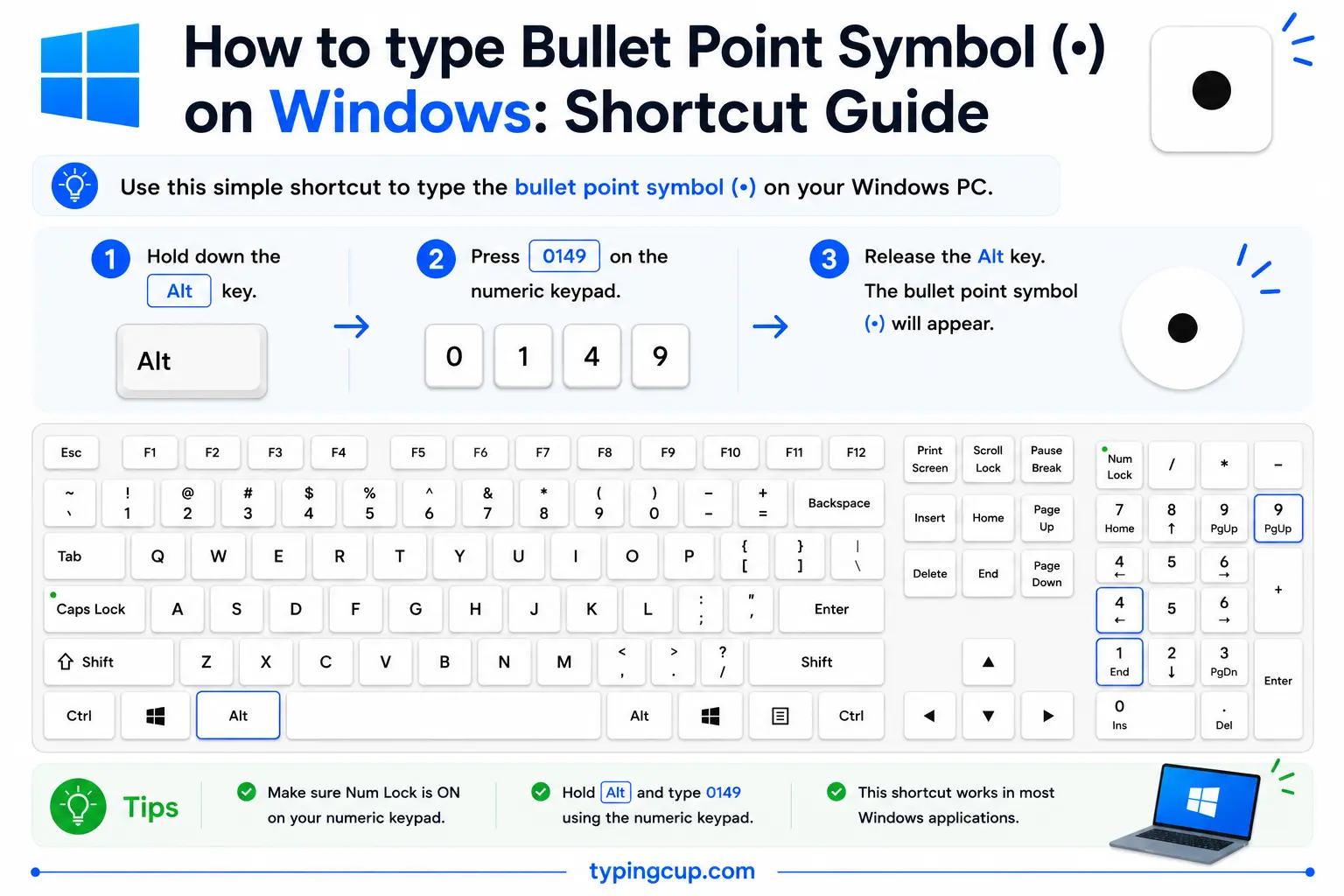
The reliable method is the Alt code: turn on Num Lock, hold Alt, and type 0149 on the numeric keypad. A shorter code, Alt + 7, also produces a bullet in many apps. Or press Windows + . for the symbol panel and pick it from the punctuation.
Type the bullet point on Mac
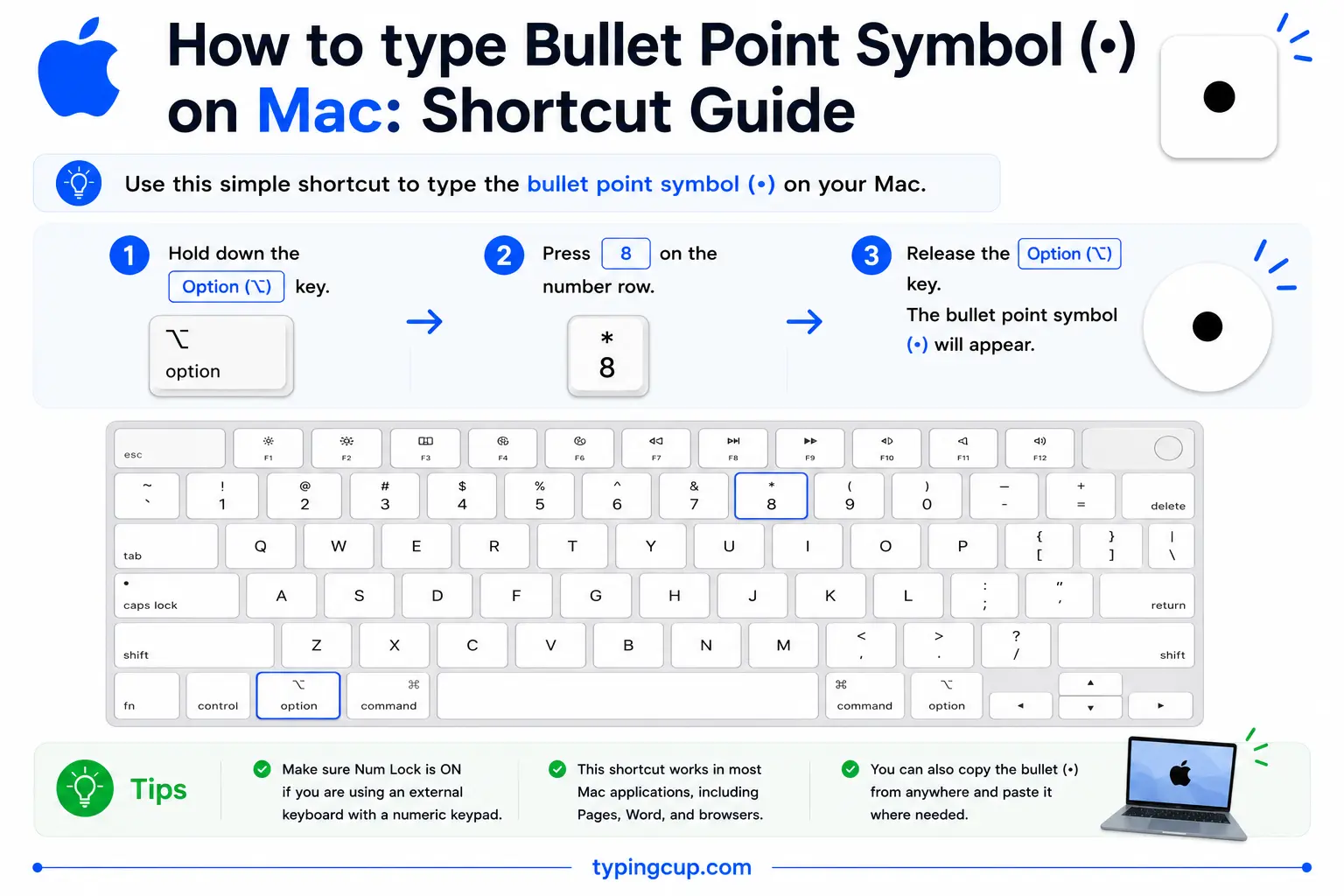
On a Mac, press Option + 8 for •. It’s a single shortcut, no dead-key step. The Character Viewer (Control + Command + Space, then search “bullet”) has the other bullet shapes too.
Type the bullet point on iPhone and Android
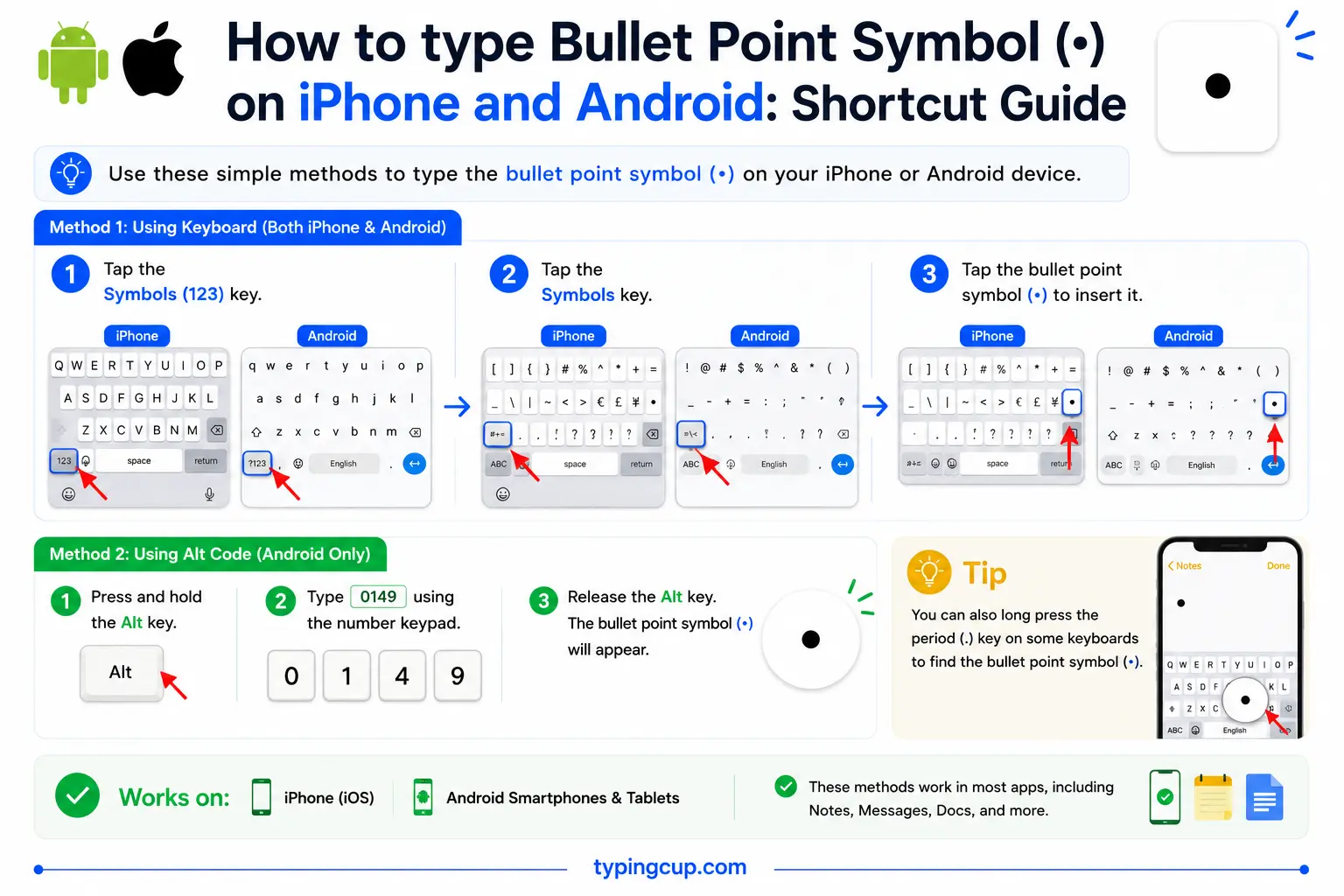
Open the symbols keyboard (the 123 key) and the bullet is among the punctuation, often on the second symbols page. In most note and email apps, though, you can just start a bulleted list from the formatting bar and skip the character entirely.
Type the bullet point in Microsoft Word
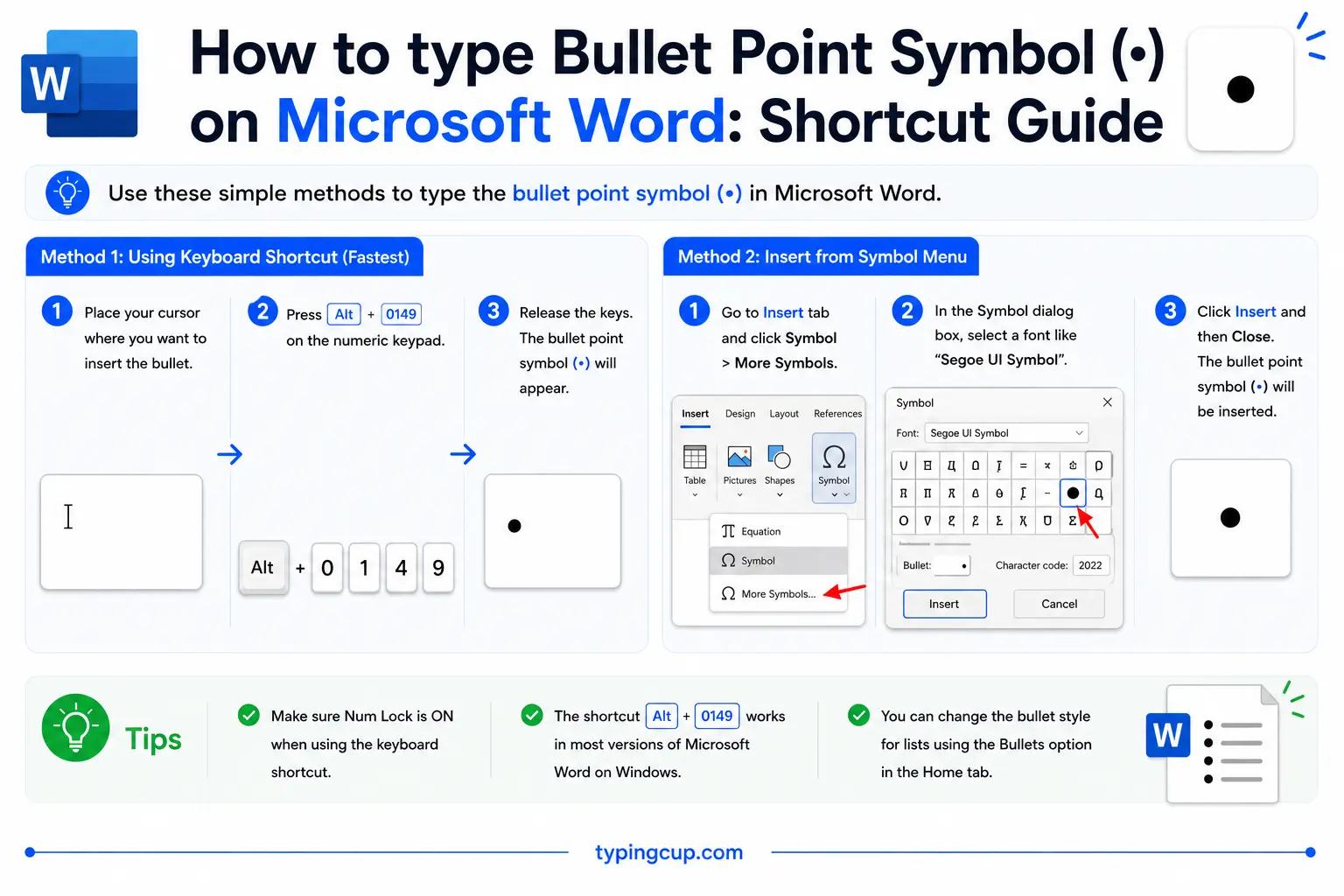
You can type • with Alt + 0149, or the hex method, 2022 then Alt + X. Most of the time, though, click the Bullets button on the Home tab (or type * and a space and let AutoCorrect start a list), which builds a proper bulleted list rather than loose dots.
Type the bullet point on Linux
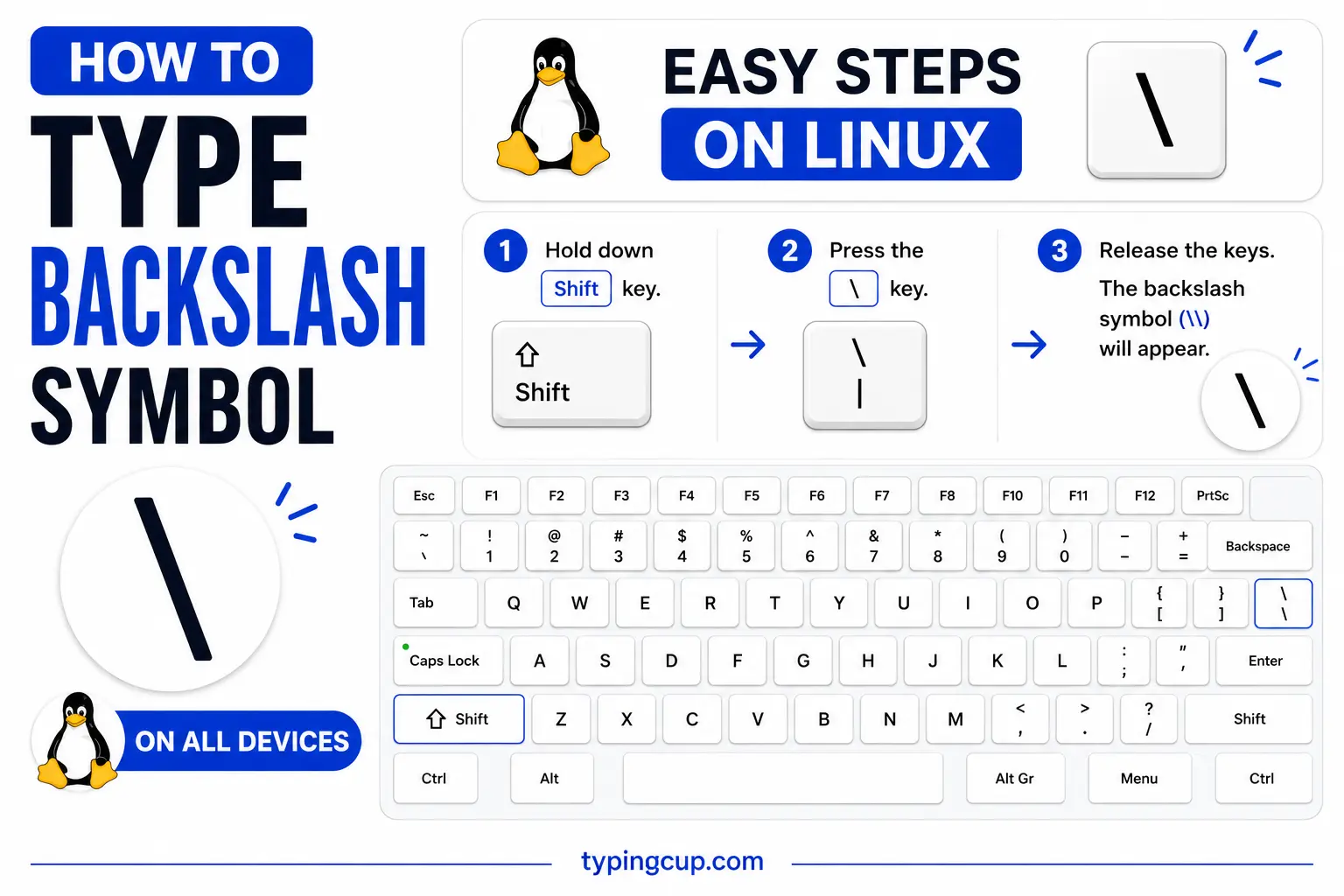
Press Ctrl + Shift + U, type 2022, then press Enter. On layouts with a Compose key, you can often use Compose sequences for the dot, but the Unicode method always works.
Type the bullet point in HTML and CSS
For a single literal bullet in text, use • or •. For an actual list, use <ul> and <li> and let the browser add the bullets. In CSS you control the marker with list-style-type, and a literal bullet in a content value is \2022.
When not to type a bullet (and make a real list instead)
Here’s the part most guides skip: a lot of the time, you shouldn’t type the • character at all. If you’re building an actual list on the web or in a document, you want a proper list, not a bullet you typed by hand.
In HTML that means a <ul> with <li> items, and the browser draws the bullets for you. In Markdown, you start each line with - or * . In Word or Google Docs, you click the bulleted-list button. These make real lists: they indent cleanly, stay aligned when text wraps, and, importantly, are read aloud as lists by screen readers. A line that just begins with a pasted • looks like a list but isn’t one, and it falls apart the moment the text reflows.
So when is the literal • the right call? In plain-text places that have no list formatting: a social media bio, a plain-text email, a code comment, a spreadsheet cell, or a heading where you want a dot between items. There, the copy grid above is exactly what you want. Everywhere else, reach for a real list.
The bullet family: •, ◦, ‣, ⁃ and friends
The round dot is only the most common of a whole set of bullet characters. Picking the right one can make a list look intentional rather than default.
| Symbol | Name | Unicode | Best for |
|---|---|---|---|
| • | Bullet | U+2022 | the standard list dot |
| ◦ | White bullet | U+25E6 | sub-points and hollow styles |
| ‣ | Triangular bullet | U+2023 | a pointed, directional look |
| ⁃ | Hyphen bullet | U+2043 | a dash-style list |
| ● | Black circle | U+25CF | a bigger, bolder dot |
| ▪ | Black small square | U+25AA | a square-bullet list |
| · | Middle dot | U+00B7 | separating items inline |
The white bullet ◦ is the classic choice for a second level of indentation nested under a solid •.
Bullet vs middle dot: • or ·
The bullet • and the middle dot · look similar but do different jobs, and they’re different sizes. The bullet • is bigger and sits at the start of a list item. The middle dot · (also called an interpunct) is smaller and sits between things on the same line, as a separator.
You’ll see the middle dot used to separate items in a byline (News · Sport · Weather), to show multiplication in maths (a · b), and in dictionaries to split a word into syllables. If you’re marking list items, use the bullet; if you’re separating things inline, the middle dot usually looks cleaner. On Windows the middle dot is Alt + 0183, and on a Mac it’s Option + Shift + 9.
Why password boxes show dots
Those little dots that appear when you type a password are bullets doing a different job: masking. Instead of showing the letters you type, the field replaces each character with a dot, usually a bullet • or a slightly larger black circle ●, so someone glancing over your shoulder can’t read it.
It’s purely visual. The real characters are still there underneath; only the display is swapped for dots. That’s why the number of dots matches the length of your password, and why a “show password” button can flip them straight back to the real text.
Custom bullets in Word, Google Docs, and CSS
If the plain dot feels dull, every tool lets you change it. In Word and Google Docs, the bulleted-list button has a dropdown, a bullet library, where you can pick squares, arrows, checkmarks, or any character you like.
On the web, CSS controls the marker. list-style-type switches between disc (•), circle (◦), and square (▪), while list-style-image or the ::marker selector lets you use a custom symbol or colour. That’s the proper way to restyle bullets across a site, rather than pasting a different character onto each line.
The bullet point in URLs and code
You’ll rarely put a bullet in a domain name, but it turns up in URL paths and in code.
In a URL, • is percent-encoded as %E2%80%A2, its three UTF-8 bytes written out. In code, the escapes are \u2022 in JavaScript, Java, JSON, and Python, and • or • in HTML. Like other non-ASCII characters, it can garble in the wrong encoding, showing as •, which is fixed by serving everything as UTF-8.
Copy-paste HTML codes
Every code for the bullet point in one place. Click a cell and copy.
| Symbol | Named entity | Numeric entity | URL (percent) code |
|---|---|---|---|
| • | • | • | %E2%80%A2 |
In a CSS content value, use \2022. For other symbols, the arrow symbols guide has the same copy-and-code treatment, and for accented letters see the full letters-with-accents list.
Troubleshooting
“My bullets don’t line up when the text wraps.”
You’ve typed literal • characters instead of using a real list, so the second line runs back under the bullet. Switch to a proper bulleted list (the list button, or <ul> and <li> in HTML) and the text will indent correctly.
“My bullet shows up as • or a box.”
That’s an encoding or font problem. Serve the text as UTF-8 and use a common font; the • pattern specifically is UTF-8 being read as an older encoding.
“I can’t find the bullet on my keyboard.”
It isn’t printed on the keys. Use Alt + 0149 on Windows, Option + 8 on a Mac, or copy it from the grid above. For a list, use your app’s bullet button instead.
“My bullet and middle dot look the same.”
They’re different characters and sizes: the bullet • (U+2022) is the larger list dot, and the middle dot · (U+00B7) is the smaller inline separator. Copy whichever you actually need from the tables above.
FAQ
How do I type a bullet point?
On Windows, Alt + 0149. On a Mac, Option + 8. On a phone, it’s on the symbols keyboard. Or click • in the grid above. For a list, use your app’s bulleted-list button instead of typing dots.
Should I type • or make a proper list?
For lists in documents, HTML, or Markdown, make a real list, which stays aligned and is accessible. Type the literal • only in plain-text places with no list formatting, like a bio or a spreadsheet cell.
What’s the difference between • and ·?
Size and use. The bullet • is the larger dot at the start of a list item; the middle dot · is a smaller separator used between items on the same line, as in News · Sport · Weather.
Why does my password field show dots?
The dots are masking. The field hides each character behind a bullet or black circle so it can’t be read over your shoulder; the real text is still there and a show-password button reveals it.
How do I write a bullet in HTML?
For a single bullet, use • or •. For a real list, use a <ul> with <li> items and let the browser add the bullets. In a URL the bullet is %E2%80%A2.
