Arrow Symbols: Copy & Paste → ← ↑ ↓ and How to Type Them
Arrows are the quiet workhorses of on-screen writing. They point, they connect steps, and they say “go this way” without a single word. This page gathers them in one place, from the plain → and ← to double-line ⇒, heavy ➡, and looping ↻ arrows.
The fastest way to use one is to click it in the grid below; it copies straight to your clipboard. If you’d rather type them, there are shortcuts for Windows, Mac, phones, Word, and HTML further down.
You’ll also find what each arrow tends to mean, a full table of Unicode and HTML codes, and ready-made entities to paste into a web page.
In a hurry?
- Copy it: click any arrow in the grid below.
- On Windows: hold Alt and type 26 on the numeric keypad for → (24 ↑, 25 ↓, 27 ←).
- In Word: type the hex code then Alt + X, like 2192 then Alt + X for →.
- In HTML: use the entity
→for →. - On a phone: use the emoji keyboard’s symbols, or copy from the grid.
Click to copy: arrow symbols
Tap any arrow and it is copied to your clipboard
Table of Contents
Copy and paste arrow symbols
Every arrow below is ready to copy from the grid above. These tables add the name, the Unicode point, the HTML entity, and how to type each one, grouped by style.
Start with the plain directional arrows. These are the ones you’ll reach for most, and the four main directions even have old keyboard Alt codes that still work.
| Symbol | Name | Unicode | HTML | Windows |
|---|---|---|---|---|
| → | Rightwards arrow | U+2192 | → | Alt + 26 |
| ← | Leftwards arrow | U+2190 | ← | Alt + 27 |
| ↑ | Upwards arrow | U+2191 | ↑ | Alt + 24 |
| ↓ | Downwards arrow | U+2193 | ↓ | Alt + 25 |
| ↔ | Left-right arrow | U+2194 | ↔ | Alt + 29 |
| ↕ | Up-down arrow | U+2195 | ↕ | Alt + 18 |
| ↗ | North-east arrow | U+2197 | ↗ | 2197 Alt+X |
| ↘ | South-east arrow | U+2198 | ↘ | 2198 Alt+X |
| ↙ | South-west arrow | U+2199 | ↙ | 2199 Alt+X |
| ↖ | North-west arrow | U+2196 | ↖ | 2196 Alt+X |
The double-line arrows are the maths and logic set. They look heavier because each has two strokes, and they carry their own meanings in equations.
| Symbol | Name | Unicode | HTML | Windows |
|---|---|---|---|---|
| ⇒ | Rightwards double arrow | U+21D2 | ⇒ | 21D2 Alt+X |
| ⇐ | Leftwards double arrow | U+21D0 | ⇐ | 21D0 Alt+X |
| ⇑ | Upwards double arrow | U+21D1 | ⇑ | 21D1 Alt+X |
| ⇓ | Downwards double arrow | U+21D3 | ⇓ | 21D3 Alt+X |
| ⇔ | Left-right double arrow | U+21D4 | ⇔ | 21D4 Alt+X |
| ⇕ | Up-down double arrow | U+21D5 | ⇕ | 21D5 Alt+X |
The heavy and decorative arrows are the ones you’ll see on buttons and in slide decks. Most double as emoji, so they can render in colour depending on where you paste them.
| Symbol | Name | Unicode | HTML | Windows |
|---|---|---|---|---|
| ➡ | Heavy rightwards arrow | U+27A1 | ➡ | 27A1 Alt+X |
| ⬅ | Heavy leftwards arrow | U+2B05 | ⬅ | 2B05 Alt+X |
| ⬆ | Heavy upwards arrow | U+2B06 | ⬆ | 2B06 Alt+X |
| ⬇ | Heavy downwards arrow | U+2B07 | ⬇ | 2B07 Alt+X |
| ➜ | Heavy round-tip arrow | U+279C | ➜ | 279C Alt+X |
| ➔ | Heavy wide-head arrow | U+2794 | ➔ | 2794 Alt+X |
| ➤ | Black arrowhead | U+27A4 | ➤ | 27A4 Alt+X |
Finally, the curved, looped, and paired arrows. These cover reply and forward, undo and redo, and the back-and-forth arrows used in chemistry and diagrams.
| Symbol | Name | Unicode | HTML | Windows |
|---|---|---|---|---|
| ↩ | Left arrow with hook | U+21A9 | ↩ | 21A9 Alt+X |
| ↪ | Right arrow with hook | U+21AA | ↪ | 21AA Alt+X |
| ↺ | Anticlockwise arrow | U+21BA | ↺ | 21BA Alt+X |
| ↻ | Clockwise arrow | U+21BB | ↻ | 21BB Alt+X |
| ⤴ | Arrow curving up | U+2934 | ⤴ | 2934 Alt+X |
| ⤵ | Arrow curving down | U+2935 | ⤵ | 2935 Alt+X |
| ⇄ | Right over left pair | U+21C4 | ⇄ | 21C4 Alt+X |
| ⇌ | Equilibrium harpoons | U+21CC | ⇌ | 21CC Alt+X |
| ↦ | Maps to | U+21A6 | ↦ | 21A6 Alt+X |
| ↵ | Carriage return | U+21B5 | ↵ | 21B5 Alt+X |
| ⟶ | Long right arrow | U+27F6 | ⟶ | 27F6 Alt+X |
| ⟷ | Long left-right arrow | U+27F7 | ⟷ | 27F7 Alt+X |
What arrow symbols mean
An arrow is one of the most flexible marks we have. On its own it points; dropped into a sentence, it stands in for words like “leads to,” “becomes,” or “go here.”
In everyday writing, → often means “results in” or “next step,” as in mix → bake → cool. The left arrow ← usually means “back,” the way a browser button does. The up and down arrows, ↑ and ↓, mark increases and decreases, which is why they sit next to prices and statistics.
In maths and logic, the double-line arrows are precise. ⇒ reads as “implies,” ⇔ as “if and only if,” and ↦ describes what a function does to an input, mapping one value to another. Chemists use the harpoon pair ⇌ for a reaction that runs in both directions at once.
Interfaces lean on arrows constantly. ↺ and ↻ stand for undo and redo, or refresh. ↩ and ↪ are reply and forward. ↵ is the return or enter key. Because the shapes are so recognisable, they cross language barriers, which is a big part of why they turn up everywhere from road signs to spreadsheets.
How to type arrow symbols on any device
Arrows live well outside the basic keyboard, so most of them need a code or a picker rather than a single key. Here’s the quickest route on each platform.
Windows
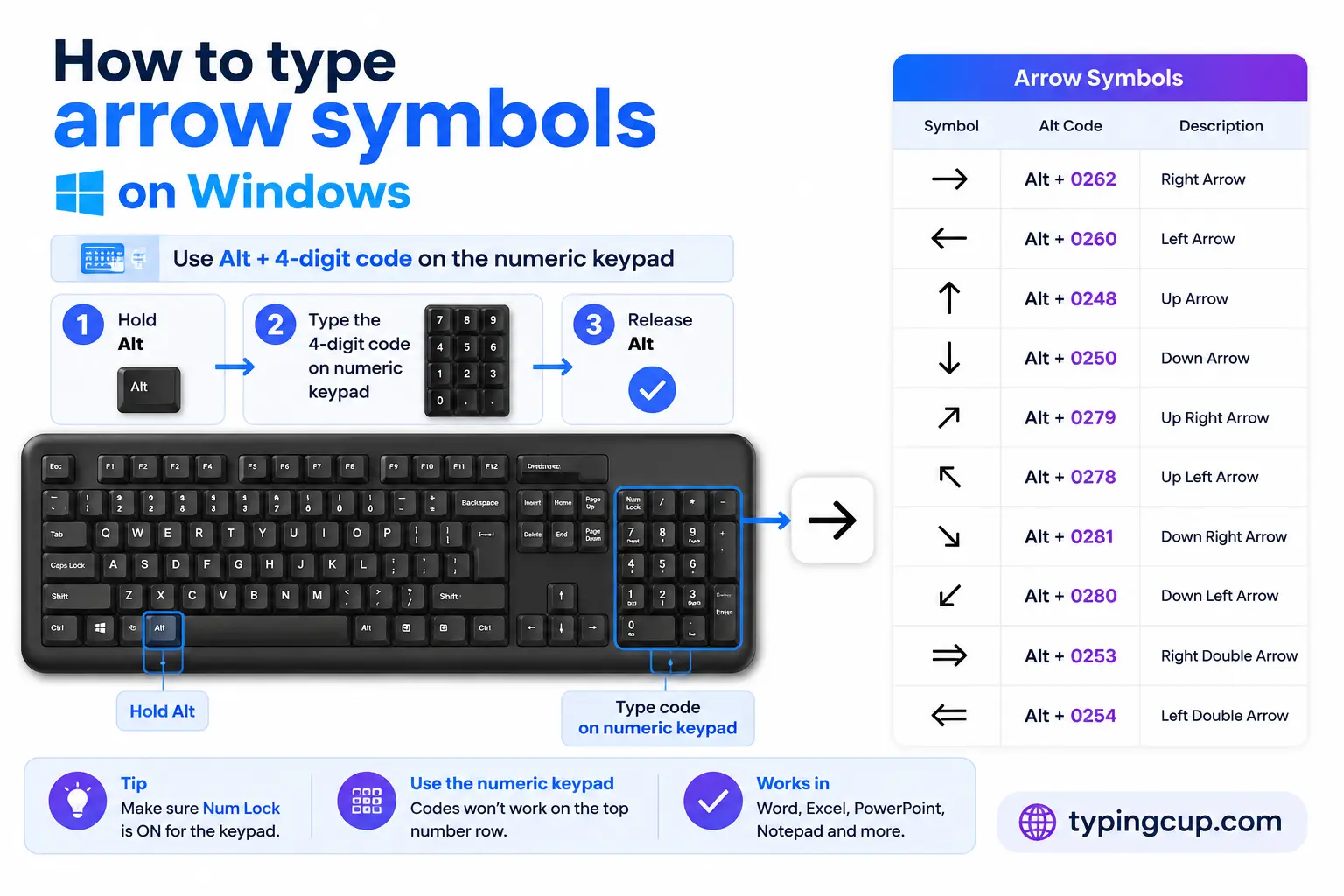
The four main arrows have old keypad Alt codes that still work in most apps. With Num Lock on, hold Alt and type the number on the numeric keypad: Alt + 26 for →, Alt + 27 for ←, Alt + 24 for ↑, Alt + 25 for ↓, plus Alt + 29 for ↔ and Alt + 18 for ↕. Note there’s no leading zero on these.
For every other arrow, use Word’s hex trick: type the Unicode hex, then press Alt + X. So 2192 then Alt + X becomes →, and 21D2 then Alt + X becomes ⇒. Outside Word, press Windows + . to open the emoji and symbol panel and pick arrows from the symbols tab, or use Character Map.
Mac
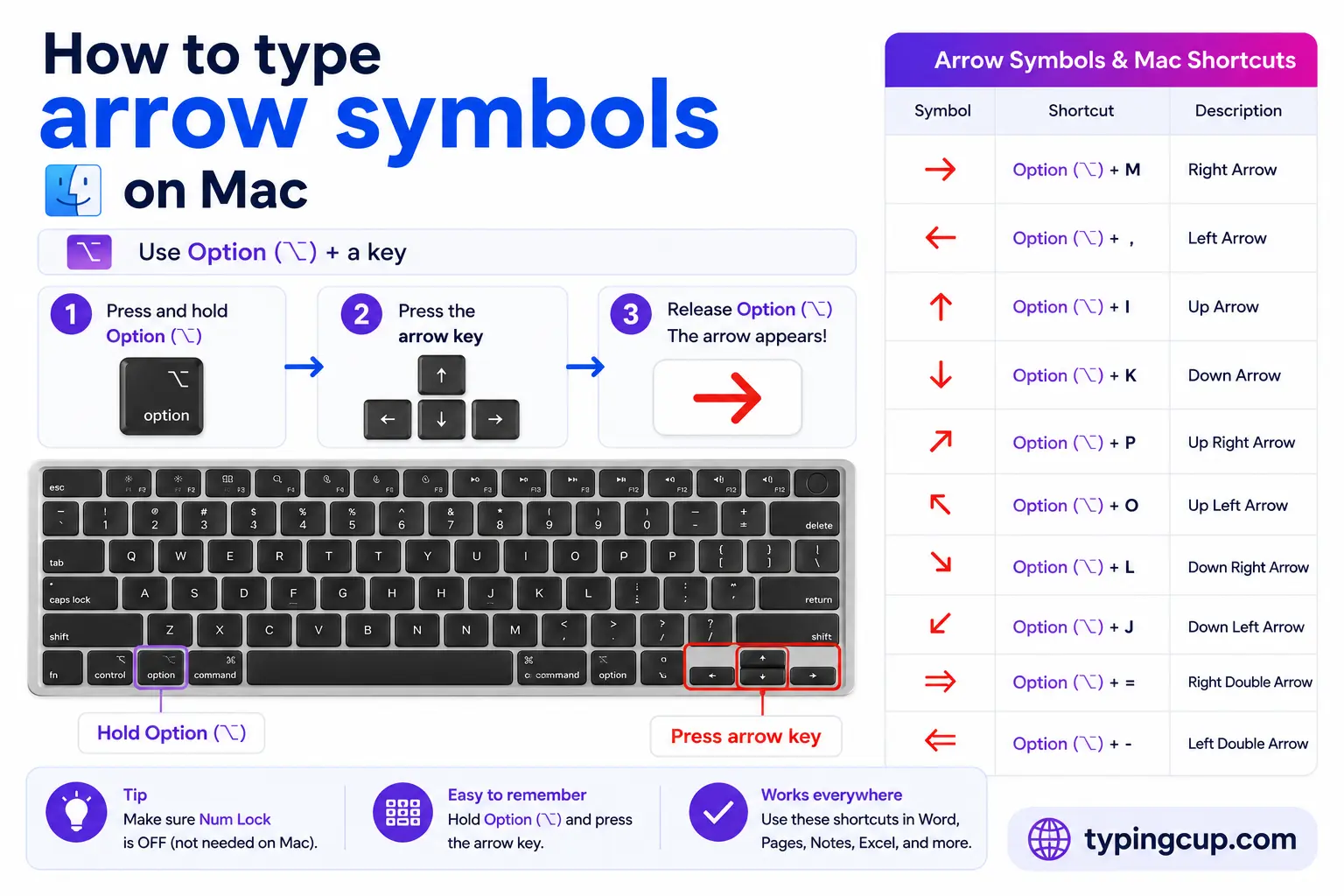
macOS has no arrow keys built into the character layout, so the Character Viewer is home base. Press Control + Command + Space, type “arrow” in the search box, and double-click the one you want. Drag your favourites to the top so they’re one click away next time.
For the coloured emoji arrows like ➡️ and ⬅️, use the same picker and choose the emoji version rather than the plain black symbol.
iPhone and Android
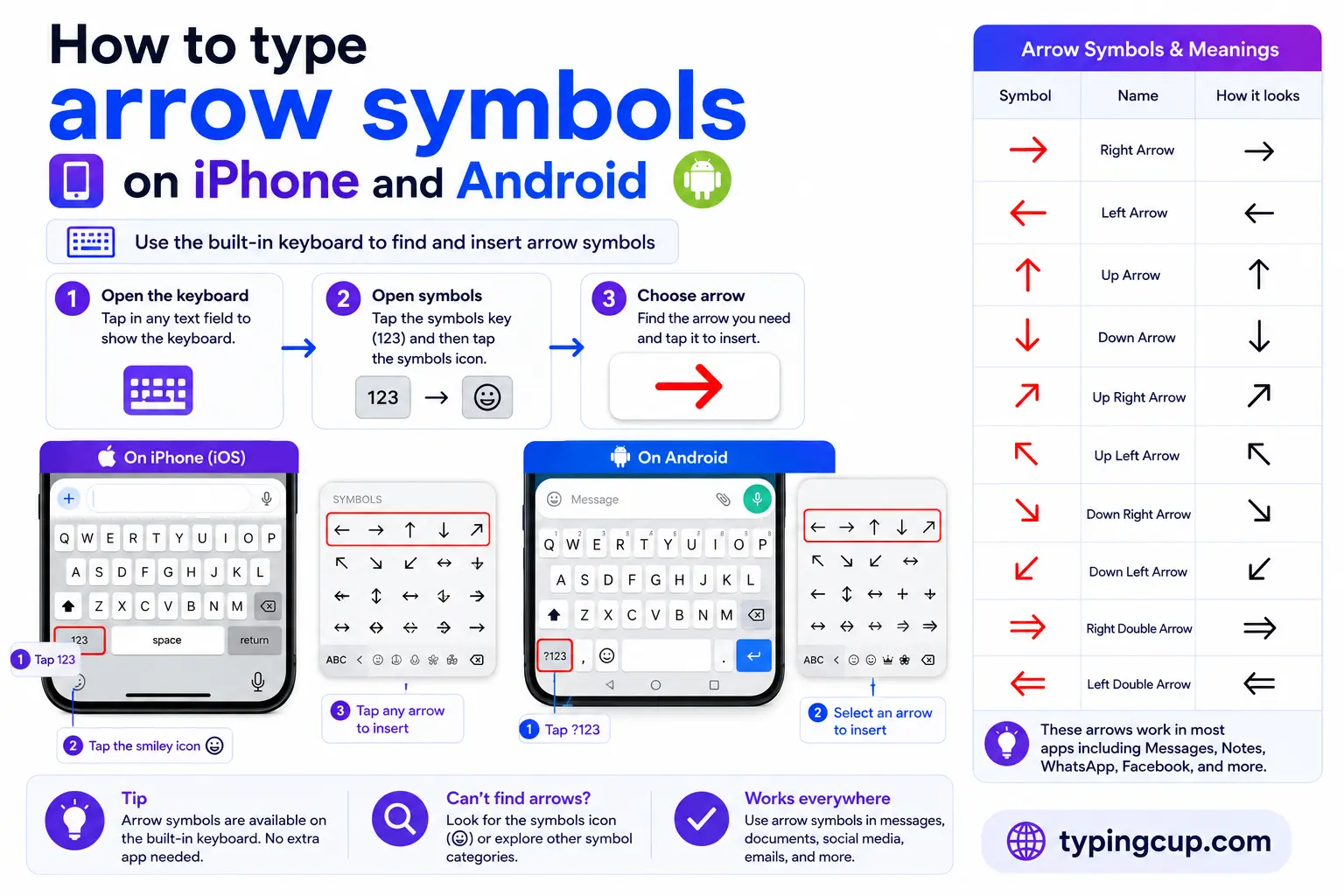
Phones handle arrows mainly through the emoji keyboard. Open it and look under the symbols section for ➡️, ⬅️, ⬆️, ⬇️, ↔️, ↕️, ↩️, and the refresh arrows. These are emoji, so they may show in colour and can look a little different from app to app.
For the plain black text arrows like → and ⇒, the easiest path is to copy them from the grid above, or install a symbols keyboard from your app store.
Microsoft Word and Google Docs
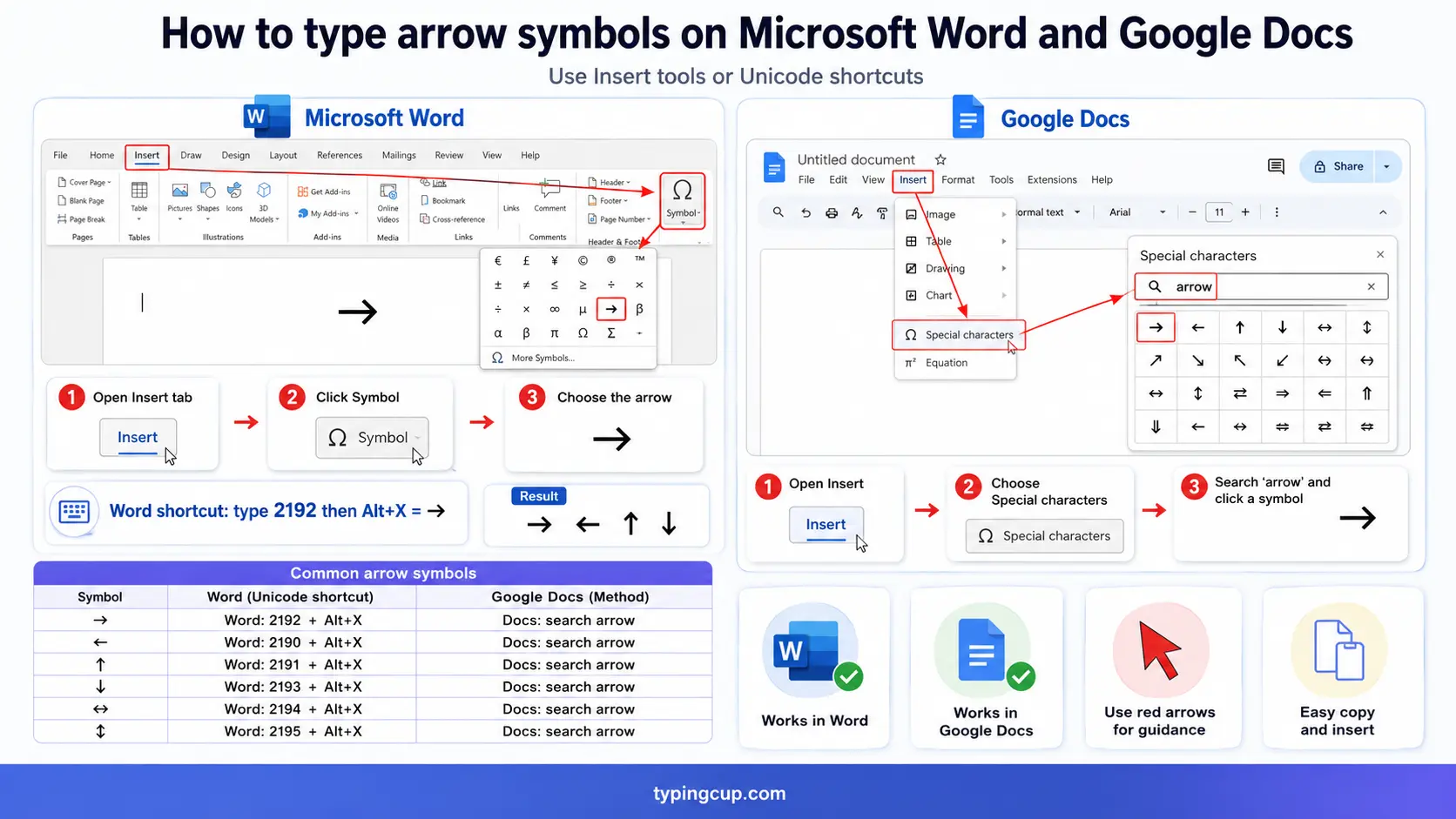
Both quietly turn typed sequences into arrows. In Word, typing --> autocorrects to →, ==> becomes ⇒, and <-- gives ←. Google Docs does the same through its automatic substitutions. If autocorrect is switched off, use Insert, then Symbol in Word, or Insert, then Special characters in Docs, and search by name or hex code.
Linux
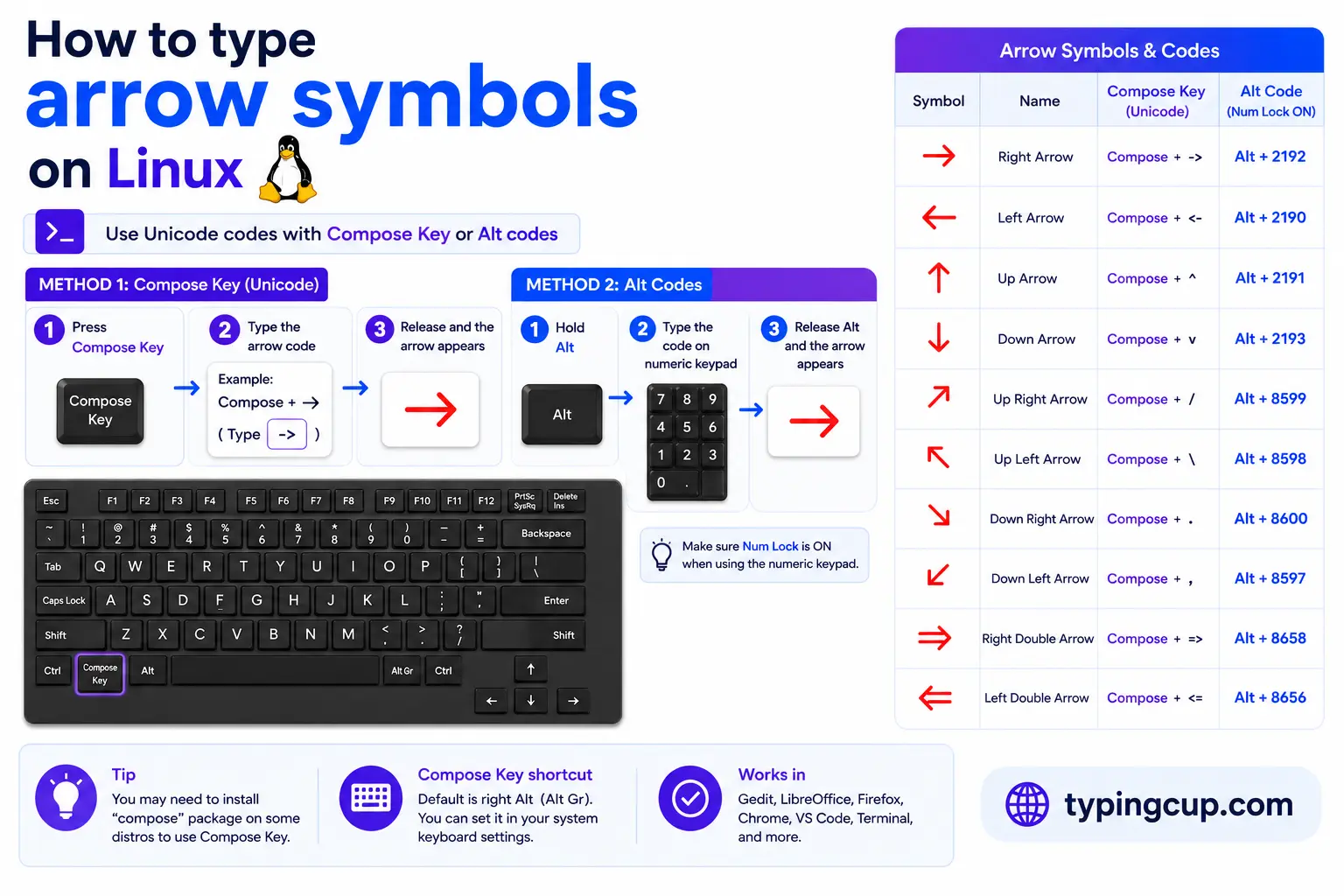
Press Ctrl + Shift + U, type the hex code, then press Enter: 2192 for →, 21d2 for ⇒. Many code editors also accept the hex directly, and LaTeX has named commands, below.
HTML and CSS
In HTML, the common arrows have short named entities: → for →, ← for ←, ↑ for ↑, and ↓ for ↓. The double-line versions capitalise the direction, so ⇒ gives ⇒. Anything without a name takes the numeric form, like ➡ for the heavy ➡. In CSS, use the escaped code point in a content value, such as \2192 for →.
LaTeX and Markdown
In LaTeX, arrows are commands: \to or \rightarrow for →, \Rightarrow for ⇒, \leftrightarrow for ↔, \mapsto for ↦, and \rightleftharpoons for the chemistry equilibrium ⇌. Markdown has no arrow syntax of its own, so paste the character or drop in the HTML entity.
Copy-paste HTML codes
The handiest arrows for the web have short named entities; the rest use the numeric form. Click a cell and copy.
| Symbol | Named entity | Numeric entity |
|---|---|---|
| → | → | → |
| ← | ← | ← |
| ↑ | ↑ | ↑ |
| ↓ | ↓ | ↓ |
| ↔ | ↔ | ↔ |
| ⇒ | ⇒ | ⇒ |
| ⇐ | ⇐ | ⇐ |
| ⇔ | ⇔ | ⇔ |
| ➡ | — (none) | ➡ |
| ⬅ | — (none) | ⬅ |
| ↩ | ↩ | ↩ |
| ↪ | ↪ | ↪ |
| ↻ | ↻ | ↻ |
| ↦ | ↦ | ↦ |
Serve the page as UTF-8 and the arrows will render the same everywhere. For accented letters rather than symbols, the letters-with-accents list has its own copy boxes and codes.
Troubleshooting
“The arrow shows up as a box or a missing glyph.”
The font you’re using doesn’t include that character. Switch to a common font like Arial, Segoe UI, or Noto, and make sure the document is saved as UTF-8. The heavier and rarer arrows are the ones most likely to be missing from older fonts.
“Alt + 26 gives me a different character.”
Num Lock is probably off, or you’re using the top-row numbers instead of the keypad. Turn Num Lock on and use the keypad. Some apps also intercept those low Alt codes; in that case use Word’s 2192 then Alt + X instead.
“My arrow turned into a coloured emoji.”
Some arrows have both a plain and an emoji form. A hidden variation selector is switching it to the colourful emoji version. Delete the character and re-insert the plain one (for example U+2192 for →) if you want the black text arrow.
“It pastes as a question mark somewhere else.”
The other program is using a non-Unicode encoding that doesn’t include the arrow. Save or paste as UTF-8 and it will hold.
FAQ
How do I type a right arrow (→) on Windows?
Hold Alt and type 26 on the numeric keypad, with Num Lock on. In Word, you can also type 2192 and press Alt + X. Or just click → in the grid above.
What’s the difference between → and ⇒?
→ is a single-line, general-purpose arrow. ⇒ is double-lined and, in maths and logic, means “implies.” In ordinary writing people use them fairly loosely, but in equations the difference matters.
How do I add an arrow in HTML?
Use the named entity where one exists: → for →, ← for ←, ↑ for ↑, ↓ for ↓, and ⇒ for ⇒. For arrows without a name, use the numeric form, like ➡ for the heavy ➡.
Are arrow symbols the same as arrow emoji?
Not quite. Emoji arrows like ➡️ render in colour and carry a hidden variation selector; text arrows like → are plain glyphs that take on the surrounding text colour. They can share a code point but display differently.
What’s the fastest way to insert an arrow?
Copy it from the grid above for a one-off. For repeated use, learn the Alt code, or lean on Word’s autocorrect, where typing two hyphens and a greater-than sign turns into → on its own.
