Letters With Accents (Full List + How to Type Them)
In a hurry?
- Copy it: tap any character in the table below, then paste. Best for a one-off.
- On a phone: press and hold the letter, then slide to the accent — á, é, ñ.
- On Windows: hold Alt and type the code on the number pad — Alt + 0233 = é.
- On a Mac: press Option + e, then the letter — that gives é.
Copy & paste accented letters
Select a letter, then copy it
The fastest way to get a letter with an accent is to copy it from the table below. Tap any character to grab it.
If you’d rather type it yourself:
- Windows: hold Alt and type the code on the numeric keypad — Alt + 0233 → é
- Mac: press Option + e, then the letter — Option + e, then e → é
- Phone: press and hold the letter, then slide to the accent you want
- Word: type the hex code, then Alt + X — 00E9 then Alt + X → é
The rest of this page lists every accented letter, tells you what each mark is called, and walks through the exact steps for each device. Each letter also has its own detailed guide, linked from the table.
Table of Contents
Every accented letter, ready to copy
Lowercase and uppercase, grouped by base letter. The letter links go to the full guide for that character family.
| Letter | Lowercase | Uppercase |
|---|---|---|
| A | á à â ã ä å ā ă ą | Á À Â Ã Ä Å Ā Ă Ą |
| C | ç ć č ĉ ċ | Ç Ć Č Ĉ Ċ |
| D | ď đ | Ď Đ |
| E | é è ê ë ē ę ě | É È Ê Ë Ē Ę Ě |
| G | ğ ģ ĝ ġ | Ğ Ģ Ĝ Ġ |
| I | í ì î ï ī į | Í Ì Î Ï Ī Į |
| K | ķ | Ķ |
| L | ł ľ ļ ĺ | Ł Ľ Ļ Ĺ |
| N | ñ ń ň ņ | Ñ Ń Ň Ņ |
| O | ó ò ô õ ö ø ō ő | Ó Ò Ô Õ Ö Ø Ō Ő |
| R | ř ŕ ŗ | Ř Ŕ Ŗ |
| S | ś š ş ŝ | Ś Š Ş Ŝ |
| T | ť ţ ŧ | Ť Ţ Ŧ |
| U | ú ù û ü ū ů ű ų | Ú Ù Û Ü Ū Ů Ű Ų |
| Y | ý ÿ ŷ | Ý Ÿ Ŷ |
| Z | ź ž ż | Ź Ž Ż |
A few special characters don’t fit the pattern but come up constantly: æ (AE ligature), œ (OE ligature), ß (German eszett), ð (eth), and þ (thorn).
What each accent mark is called
People search for these marks by description all the time: “the two dots,” “the little hat,” “the squiggle.” Here are the real names, so you know which one you need.
| Mark | Name | Example | Used in |
|---|---|---|---|
| ´ | Acute | é | Spanish, French, Polish, Czech |
| ` | Grave | è | French, Italian, Portuguese |
| ˆ | Circumflex (“the hat”) | ê | French, Portuguese, Welsh |
| ˜ | Tilde (“the squiggle”) | ñ | Spanish, Portuguese |
| ¨ | Umlaut / diaeresis (“two dots”) | ü | German, Turkish, Hungarian |
| ¸ | Cedilla (“the tail”) | ç | French, Portuguese, Turkish |
| ˚ | Ring | å | Danish, Norwegian, Swedish |
| ¯ | Macron (“the line”) | ā | Latvian, Māori |
| ˇ | Caron / háček | š | Czech, Slovak, Croatian |
| ˘ | Breve | ă | Romanian, Turkish |
| ˛ | Ogonek (“the hook”) | ą | Polish, Lithuanian |
| / | Stroke or slash | ø, ł | Norwegian, Danish, Polish |
The same mark can do different jobs in different languages. In Spanish, the acute in más marks a stressed syllable. In French, the accent in é changes the vowel sound itself. That’s why you can’t swap them: a and à are two different words in French.
How to type letters with accents on any device
Here is the simple version. An accented letter is just a normal letter wearing a tiny mark — a little hat, two dots, or a small tail. To make one, you tell your device to add that mark. On a phone, you hold the letter down and pick the mark you want. On a computer, you either copy the letter from the table above, or hold one special key and press the letter. Below are the exact keys for each device — find yours and follow the steps.
Windows: Alt codes
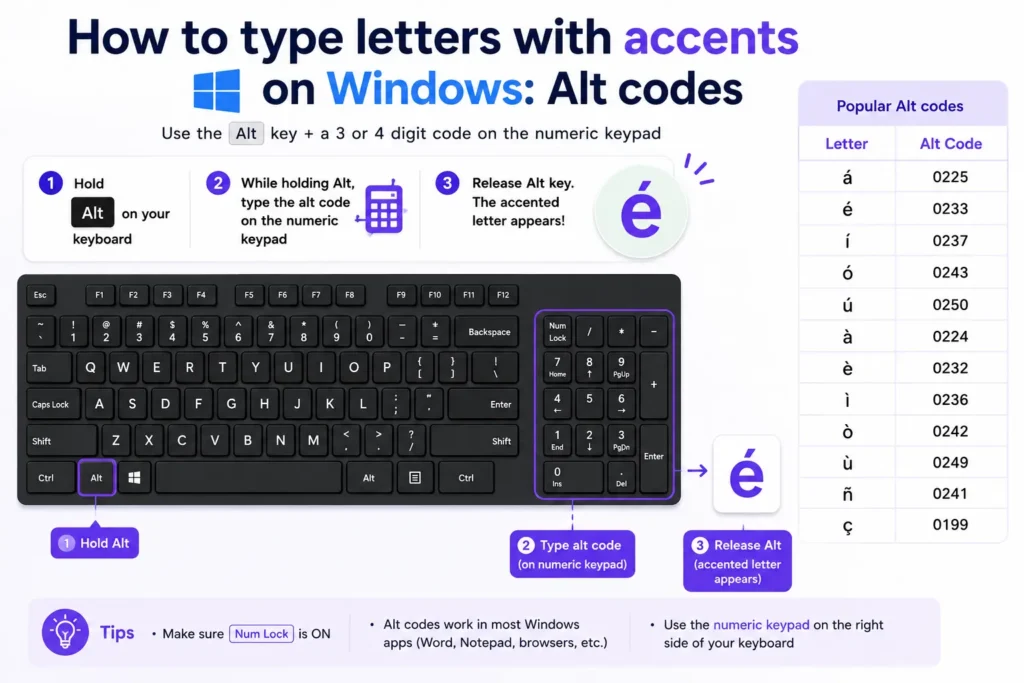
Turn on Num Lock, hold Alt, and type the code on the numeric keypad. The number row at the top of the keyboard won’t work.
| Lowercase | Alt code | Uppercase | Alt code |
|---|---|---|---|
| á | Alt + 0225 | Á | Alt + 0193 |
| à | Alt + 0224 | À | Alt + 0192 |
| â | Alt + 0226 | Â | Alt + 0194 |
| ä | Alt + 0228 | Ä | Alt + 0196 |
| å | Alt + 0229 | Å | Alt + 0197 |
| æ | Alt + 0230 | Æ | Alt + 0198 |
| ç | Alt + 0231 | Ç | Alt + 0199 |
| é | Alt + 0233 | É | Alt + 0201 |
| è | Alt + 0232 | È | Alt + 0200 |
| ê | Alt + 0234 | Ê | Alt + 0202 |
| ë | Alt + 0235 | Ë | Alt + 0203 |
| í | Alt + 0237 | Í | Alt + 0205 |
| î | Alt + 0238 | Î | Alt + 0206 |
| ï | Alt + 0239 | Ï | Alt + 0207 |
| ñ | Alt + 0241 | Ñ | Alt + 0209 |
| ó | Alt + 0243 | Ó | Alt + 0211 |
| ô | Alt + 0244 | Ô | Alt + 0212 |
| ö | Alt + 0246 | Ö | Alt + 0214 |
| ø | Alt + 0248 | Ø | Alt + 0216 |
| ú | Alt + 0250 | Ú | Alt + 0218 |
| û | Alt + 0251 | Û | Alt + 0219 |
| ü | Alt + 0252 | Ü | Alt + 0220 |
| ý | Alt + 0253 | Ý | Alt + 0221 |
| ß | Alt + 0223 | — | no Alt code |
Notice the capitals: each one has its own code. Shift does nothing here — é is 0233, but É is 0201.
Now the honest part. Alt codes stop at 255, so characters above that range have no code at all. Alt + 0257 will not give you ā, and there is no code for č, ř, ł, ę, or ő either. For those, open Character Map (search for it in the Start menu), or use the Word method below.
No numeric keypad? Press Windows + . (the Windows key and a period). The symbol panel opens; click the Ω tab and pick Latin to browse every accented letter, including the ones past the Alt-code wall. Slower than a code, but it works on any Windows 10 or 11 machine — no keypad required.
One more Windows trick worth knowing: switch your keyboard layout to US-International (Settings → Time & Language → Language → your language → keyboard options). Then ‘ followed by e produces é, “ then u produces ü, and ~ then n produces ñ. If you type accents daily, this beats memorizing codes.
And if you’re typing a whole language rather than the odd borrowed word, add that language’s keyboard instead: Settings → Time & Language → Language & Region → Add a language on Windows, System Settings → Keyboard → Input Sources on a Mac, or your keyboard’s language settings on a phone. Native layouts put letters like ñ and ü on their own keys.
Mac: Option shortcuts
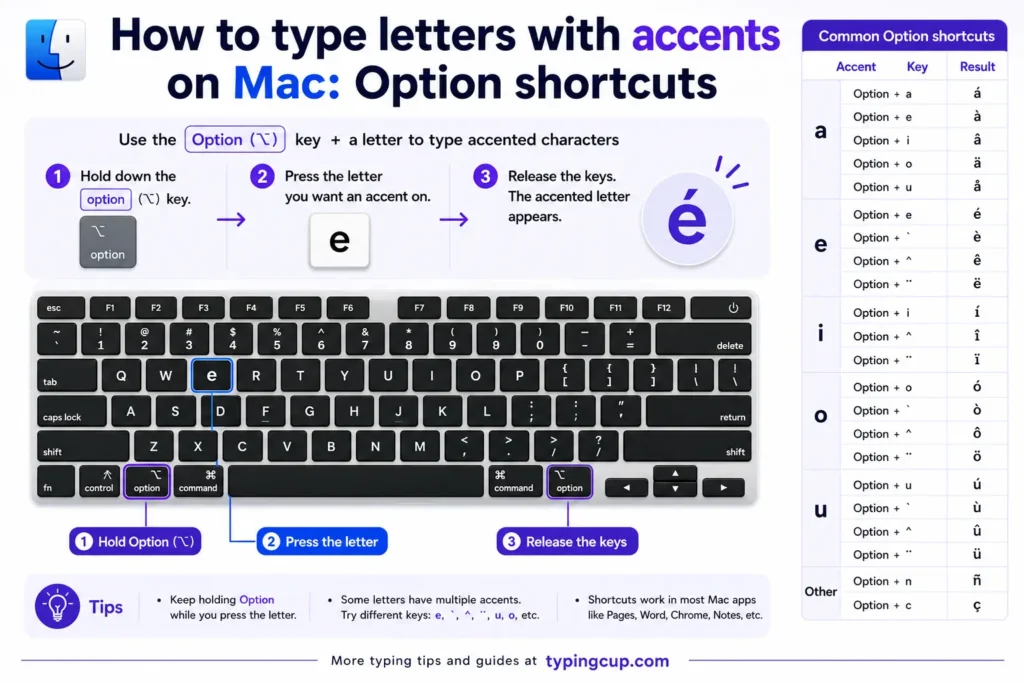
Hold Option with one key to “load” the accent, then press the letter.
| Accent | Shortcut | Example |
|---|---|---|
| Acute ´ | Option + e, then letter | Option + e, e → é |
| Grave ` | Option + `, then letter | Option + `, a → à |
| Circumflex ˆ | Option + i, then letter | Option + i, o → ô |
| Tilde ˜ | Option + n, then letter | Option + n, n → ñ |
| Umlaut ¨ | Option + u, then letter | Option + u, u → ü |
Some characters skip the two-step and have a direct shortcut: Option + a → å, Option + ‘ → æ, Option + c → ç, Option + o → ø, Option + s → ß.
You can also just press and hold the letter key. A small menu pops up with the accented versions, and you click or press the number under the one you want. Anything missing from that menu is in the Character Viewer (Control + Command + Space).
Linux
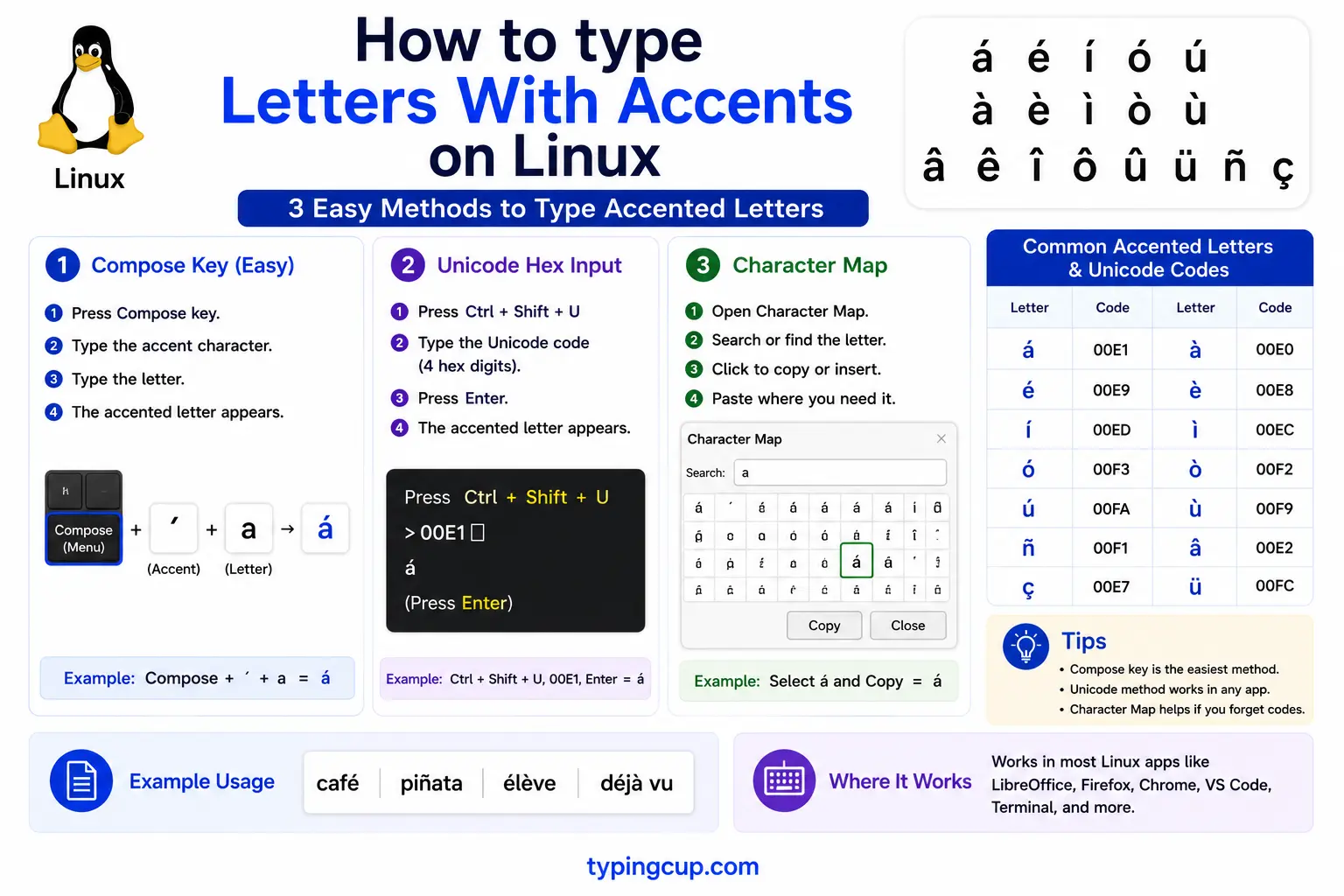
Press Ctrl + Shift + U, type the Unicode hex code, then press Enter: 00e9 → é, 0101 → ā. This works in GTK apps and covers every character on this page.
If you’ve set up a Compose key, the common accents are faster: Compose ‘ e → é, Compose ” u → ü, Compose ~ n → ñ.
iPhone and Android
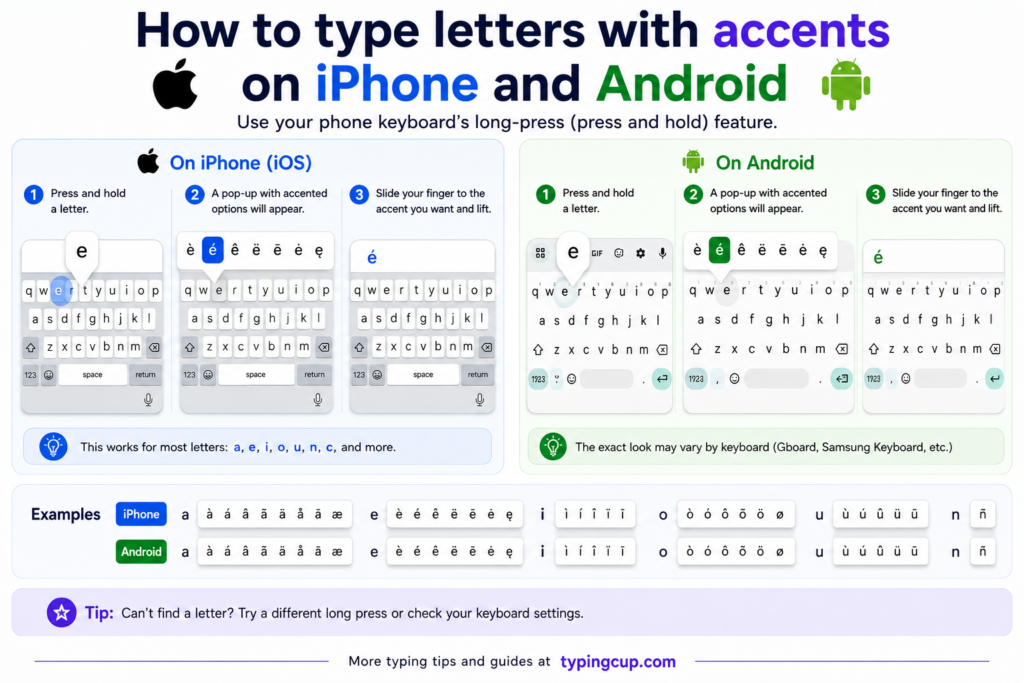
Press and hold the letter. A row of accented versions appears above your finger. Slide to the one you want and let go. No setup, and it covers everything — including the macron characters that give Windows so much trouble.
Microsoft Word
Word has its own shortcuts, separate from Windows Alt codes, and they’re quicker once they stick:
- Ctrl + ‘, then the letter → é
- Ctrl + `, then the letter → è
- Ctrl + Shift + ^, then the letter → ê
- Ctrl + Shift + ~, then the letter → ñ
- Ctrl + Shift + :, then the letter → ü
- Ctrl + ,, then c → ç
For anything else, type the Unicode hex code and press Alt + X. So 0101 then Alt + X gives you ā — the character Alt codes can’t reach.
One more Word trick: if the same accented word comes up constantly — Beyoncé, São Paulo, jalapeño — set it up once in File → Options → Proofing → AutoCorrect Options and let Word fix it as you type. Map something you’d never type by accident, like ;e → é.
Excel, PowerPoint, and Google Sheets
Word’s Ctrl shortcuts don’t carry over. In Excel, Ctrl + ‘ copies the cell above instead of making an accent, which surprises a lot of people. Use Alt codes on the numeric keypad, Insert → Symbol, or paste from the table at the top of this page.
For repeatable spreadsheet work there’s a better way: the UNICHAR formula. =UNICHAR(233) returns é, =UNICHAR(241) returns ñ, and =UNICHAR(257) returns ā — yes, it reaches the characters Alt codes can’t. The same formula works in Google Sheets, which has no special-characters menu of its own.
Google Docs
Open Insert → Special characters and either type the character’s name (“e with acute”) or draw the shape in the sketch box. On a Mac, the Option shortcuts above work directly inside Docs. If you type one accent constantly, set up an automatic substitution under Tools → Preferences → Substitutions — for example, replace ;e with é.
HTML
Named entities follow one pattern: the letter plus the accent name. é → é, à → à, ñ → ñ, ü → ü, ç → ç. Capitalize the letter for uppercase: É → É. Characters without a named entity take the numeric form, like ā for ā.
Prefer to copy the code instead of the letter? Grab any named or numeric HTML entity from the table below — click into a cell and copy.
| Letter | Named entity | Numeric entity |
|---|---|---|
| á | á | á |
| à | à | à |
| â | â | â |
| ä | ä | ä |
| å | å | å |
| ç | ç | ç |
| é | é | é |
| è | è | è |
| ê | ê | ê |
| ë | ë | ë |
| í | í | í |
| î | î | î |
| ï | ï | ï |
| ñ | ñ | ñ |
| ó | ó | ó |
| ô | ô | ô |
| ö | ö | ö |
| ø | ø | ø |
| ú | ú | ú |
| û | û | û |
| ü | ü | ü |
| ý | ý | ý |
| ā | — (none) | ā |
| š | — (none) | š |
| ž | — (none) | ž |
| ł | — (none) | ł |
Troubleshooting
“My Alt code just beeps or types nothing.”
Three usual causes: Num Lock is off, you’re on the top-row numbers instead of the keypad, or your laptop has no keypad at all. Turn Num Lock on and use the keypad. No keypad? Use the copy table above, Character Map, or the Word Alt + X method.
“Alt + 0257 won’t give me ā.”
Correct — it can’t. Alt codes end at 255 and the macron sits above that. Use Character Map on Windows, long-press on your phone, or the hex + Alt + X trick in Word.
“I get a floating accent, like ´e instead of é.”
You pressed the dead key and the letter in the wrong order, or added a space between them. Accent first, letter second, nothing in between.
“Shift + Alt code gives me the wrong character.”
Uppercase accented letters have separate codes. Don’t hold Shift — type the capital’s own code: Alt + 0201 for É, Alt + 0209 for Ñ.
“It looks right here but breaks when I paste it somewhere else.”
The receiving program is using an older text encoding. Save or paste as UTF-8 and the characters will survive the trip.
FAQ
What are the marks on letters called?
The common ones: acute (é), grave (è), circumflex (ê), tilde (ñ), umlaut (ü), cedilla (ç), ring (å), macron (ā), and caron (š). The full table above matches each mark to its languages.
What’s the difference between é and è?
The direction of the mark. é carries an acute accent (leaning right) and è carries a grave (leaning left). They sound different in French and they aren’t interchangeable.
How do I type accents on a laptop with no numpad?
Skip Alt codes entirely. Press Windows + . to open the symbol panel, copy from the table above, use Word’s hex + Alt + X method, or switch to the US-International layout.
Do capital accented letters use the same Alt codes?
No. Each capital has its own code — É is Alt + 0201, not Shift + 0233. The per-letter guides linked above list both sets.
What’s the fastest method overall?
Copy-paste for a one-off. For regular use: press-and-hold on a phone or Mac, and the US-International layout on Windows.
