Keyboard Shortcuts for Symbols: Windows, Mac, and Beyond
There are only a couple of dozen keys on your keyboard, but you often need symbols that aren’t on any of them — © ™ € £ ° — • → ± ½ and hundreds more. This is the practical guide to getting them: the keyboard shortcuts for the symbols people actually use, on Windows, Mac, Chromebook, and phones, plus a click-to-copy grid and the faster methods most people never learn.
If you just need a symbol, copy it from the grid below. If you’d rather learn the shortcuts — or set up your own — the sections after it cover every platform and a couple of tricks that beat memorising codes entirely.
In a hurry?
- Copy any symbol: click it in the grid below.
- The fastest universal method: press Windows + . (Windows) or Control + Command + Space (Mac) to open a searchable symbol picker.
- On Windows: hold Alt and type a code on the numeric keypad.
- On a Mac: most symbols are an Option or Shift + Option key away.
- Make your own: set up text replacement so, say, (c) becomes ©.
Click to copy: common symbols
Tap any symbol to copy it, then paste anywhere.
Table of Contents
The four ways to type any symbol
Before the tables, it helps to know the big picture. However exotic the character, there are really only four ways to enter it, and knowing which one fits the moment saves a lot of hunting. Everything else on this page is a variation on these four.
1. Copy and paste. The universal method — works on every device, no shortcut to remember. Perfect for a symbol you need once. The grid above is built for exactly this. 2. A keyboard shortcut or code. Fastest for symbols you use often: Alt codes on Windows, Option combinations on a Mac. Worth memorising the handful you use daily. 3. The built-in symbol picker. Every modern system has a searchable panel of every symbol and emoji, opened with one shortcut. Best when you don’t know the code but know the name. 4. Autocorrect or text replacement. Let the computer do it: type (c) and have it become ©. Best for a symbol you type constantly.
| Method | Best for | Speed |
|---|---|---|
| Copy & paste | a one-off symbol | instant, no setup |
| Shortcut / code | symbols you use daily | fast once learned |
| Symbol picker | you know the name, not the code | fast, searchable |
| Text replacement | a symbol you type constantly | automatic |
Most guides only cover method 2 and leave you memorising codes. The two most underused are the picker and text replacement, so this page gives each its own section below.
Symbol shortcuts on Windows
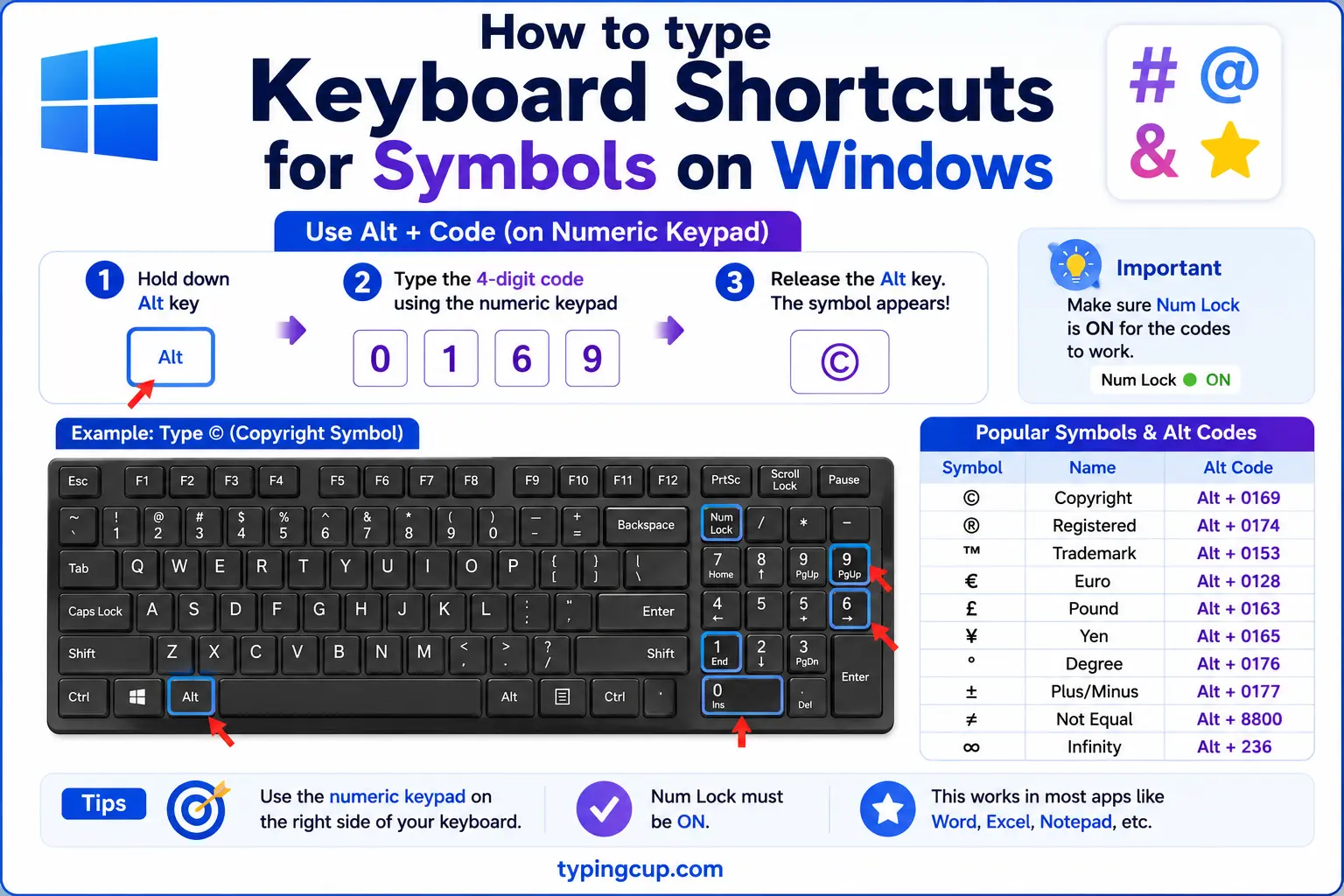
On Windows, the workhorse is the Alt code: hold Alt, type the number on the numeric keypad (with Num Lock on), and release. Here are the shortcuts for the most common symbols.
| Symbol | Name | Windows shortcut |
|---|---|---|
| © | copyright | Alt + 0169 |
| ® | registered | Alt + 0174 |
| ™ | trademark | Alt + 0153 |
| € | euro | Alt + 0128 |
| £ | pound | Alt + 0163 |
| ° | degree | Alt + 0176 |
| • | bullet | Alt + 0149 |
| — | em dash | Alt + 0151 |
| … | ellipsis | Alt + 0133 |
| ± | plus-minus | Alt + 0177 |
No numeric keypad? That’s the usual reason a code fails. Press Windows + . for the symbol picker instead, or see the full math symbols Alt codes reference for how the codes work and the laptop workaround.
Symbol shortcuts on Mac
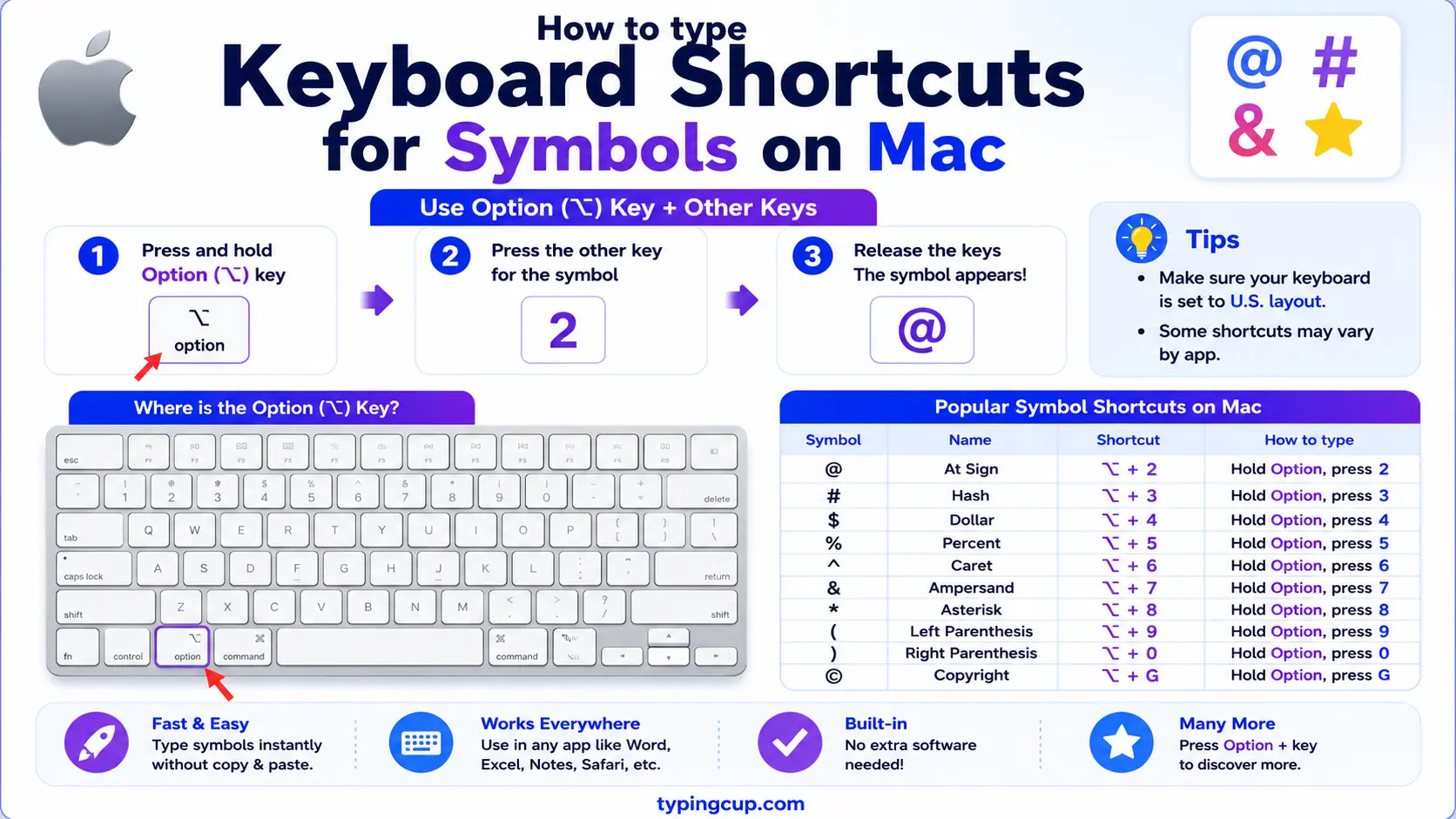
Macs don’t use Alt codes. Instead, most symbols sit under the Option key (sometimes with Shift), and there’s no numeric-keypad requirement, so these work on any Mac keyboard.
| Symbol | Name | Mac shortcut |
|---|---|---|
| © | copyright | Option + G |
| ® | registered | Option + R |
| ™ | trademark | Option + 2 |
| € | euro | Shift + Option + 2 |
| £ | pound | Option + 3 |
| ° | degree | Shift + Option + 8 |
| • | bullet | Option + 8 |
| — | em dash | Shift + Option + hyphen |
| … | ellipsis | Option + ; |
| ± | plus-minus | Shift + Option + = |
If a Mac shortcut slips your mind, Control + Command + Space opens the Character Viewer, where you can search any symbol by name — the Mac version of the universal picker covered below.
Symbol shortcuts on Chromebook and Linux
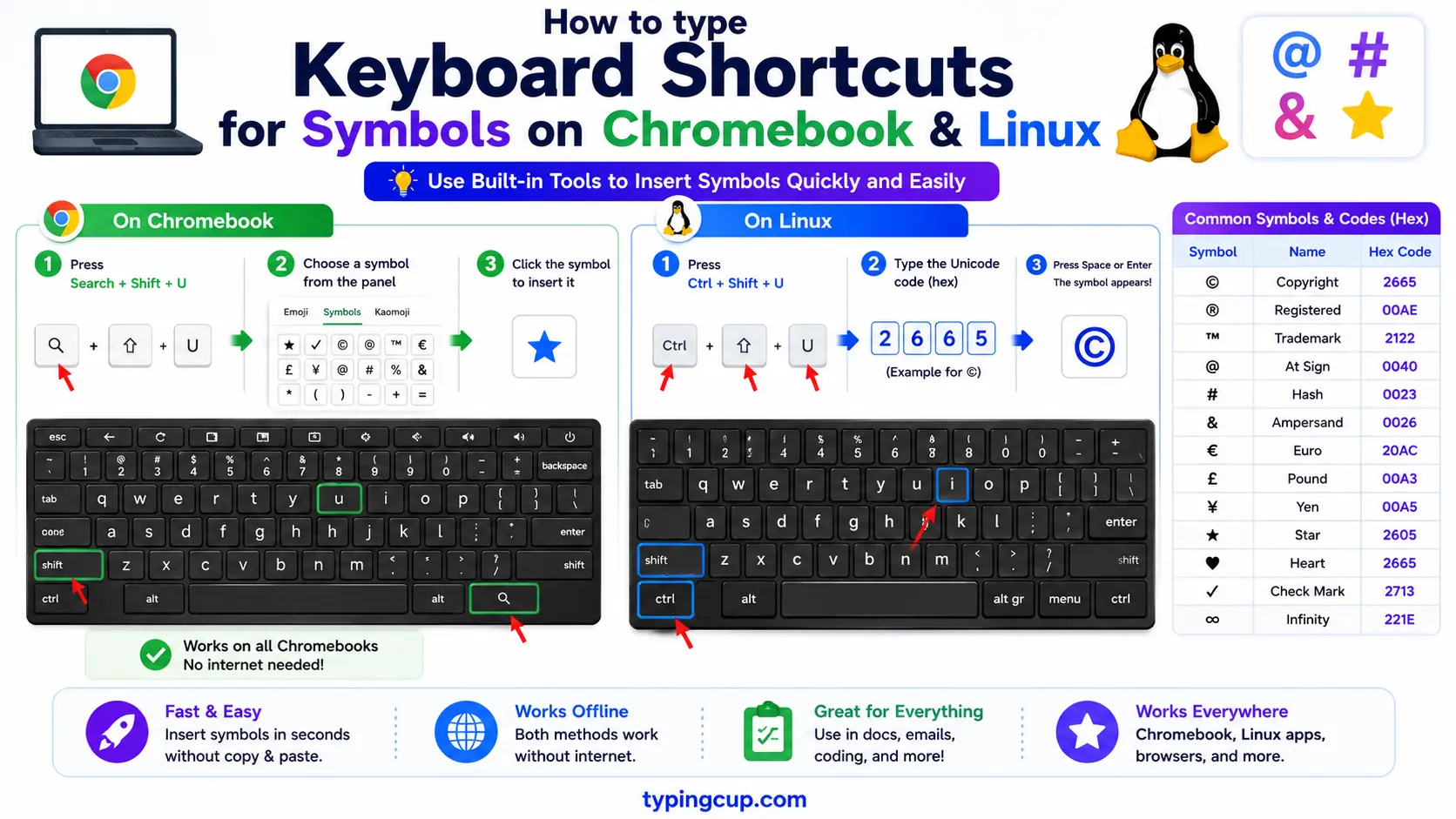
Chromebooks and Linux share the same neat trick: Unicode input. Hold Ctrl + Shift + U, and a little underlined u appears; type the symbol’s hex code point, then press Enter or space. So Ctrl + Shift + U then 20AC gives €, and 00B0 gives °.
The hex codes are the “Unicode” values you’ll see in symbol tables everywhere, including the ones on this site. On a Chromebook you can also long-press certain keys for accented letters, and on Linux desktops a Compose key (if enabled) makes symbols from memorable combinations, like Compose then c then o for ©.
Symbol shortcuts on iPhone and Android
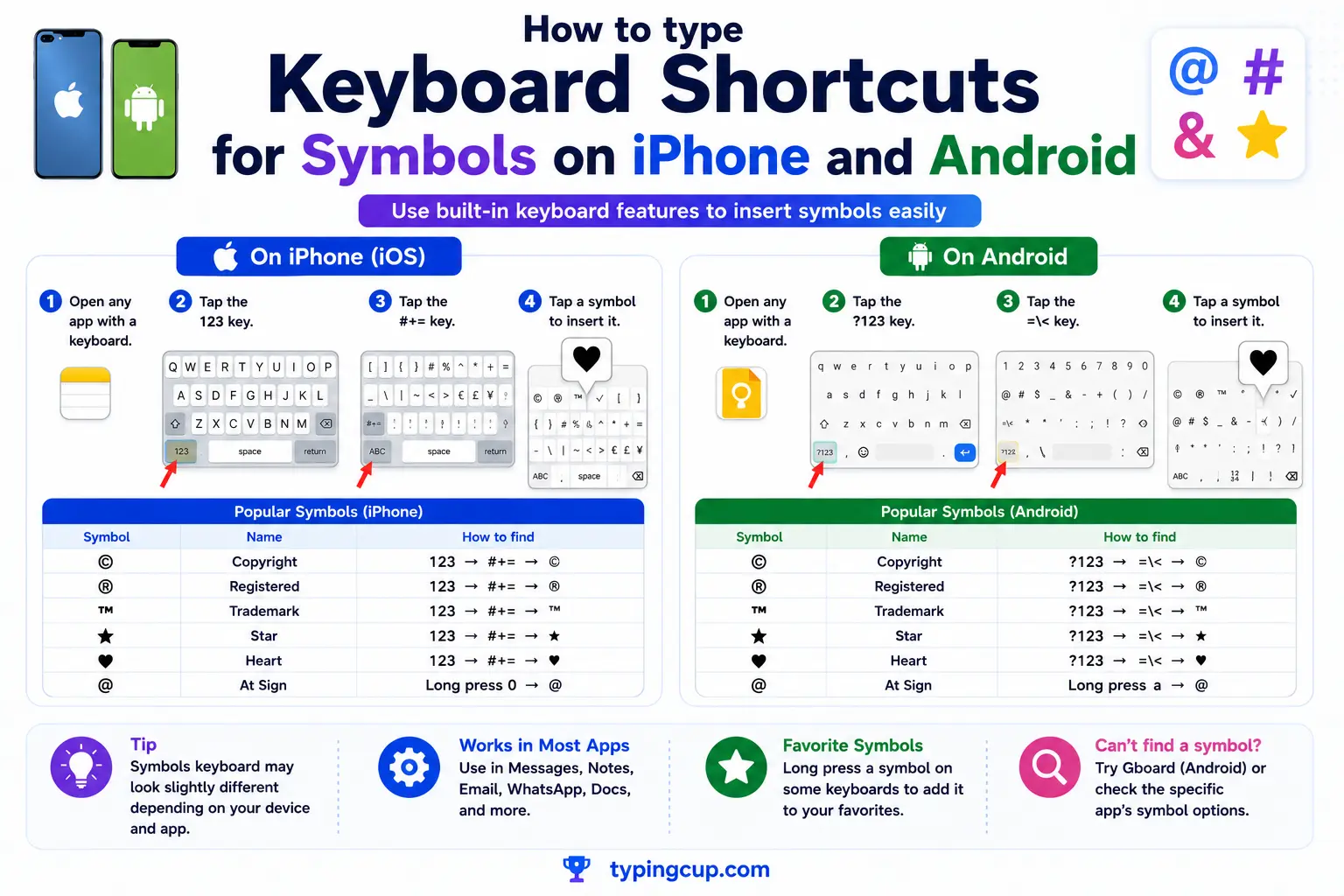
Phones have no code system, but they do have two fast paths. The first is long-press: on the symbols keyboard (the 123 or ?123 key), press and hold a key to reveal related symbols — hold the hyphen for dashes and bullets, hold a currency key for other currencies, hold a letter for its accented versions.
The second is the emoji and symbol keyboard, which covers hearts, arrows, stars, check marks, and more — just search by name. And both iPhone and Android support text replacement (covered below), so you can make (c) expand to © system-wide. Between long-press and the emoji search, almost every everyday symbol is two taps away on a phone.
Shortcuts for currency symbols
The money signs, with their Windows and Mac shortcuts side by side.
| Symbol | Name | Windows | Mac |
|---|---|---|---|
| € | euro | Alt + 0128 | Shift + Option + 2 |
| £ | pound | Alt + 0163 | Option + 3 |
| ¥ | yen | Alt + 0165 | Option + Y |
| ¢ | cent | Alt + 0162 | Option + 4 |
| ₹ | rupee | Alt + 8377 | (Character Viewer) |
Shortcuts for punctuation and typography
The marks that make text look professional: proper dashes, the ellipsis, section and paragraph marks, and smart extras.
| Symbol | Name | Windows | Mac |
|---|---|---|---|
| — | em dash | Alt + 0151 | Shift + Option + – |
| – | en dash | Alt + 0150 | Option + – |
| … | ellipsis | Alt + 0133 | Option + ; |
| • | bullet | Alt + 0149 | Option + 8 |
| § | section | Alt + 0167 | Option + 6 |
| ¶ | pilcrow | Alt + 0182 | Option + 7 |
For the full story on the dash, see the em dash symbol guide, and for the dot, the bullet point symbol guide.
Shortcuts for arrows and legal marks
Arrows and the copyright family round out the everyday set.
| Symbol | Name | Windows | Mac |
|---|---|---|---|
| → | right arrow | Alt + 26 | (Character Viewer) |
| ← | left arrow | Alt + 27 | (Character Viewer) |
| ↑ | up arrow | Alt + 24 | (Character Viewer) |
| ↓ | down arrow | Alt + 25 | (Character Viewer) |
| © | copyright | Alt + 0169 | Option + G |
| ® | registered | Alt + 0174 | Option + R |
| ™ | trademark | Alt + 0153 | Option + 2 |
Arrows get a fuller treatment, with every direction and style, in the arrow symbols guide.
The symbol picker is the shortcut most people miss
If you remember one thing from this page, make it this: every modern system has a searchable symbol picker built in, and it’s usually faster than any code. You don’t need to know a number, you just type the symbol’s name.
On Windows, press Windows + . (the period key) or Windows + ; to open the emoji and symbol panel; click the omega tab for symbols, or just type to search. On a Mac, press Control + Command + Space for the Character Viewer and search by name. Both cover emoji, currency, arrows, maths, and punctuation, essentially everything on this page, and they remember your recently used symbols so the ones you reach for float to the top.
This is the method to reach for when you don’t type a symbol often enough to have memorised its code. Search “degree,” “arrow,” “heart,” or “euro,” click, done, with no numeric keypad and no Option gymnastics.
Make your own symbol shortcuts with text replacement
For a symbol you type constantly, the smartest move is to teach your device to type it for you. Every major system has a text replacement feature (the same one that fixes “teh” to “the”), and you can add your own rules, so a short trigger expands into any symbol.
On a Mac, it’s System Settings → Keyboard → Text Replacements; add a rule where (c) becomes ©. On iPhone and Android, look for Text Replacement or Personal dictionary in the keyboard settings. On Windows, Office apps have AutoCorrect (which already turns (c) into © and a typed dash-arrow into →), and a free tool like AutoHotkey can do it system-wide.
| Type this | Get this | Set up in |
|---|---|---|
| (c) | © | AutoCorrect / Text Replacement |
| (r) | ® | AutoCorrect / Text Replacement |
| tm2 | ™ | your own rule |
| arrowr | → | your own rule |
| degs | ° | your own rule |
Set up three or four of these for the symbols you use most, and you’ll never look up their codes again. It’s the one method that gets faster the more you use it.
Symbol-by-symbol guides
Some symbols have enough quirks — spacing rules, look-alikes, coding behaviour — to deserve a full page. If you’re wrestling with a specific one, these go deeper than a shortcut table can:
- Math symbols and Alt codes — the full Windows Alt-code reference, grouped by type.
- Em dash symbol — — the long dash, the two-hyphen trick, and the AI-writing tell.
- Degree symbol ° — the spacing rule and the ordinal look-alike.
- Euro symbol € — typing the euro on every layout.
- Arrow symbols → ← ↑ ↓ — every direction and style.
- Bullet point symbol • — the dot, and how to make real bullet lists.
FAQ
What’s the fastest way to type a symbol I don’t use often?
The built-in picker. Press Windows + . on Windows or Control + Command + Space on a Mac, then search the symbol by name. No codes to remember. For a one-off, copying from the grid above is just as quick.
Do Windows Alt codes work on a Mac?
No. Alt codes are Windows-only. On a Mac, most symbols use the Option key (Option + 3 for £, Shift + Option + 2 for €), or you can search the Character Viewer with Control + Command + Space.
How do I make my own shortcut for a symbol?
Use text replacement: on a Mac, System Settings → Keyboard → Text Replacements; on a phone, the keyboard’s Text Replacement setting; on Windows, Office AutoCorrect or a tool like AutoHotkey. Add a rule so a short trigger like (c) expands to ©.
Why isn’t my Alt code working?
Almost always because Num Lock is off or you’re using the top number row instead of the numeric keypad, the only part that works for Alt codes. On a laptop without a keypad, use Windows + . or copy the symbol instead.
How do I type symbols on a phone?
Two ways: long-press a key on the symbols keyboard (the 123 key) to reveal related symbols, or open the emoji and symbol keyboard and search by name for hearts, arrows, stars, and more.
