Fraction Symbol in Word: How to Type Any Fraction
Typing a fraction in Microsoft Word is easy for ½, ¼, and ¾ — and oddly frustrating for everything else. Type 1/2 and Word turns it into ½ on its own; type 7/16 and you just get plain text. This guide covers every way to make a fraction in Word, why the automatic version only works for some, and how to build the ones it can’t.
If you just need a common fraction, copy it from the grid below. If you want a specific one like 5/8 or 7/16 to look right, the sections below show the two methods that handle any fraction at all.
In a hurry?
- Copy a common fraction: click one in the grid below.
- Let Word do it: type 1/2 and AutoFormat turns it into ½ (works for ½ ¼ ¾ and a few more).
- Any fraction, stacked: press Alt + = for the equation editor, type 7/16, press space.
- By code: type 00BD then Alt + X for ½.
- Alt code: hold Alt and type 0189 for ½.
Click to copy: fraction symbols
Tap any fraction to copy it, then paste into Word or anywhere.
Table of Contents
Copy and paste common fractions
The fractions that exist as single characters, with the codes to type them in Word. Use the grid above to copy with one click; this table is the reference.
| Fraction | Alt code | Alt + X code | HTML |
|---|---|---|---|
| ½ | Alt + 0189 | 00BD | ½ |
| ¼ | Alt + 0188 | 00BC | ¼ |
| ¾ | Alt + 0190 | 00BE | ¾ |
| ⅓ | — | 2153 | ⅓ |
| ⅔ | — | 2154 | ⅔ |
| ⅛ | — | 215B | ⅛ |
These are all the fractions Unicode gives a single character. For any other fraction, 7/16, 5/8, 9/32, there’s no ready-made symbol, which is exactly the problem the sections below solve.
How to type a fraction in Word
Word gives you several ways to make a fraction, and the right one depends on whether it’s a common fraction or an unusual one. Here they are, quickest first.
Let AutoFormat do it (1/2 becomes half)
The easiest method needs no effort: just type the fraction with a slash, like 1/2, then a space or the next word. Word’s AutoFormat As You Type quietly swaps it for the single character ½. This works for ¼, ½, ¾ and, in newer versions of Word, a few more like ⅓ and ⅔. If nothing happens, the feature is switched off (see below) or there’s no single character for that fraction.
Use an Alt code
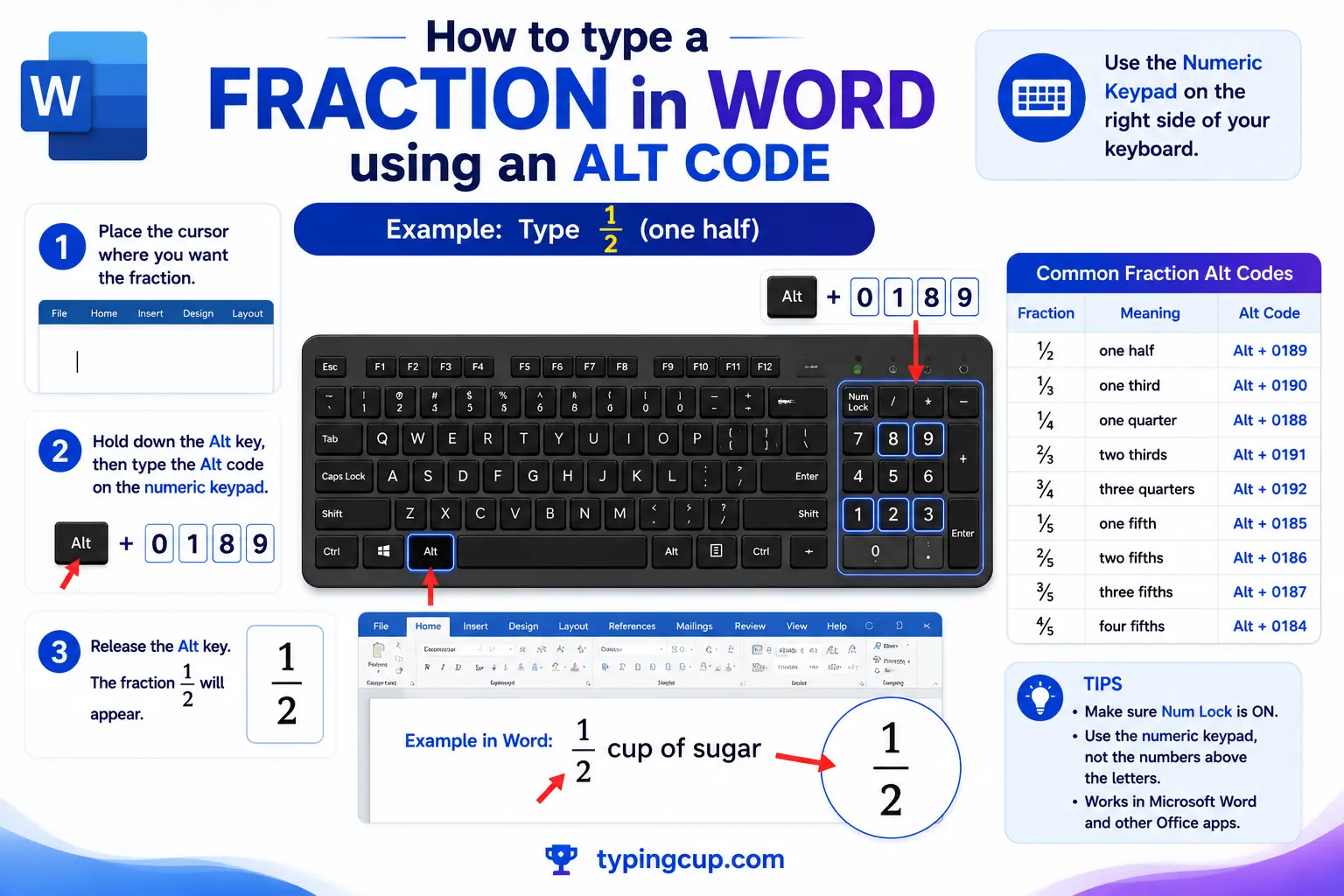
For the three classic fractions, hold Alt and type the code on the numeric keypad: Alt + 0189 for ½, Alt + 0188 for ¼, Alt + 0190 for ¾. It works anywhere in Windows, not just Word, but only covers the fractions that have a precomposed character.
Type the code, then Alt + X
Word’s own trick reaches every fraction character: type the hex code and press Alt + X. So 00BD then Alt + X gives ½, and 2153 then Alt + X gives ⅓. The codes are the ones in the table above. This is the most reliable way to get the less common precomposed fractions like ⅜ or ⅝.
Insert then Symbol
If you’d rather point and click, go to Insert → Symbol → More Symbols, set the subset to Number Forms, and pick the fraction. Word remembers recently used symbols, so once you’ve inserted ⅝ once it’s a click away next time.
Use the equation editor for any fraction
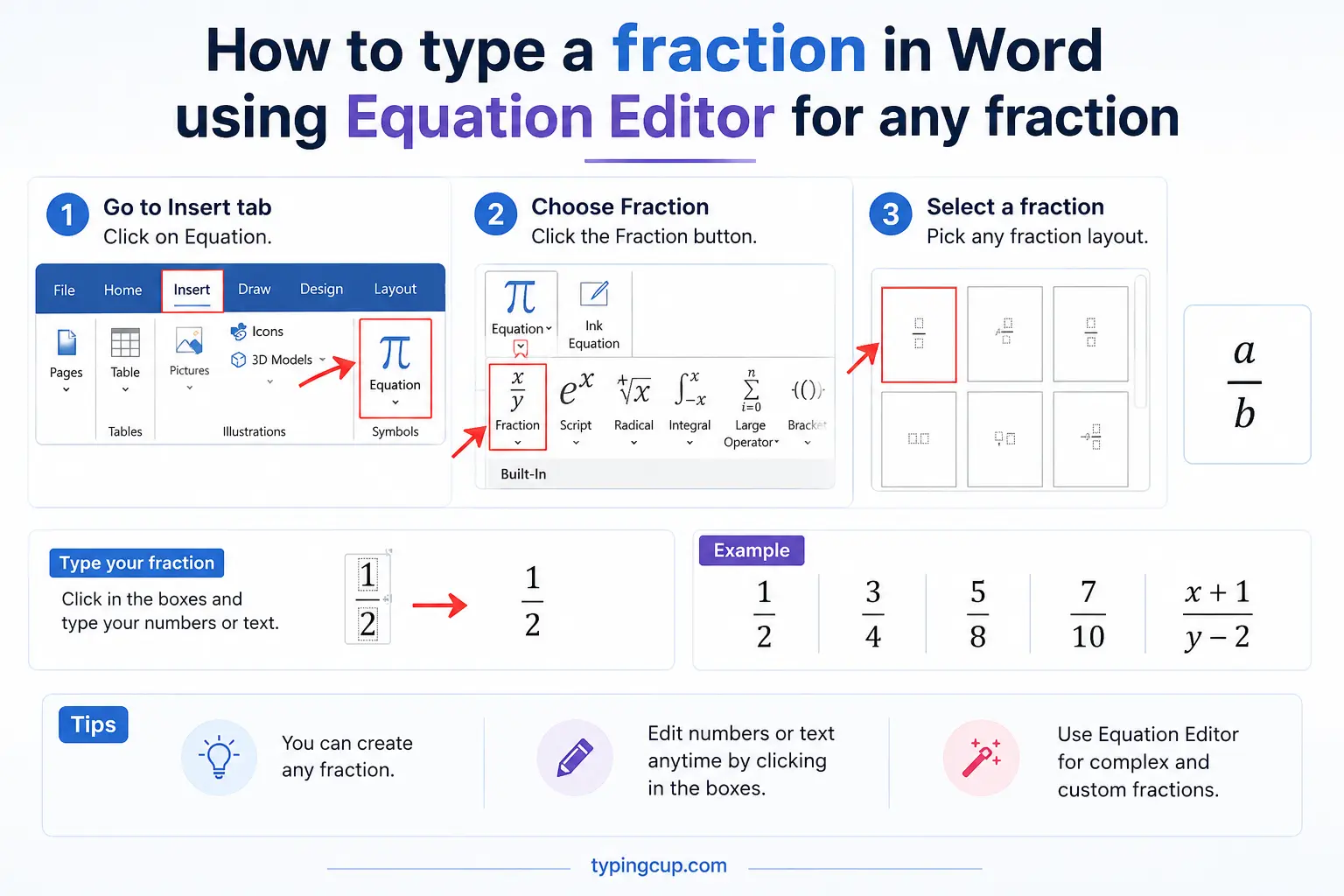
This is the one that handles fractions with no ready-made character. Press Alt + = to drop in an equation field, type the fraction with a slash such as 7/16, then press space — Word stacks it into a proper fraction with the numerator over the denominator and a horizontal bar. It works for any numbers, which the single-character methods can’t, and it’s the correct choice for real maths.
Build one by hand with superscript and subscript
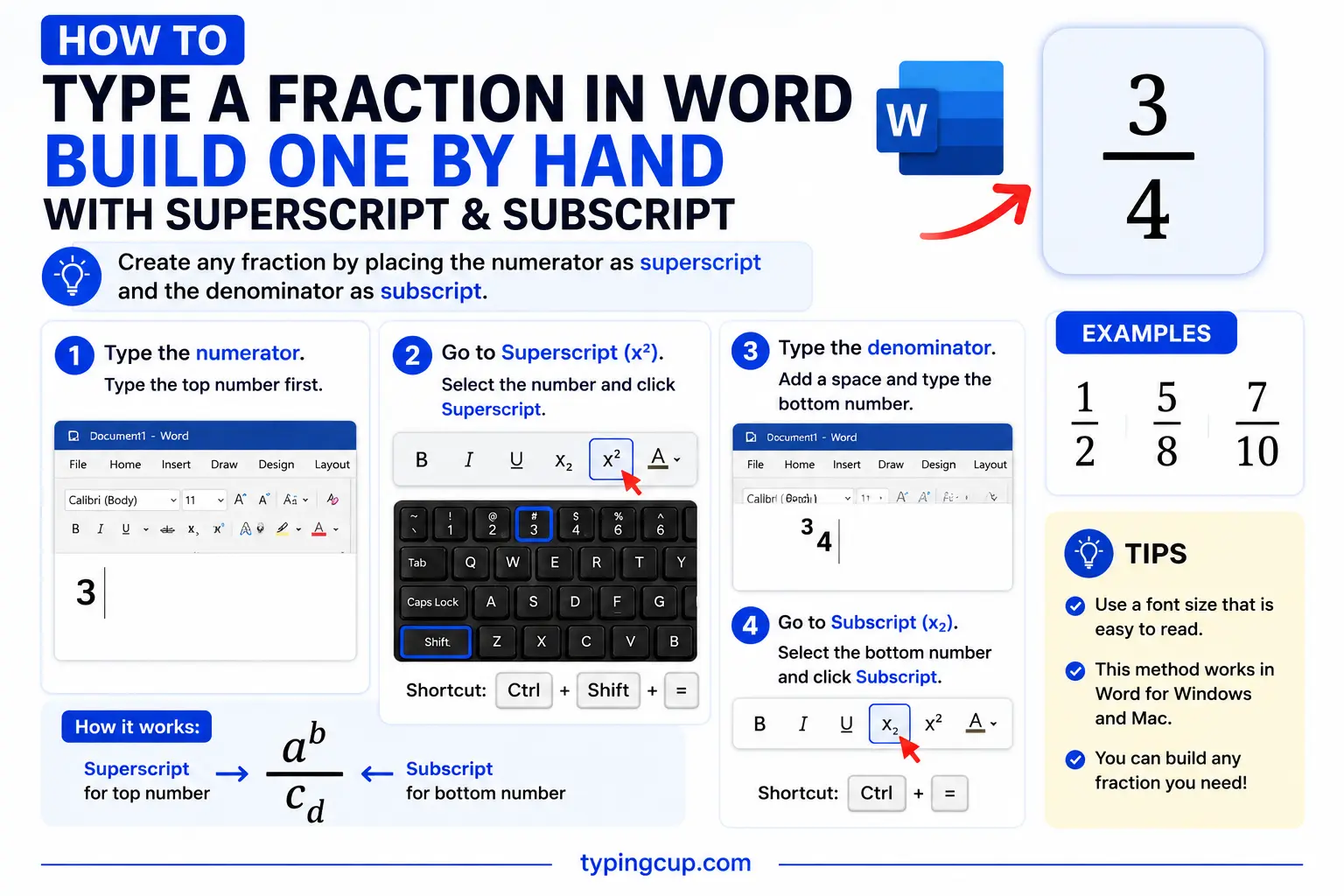
For a diagonal fraction inside normal text, you can build it yourself: type the numerator, make it superscript (Ctrl + Shift + =), add a fraction slash, then type the denominator as subscript (Ctrl + =). It’s fiddly, but it gives a compact fraction that flows with the line rather than a tall stacked one — useful for something like 7/16 in the middle of a sentence.
Why 1/2 becomes ½ but 7/16 doesn’t
This is the question that sends people looking, and almost no guide answers it: why does Word happily turn 1/2 into ½ but leave 7/16 as plain text? The answer is that Word’s autoformat isn’t building a fraction — it’s swapping in a single character that already exists.
Unicode includes a handful of ready-made fraction characters: ¼, ½, ¾, and a set of thirds, fifths, sixths, and eighths. Each is one glyph, designed to sit neatly on the line. When you type 1/2, Word recognises it and drops in that one character. But there is no single character for 7/16, or 5/9, or most fractions — so Word has nothing to swap in, and leaves your text alone. It’s not a bug or a missing setting; the character simply doesn’t exist.
That’s the key insight for the whole page: the automatic method only ever works for fractions that happen to have their own character. For everything else, you have to construct the fraction, which is what the equation editor and the superscript method do.
Precomposed, stacked, and inline fractions
Once you know Word makes fractions three different ways, choosing the right one is easy. They look different and behave differently.
A precomposed fraction (½) is a single character: compact, sits on the line, and travels anywhere, but only exists for common fractions. A stacked fraction from the equation editor puts the numerator over the denominator with a horizontal bar; it works for any numbers and looks right in maths, but it’s tall and lives in an equation field. An inline (diagonal) fraction, built from superscript and subscript, is the compromise: it flows with the text like ½ but can be made for any numbers.
| Type | Looks like | Any fraction? | Best for |
|---|---|---|---|
| Precomposed | ½ | no, common only | everyday text |
| Stacked (equation) | 7 over 16 | yes | maths, formulas |
| Inline (super/sub) | 7/16 small | yes | fractions in a sentence |
So: reach for the character if it exists, the equation editor for serious maths, and the superscript-slash-subscript build when you need an odd fraction to sit inside a line of text.
The fraction slash is not the normal slash
Here’s a detail even careful writers miss: there’s a dedicated fraction slash character, ⁄ (U+2044), that is not the same as the ordinary slash / (the solidus) on your keyboard. They look almost identical, but the fraction slash tells the software “the character before me is a numerator and the one after is a denominator.”
In fonts that support it, typing a superscript-style numeral, the fraction slash, and a denominator can render as a proper small diagonal fraction automatically — some professional fonts do this beautifully. It’s the character Word uses under the hood when it builds the precomposed fractions, and it’s why a hand-built fraction looks better with ⁄ than with a plain /. You can insert it in Word with 2044 then Alt + X. For most everyday work the normal slash is fine, but if a fraction has to look truly typeset, the fraction slash is the right character.
Turn automatic fractions on or off
Whether you love or hate Word turning 1/2 into ½, the switch is in the same place. Go to File → Options → Proofing → AutoCorrect Options, open the AutoFormat As You Type tab, and find Fractions (1/2) with fraction character.
Tick it to have Word convert fractions automatically; untick it to keep your 1/2 exactly as typed — useful if you’re writing about fractions, dealing with dates, or want consistent stacked fractions instead of a mix. The setting also appears under the plain AutoFormat tab, which applies when you run AutoFormat on an existing document rather than as you type. Changing it affects new typing, not fractions you’ve already converted.
Fractions in Excel and Google Docs
Two quick cross-app warnings. In Excel, typing 1/2 into a cell does not give ½ — Excel reads it as a date (2 January) and can convert it into a serial number. To show a real fraction while keeping the value, format the cell as a fraction (Format Cells → Number → Fraction), or paste the ½ character as text. For the symbol only, =UNICHAR(189) prints ½.
Google Docs behaves more like Word: it auto-corrects ½, ¼, and ¾ as you type, and for other fractions you can use Insert → Equation to stack them, or Insert → Special characters and search “fraction.” The precomposed characters and the copy grid above work identically in Docs, Word, and anywhere else.
Copy-paste HTML and codes
Every code for the common fractions in one place. Click a cell and copy.
| Fraction | Named entity | Numeric entity | Word (Alt + X) |
|---|---|---|---|
| ½ | ½ | ½ | 00BD |
| ¼ | ¼ | ¼ | 00BC |
| ¾ | ¾ | ¾ | 00BE |
| ⅓ | — | ⅓ | 2153 |
| ⅝ | — | ⅝ | 215D |
For related symbols, the squared symbol guide covers superscripts, and the math symbols Alt codes reference lists the rest.
Troubleshooting
Word won’t convert my 1/2 to a fraction
Either AutoFormat is off (turn on Fractions with fraction character in AutoCorrect Options), or you added a space inside it. Type it as 1/2 with no spaces, followed by a space or word.
My fraction like 7/16 stays as plain text
That’s expected: there’s no single character for 7/16, so AutoFormat can’t swap one in. Use the equation editor (Alt + =) to stack it, or build it with superscript and subscript.
The fraction shows as a box
The current font lacks that fraction glyph. Switch to a broad font like Calibri, Arial, or Cambria, and make sure the document is saved as UTF-8 if it’s going online.
My fraction turned into a date in Excel
Excel reads 1/2 as a date. Format the cell as a fraction first (Format Cells → Number → Fraction), type an apostrophe before it to force text, or paste the ½ character.
FAQ
How do I type a fraction in Word?
For ½, ¼, or ¾, just type 1/2, 1/4, or 3/4 and Word converts it automatically. For any other fraction, press Alt + = for the equation editor, type it with a slash, and press space. Or copy one from the grid above.
Why does Word convert 1/2 but not 7/16?
Because ½ is a single ready-made character and 7/16 isn’t. Word’s autoformat swaps in an existing fraction character; when none exists, it leaves your text as is. Build those with the equation editor instead.
How do I make a fraction like 7/16 look right?
Use the equation editor: Alt + =, type 7/16, then space to stack it. For a smaller inline version, type the numerator as superscript, add a slash, and make the denominator subscript.
How do I turn off automatic fractions in Word?
Go to File → Options → Proofing → AutoCorrect Options → AutoFormat As You Type, and untick Fractions (1/2) with fraction character.
What’s the Alt code for a half?
Alt + 0189 for ½, Alt + 0188 for ¼, and Alt + 0190 for ¾, typed on the numeric keypad with Num Lock on. In Word you can also type 00BD then Alt + X.
