
How to Do Subscript in Word (₂ ₃ ₙ): Shortcut, Symbols & Examples
Subscript is text set slightly below the baseline — the small “2” in H₂O or the “n” in aₙ. Word makes it easy once you know the shortcut, and there are also real subscript characters you can copy and paste where formatting is not available. This guide covers every way to do subscript in Word, when to use it, examples, and how it differs from superscript and from the plain-text subscript characters.
In a hurry?
- Copy it: click a subscript character in the grid below (₂, ₃, ₙ…).
- Fastest in Word: press Ctrl + = (equals), type your text, then press Ctrl + = again to turn it off.
- Superscript instead: Ctrl + Shift + =.
- Buttons: the X₂ and X² buttons in the Font group on the Home tab.
- No formatting available? Paste a real subscript character from the grid.
Table of Contents
The grid above gives you actual subscript characters, which paste anywhere — even plain-text boxes and file names. Inside Word, the shortcut and buttons below are usually faster.
Subscript and superscript at a glance
The two together, with the shortcut and button for each. They work the same way — one puts text below the line, the other above.
| Action | Shortcut | Button (Home tab) | Example |
| Subscript | Ctrl + = | X₂ | H₂O |
| Superscript | Ctrl + Shift + = | X² | x² |
| Turn it off | press the shortcut again | click the button again | back to normal |
Both shortcuts toggle: press once to switch it on, press again to switch it off. They work in Word and most Office apps; the copy grid above works everywhere, including places Word shortcuts do not reach.
How to do subscript in Word
Method 1: The Ctrl + = shortcut (fastest)
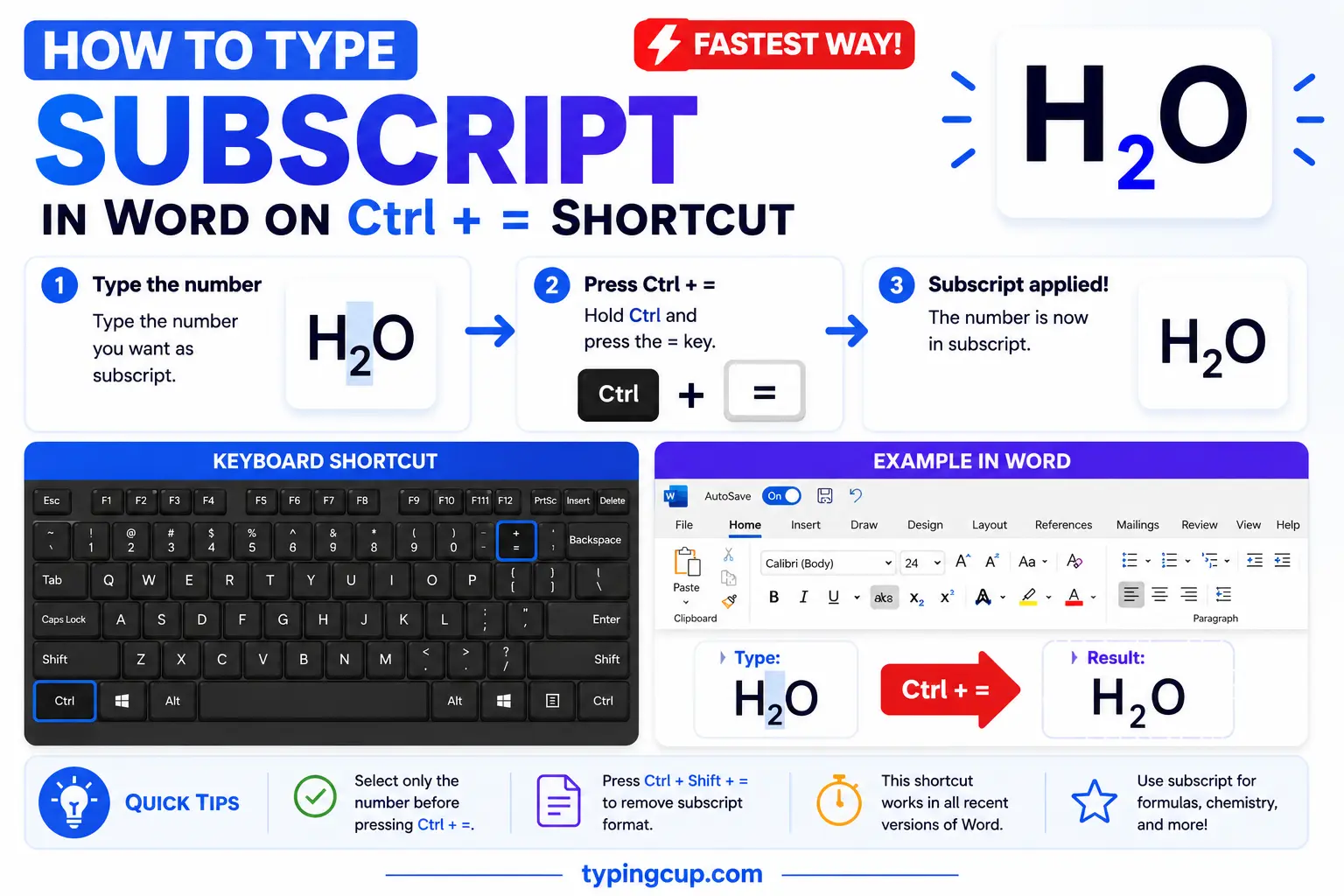
Press Ctrl + = (the equals key), and anything you type next drops into subscript. Press Ctrl + = again to switch back to normal. You can also select existing text first and hit the shortcut to convert it. This toggle is by far the quickest way — for H₂O, you type H, press Ctrl + =, type 2, press Ctrl + = again, and type O. The superscript toggle is Ctrl + Shift + =.
Method 2: The subscript button on the Home tab
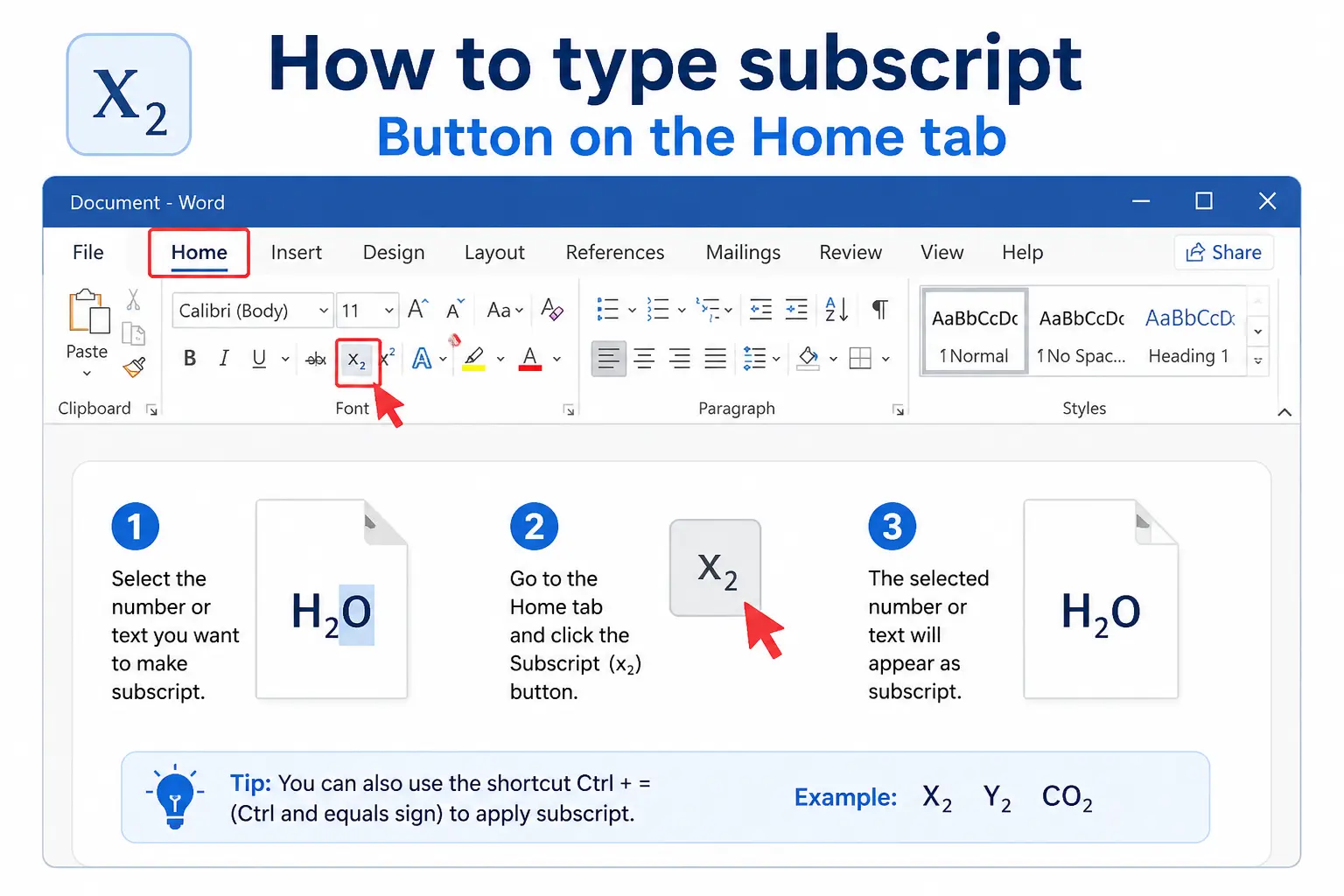
On the Home tab, in the Font group, there are two small buttons: X₂ for subscript and X² for superscript. Click X₂, type your text, and click it again to turn it off — or select text first and click once. It does exactly what the shortcut does, just with the mouse, which is handy when your hands are already on the ribbon.
Method 3: The Font dialog (Ctrl + D)
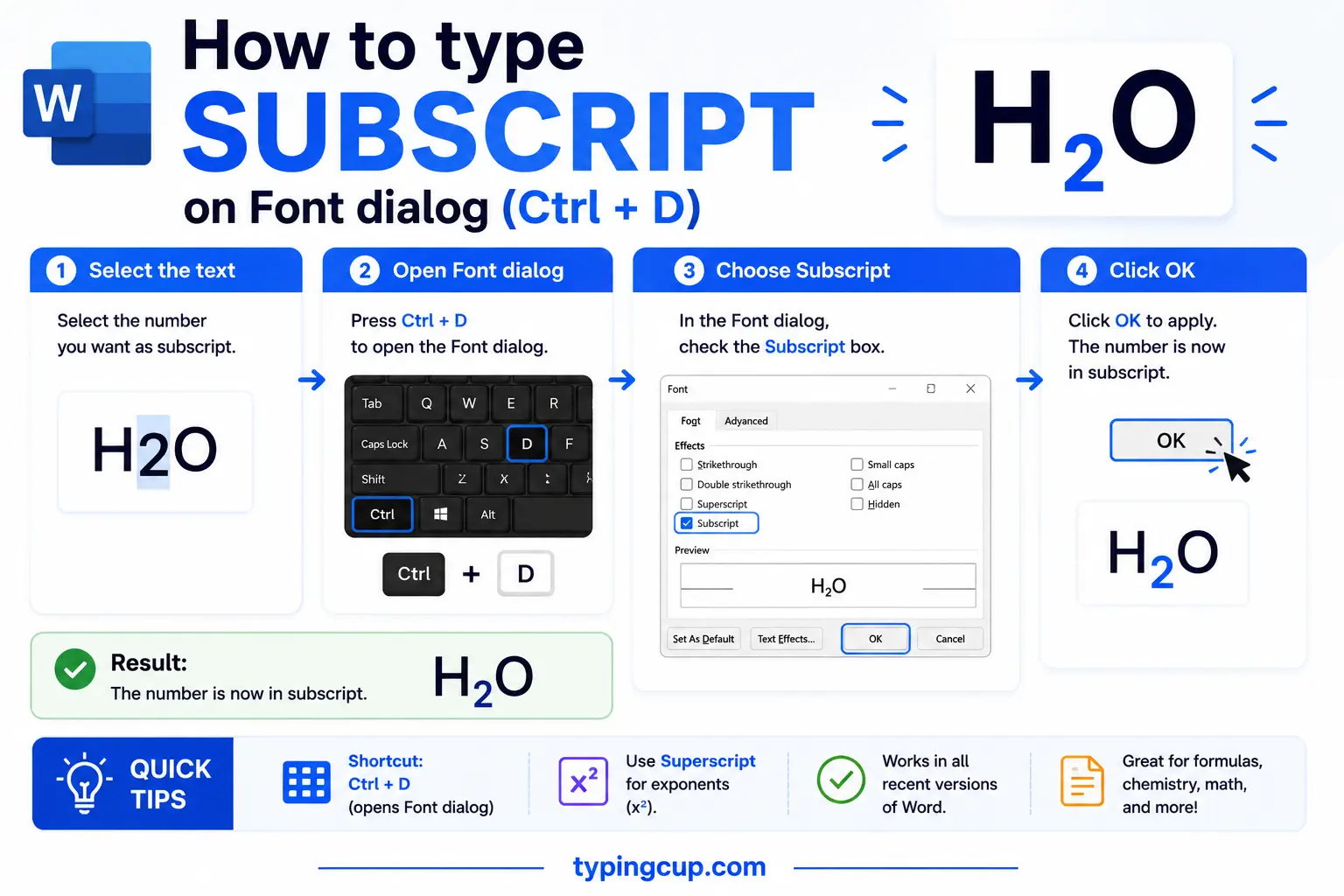
For fine control, open the Font dialog with Ctrl + D (or the little arrow in the corner of the Font group). Tick Subscript or Superscript under Effects and click OK. This route is useful when you also want to change size or spacing at the same time, or when a shortcut has been remapped.
Method 4: Real subscript characters (copy and paste)
Sometimes you do not want Word formatting at all — you want a character that stays subscript when copied into a plain-text field, a file name, a chat, or code. Unicode has real subscript characters for the digits (₀ ₁ ₂ ₃ ₄ ₅ ₆ ₇ ₈ ₉) and a few letters. Copy the one you need from the grid at the top of this page and paste it in. It is a genuine character, so it survives anywhere — unlike Word’s subscript, which is formatting that can be lost.
Method 5: The equation editor (Alt + =)
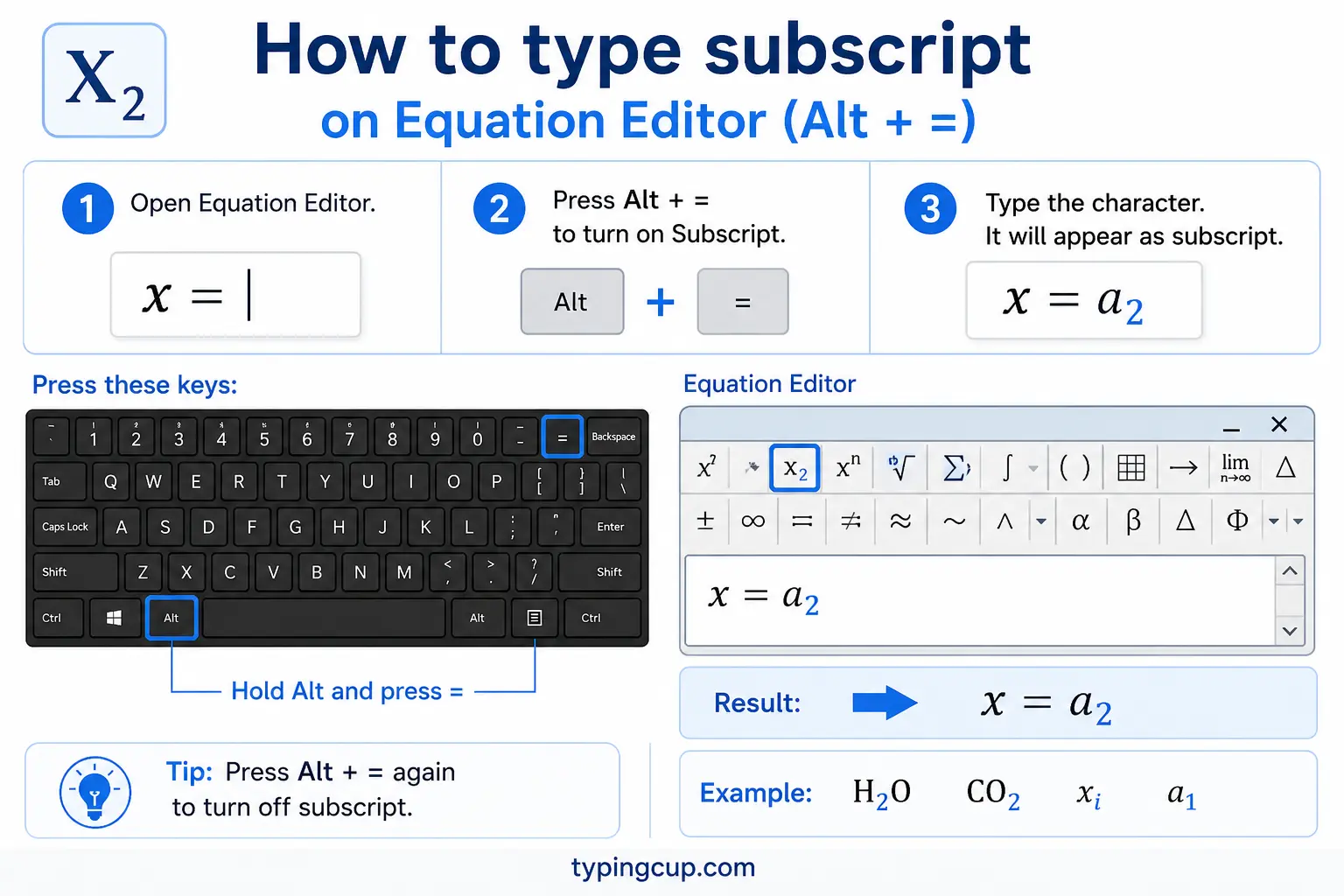
For math, press Alt + = to start an equation, then type an underscore _ for a subscript and a caret ^ for a superscript — so x_1 becomes x with a subscript 1, and x^2 becomes x squared. The equation editor also handles the tricky stacked cases (like isotopes) that plain formatting cannot, covered below.
When to use subscript
Subscript is not just for looks — in many fields, whether a number sits low or on the line changes its meaning. Here is where it belongs.
- Chemical formulas: the number of atoms goes in subscript — H₂O, CO₂, C₆H₁₂O₆ (glucose). Writing “H2O” on the line is technically wrong in chemistry.
- Math indices and sequences: variables get subscript labels — x₁, x₂, aₙ — to number the terms of a sequence or the entries of a vector.
- Logarithm bases: the base sits low, as in log₂ (log base 2).
- Isotopes and ions: the atomic number goes in subscript (often with a superscript mass number), as in ₆12C.
- Footnote and reference markers: those use superscript instead — the raised numbers — which is the mirror image of subscript.
Subscript vs superscript: below the line or above it
They are the same idea pointed in opposite directions. The difference is position and, therefore, meaning.
| Subscript | Superscript | |
| Position | below the baseline | above the baseline |
| Word shortcut | Ctrl + = | Ctrl + Shift + = |
| Home-tab button | X₂ | X² |
| Typical use | chemistry, indices | powers, footnotes, ordinals |
| Example | H₂O, x₁ | x², 1ⁿᵀ, 5² |
So a raised “2” (x²) means “squared,” while a lowered “2” (H₂O) counts atoms. Same digit, very different message depending on whether it sits high or low.
Word formatting vs Unicode subscript characters: which to use
There are two completely different things called “subscript,” and picking the right one saves headaches.
| Word formatting | Unicode characters | |
| What it is | a format applied to normal text | actual characters like ₂ ₃ |
| How to get it | Ctrl + = or the X₂ button | copy from the grid above |
| Survives plain text | no — reverts to normal | yes — stays subscript |
| Any character | yes, any letter or number | only digits and some letters |
| Best for | documents, print, full control | plain-text fields, file names, chat |
Rule of thumb: inside a Word document, use the formatting (Ctrl + =) because it works on any character and prints cleanly. When you need the subscript to survive being copied into a place that strips formatting, use a Unicode character — but know that only the digits and a handful of letters exist, as the next section explains.
Examples: H₂O, CO₂, and x₂
A few worked examples, and how you would produce each in Word.
| You want | Type this | How |
| H₂O | H, then 2 in subscript, then O | Ctrl + = around the 2 |
| CO₂ | C, O, then 2 in subscript | Ctrl + = around the 2 |
| x₂ | x, then 2 in subscript | Ctrl + = around the 2 |
| C₆H₁₂O₆ | each number in subscript | Ctrl + = around each group |
| log₂ | log, then 2 in subscript | Ctrl + = around the 2 |
The Unicode subscript characters ₀–₉ (and the letters you cannot get)
Here is the detail that trips people up when they try to avoid Word formatting. Unicode has a full set of subscript digits — ₀ ₁ ₂ ₃ ₄ ₅ ₆ ₇ ₈ ₉ — plus subscript + ₋, − ₌, = ₍, and parentheses. But it only has a partial set of letters: you can get ₐ ₑ ₒ ₓ ₔ ₕ ₖ ₗ ₘ ₙ ₚ ₛ ₜ (a, e, o, x, and about ten others), and that is it. Common letters like b, c, d, f, q, w, y, z and every capital have no subscript character at all. So “x₂” copies fine as plain text, but “q” with a subscript cannot be a real character — for those you must use Word’s formatting. This gap is exactly why the formatting method still matters.
How to type subscript and superscript at the same time (isotopes)
Isotope notation stacks a superscript mass number over a subscript atomic number on the same side of the element, like ₆12C. Plain formatting cannot line them up vertically — it only puts one after the other. The clean way is the equation editor (Alt + =): insert an equation, use the “Script” template to place a superscript and subscript together, and type the mass number on top and the atomic number below. For a quick non-equation fix, some people type the superscript, then the subscript right after it, and nudge the spacing — but for anything that needs to look right, the equation editor is the tool.
How to turn off automatic superscript ordinals (1st → 1ⁿᵀ)
Word likes to raise the letters in ordinals, turning 1st into 1ⁿᵀ as you type. If you would rather keep them on the line, go to File → Options → Proofing → AutoCorrect Options → AutoFormat As You Type, and uncheck “Ordinals (1st) with superscript.” Do the same on the AutoFormat tab. To fix one that already converted, press Ctrl + Z right after it happens, or select it and toggle superscript off with Ctrl + Shift + =.
Subscript in Word equations
Inside an equation (start one with Alt + =), subscript and superscript get their own fast syntax: type the base, an underscore _, and the subscript — a_n gives a with a subscript n — then press the arrow or space to step back out. A caret ^ does the same for superscript. This is the right place for anything mathematical, because the equation editor sizes and positions the small text properly and keeps it aligned, which the plain subscript button does not always manage in complex expressions.
Copy-paste subscript and superscript characters
The real subscript and superscript characters side by side. Copy whichever you need — these stay put even in plain text.
| Number | Subscript | Superscript |
| 0 | ₀ | ⁰ |
| 1 | ₁ | ¹ |
| 2 | ₂ | ² |
| 3 | ₃ | ³ |
| 4 | ₄ | ⁴ |
| 5 | ₅ | ⁵ |
| 6 | ₆ | ⁶ |
| 7 | ₇ | ⁷ |
| 8 | ₈ | ⁸ |
| 9 | ₉ | ⁹ |
| + − n | ₋ ₌ ₙ | ⁺ ⁻ ⁿ |
For symbols beyond these and their codes, see the copy and paste symbols tool, the math symbols guide, and the sibling check mark in Word guide.
Troubleshooting
My subscript won’t turn off
The toggle is still on. Press Ctrl + = once more (or click the X₂ button again) to switch back to normal text before you keep typing. If a whole stretch came out low, select it and press the shortcut to convert it back.
The subscript character I want does not exist
Only the digits and about a dozen letters have real Unicode subscript forms — letters like b, c, q, and all capitals do not. For those, use Word’s formatting (Ctrl + =) instead of a copied character; it works on any letter.
My formula lost its subscript when I pasted it elsewhere
Word subscript is formatting, so pasting into a plain-text box strips it. Either paste into an app that keeps formatting, or rebuild it with real subscript characters from the grid above, which survive anywhere.
Frequently asked questions
What is the shortcut for subscript in Word?
Ctrl + = (the equals key). Press it, type your text, and press it again to turn subscript off. Superscript is Ctrl + Shift + =.
How do I write H₂O in Word?
Type H, press Ctrl + =, type 2, press Ctrl + = again, then type O. Or copy the subscript ₂ from the grid above and type H₂O directly.
What is the difference between subscript and superscript?
Subscript sits below the baseline (H₂O, x₁); superscript sits above it (x², footnote numbers). In Word, Ctrl + = is subscript and Ctrl + Shift + = is superscript.
Can I copy a subscript number as plain text?
Yes — the digits ₀ through ₉ are real characters, so you can copy them from the grid above and paste them into any field. Word’s subscript formatting, by contrast, does not survive plain text.
How do I do subscript and superscript together for an isotope?
Use the equation editor (Alt + =) and its Script template, which stacks a superscript mass number over a subscript atomic number. Plain formatting can only place them one after the other.
