How to Insert a Check Mark Symbol in Word (✓ ✔ ☑ ✅)
Word has no check-mark key, but it gives you several ways to drop one in: ✓ ✔ ☑ ✅. The fastest is a Unicode shortcut you type without leaving the keyboard; the most flexible is Insert → Symbol. This guide covers every method, when to use a check mark, examples in lists and tables, and the difference between a check-mark symbol and a real, clickable checkbox.
In a hurry?
- Copy it: click a check mark in the grid below, then paste into Word.
- Fastest in Word: type 2713 and press Alt + X → ✓ (use 2714 for ✔).
- Menu way: Insert → Symbol → More Symbols, then pick the check mark.
- Green check: press Windows + . and choose ✅.
- For a box you can tick: use the Developer tab’s checkbox (covered below).
Table of Contents
Each of these pastes straight into Word and keeps its meaning. The sections below show every way to insert one and when each fits.
Check mark symbols at a glance
The common check marks (and their “no” counterparts), with the Alt + X code for each. Copy from the grid above, or type the code in Word.
| Symbol | Name | Alt + X code | Where it lives |
| ✓ | Check mark | 2713 | normal text |
| ✔ | Heavy check mark | 2714 | normal text |
| ☑ | Check in a box | 2611 | normal text |
| ✅ | Green check (emoji) | 2705 | emoji panel |
| ✗ | Cross (for “no”) | 2717 | normal text |
| ☒ | Cross in a box | 2612 | normal text |
The Alt + X trick works in Word (and most Office apps): type the code, then press Alt + X and it turns into the symbol. Outside Office, copy the mark from the grid instead.
How to insert a check mark in Word
Method 1: Type 2713 and press Alt + X (fastest)
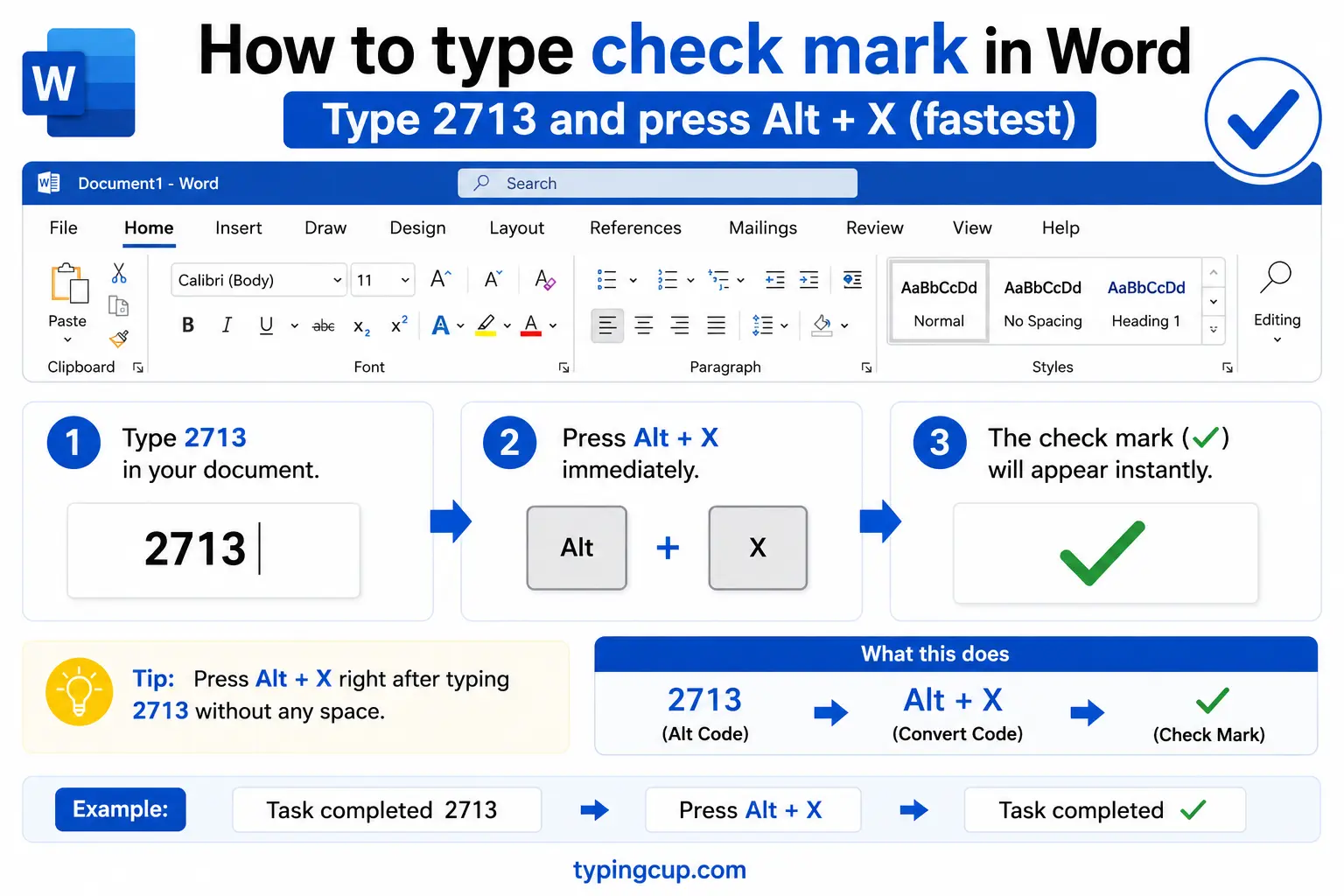
Put your cursor where you want the mark, type 2713, and press Alt + X. Word replaces the code with ✓. Use 2714 for the heavy ✔, 2611 for the boxed ☑, or 2705 for the green ✅. This is the quickest method because it never leaves the keyboard. If nothing happens, make sure there is no letter or number stuck to the code — put a space before 2713, then delete it after.
Method 2: Insert → Symbol
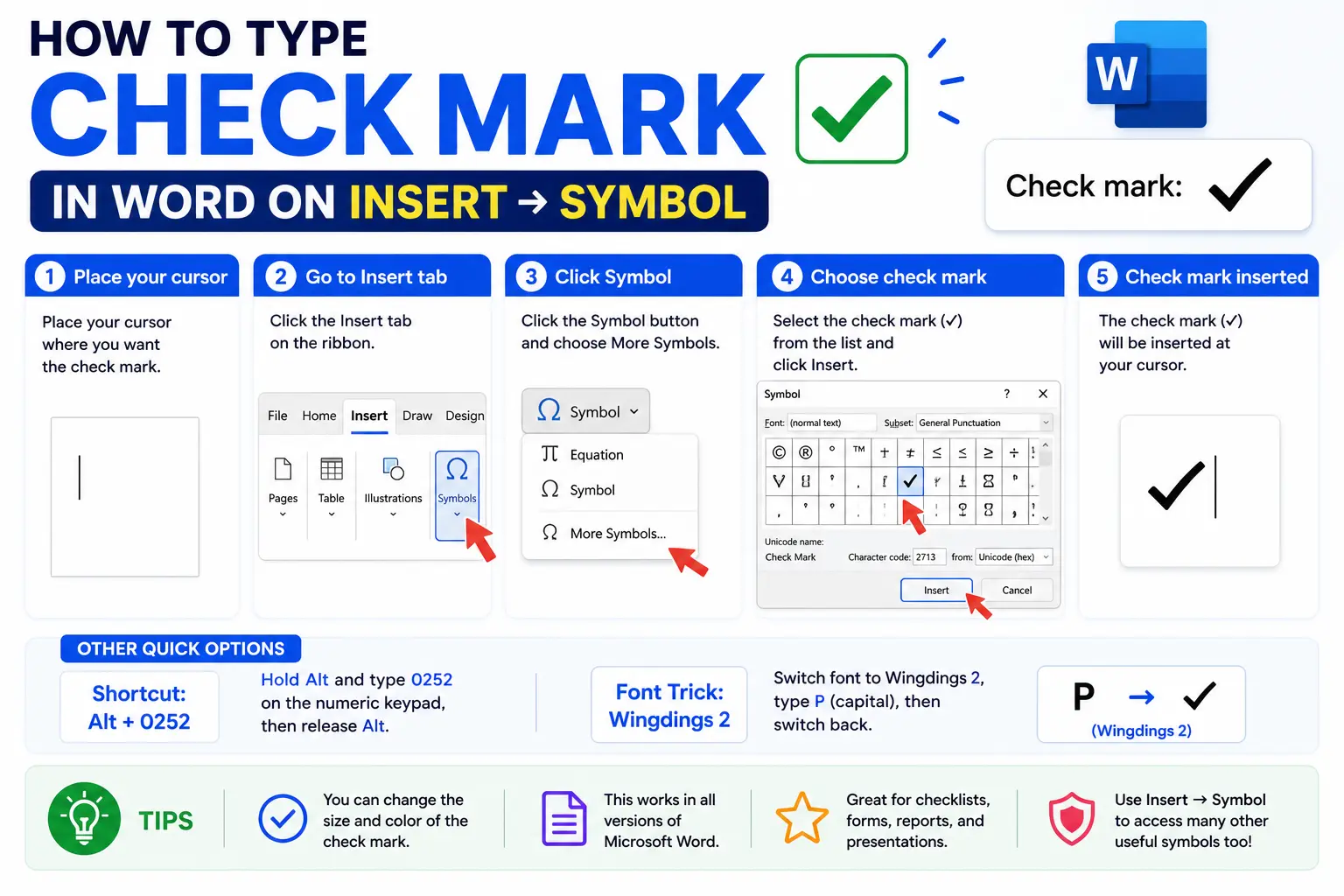
Go to Insert → Symbol → More Symbols. Set Font to “(normal text)” and Subset to “Dingbats,” and the check marks appear near the bottom. Click ✓ and then Insert. You can also paste the code 2713 into the “Character code” box (with “from: Unicode (hex)” selected) to jump straight to it. Recently used symbols stay in the grid, so the second time is one click.
Method 3: The Wingdings font trick
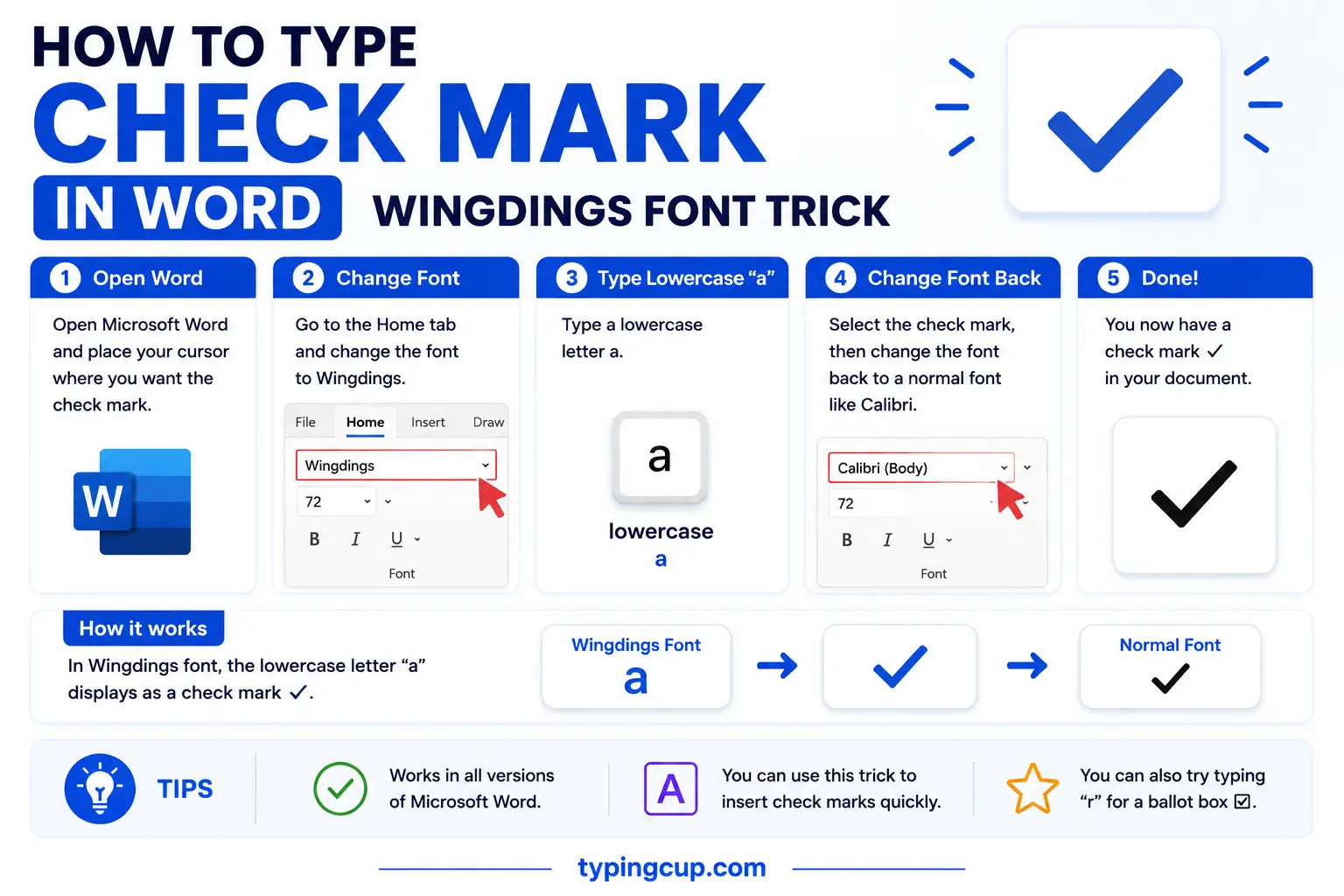
Word’s old-school way uses the Wingdings font, where letters are drawn as symbols. In Insert → Symbol, choose the Wingdings font and you will find a check mark and a boxed check among the characters. The catch worth knowing: the check mark there is really the letter ü displayed in Wingdings, so it only looks like a check while that font is applied — more on that, and how to avoid a surprise, in its own section below.
Method 4: Set up an AutoCorrect shortcut
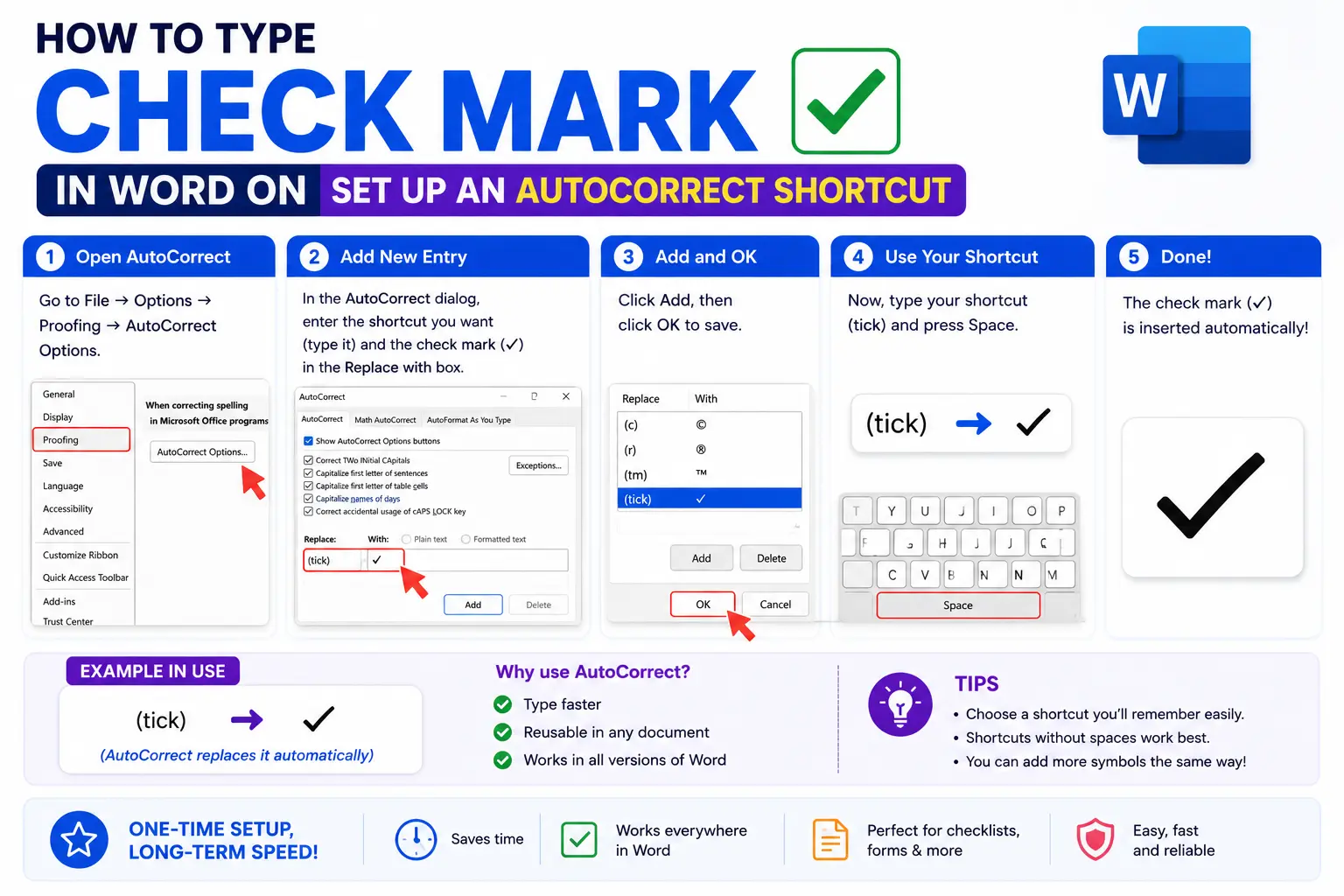
If you use check marks a lot, teach Word a shortcut. Insert a ✓ once, select it, then go to File → Options → Proofing → AutoCorrect Options. In the “Replace” box type something you would never type by accident, like (check) or \tick, and click Add. From then on, typing that text turns into a ✓ automatically. It is the fastest method of all once it is set up, and almost no one bothers to do it.
Method 5: The emoji panel (for the green ✅)
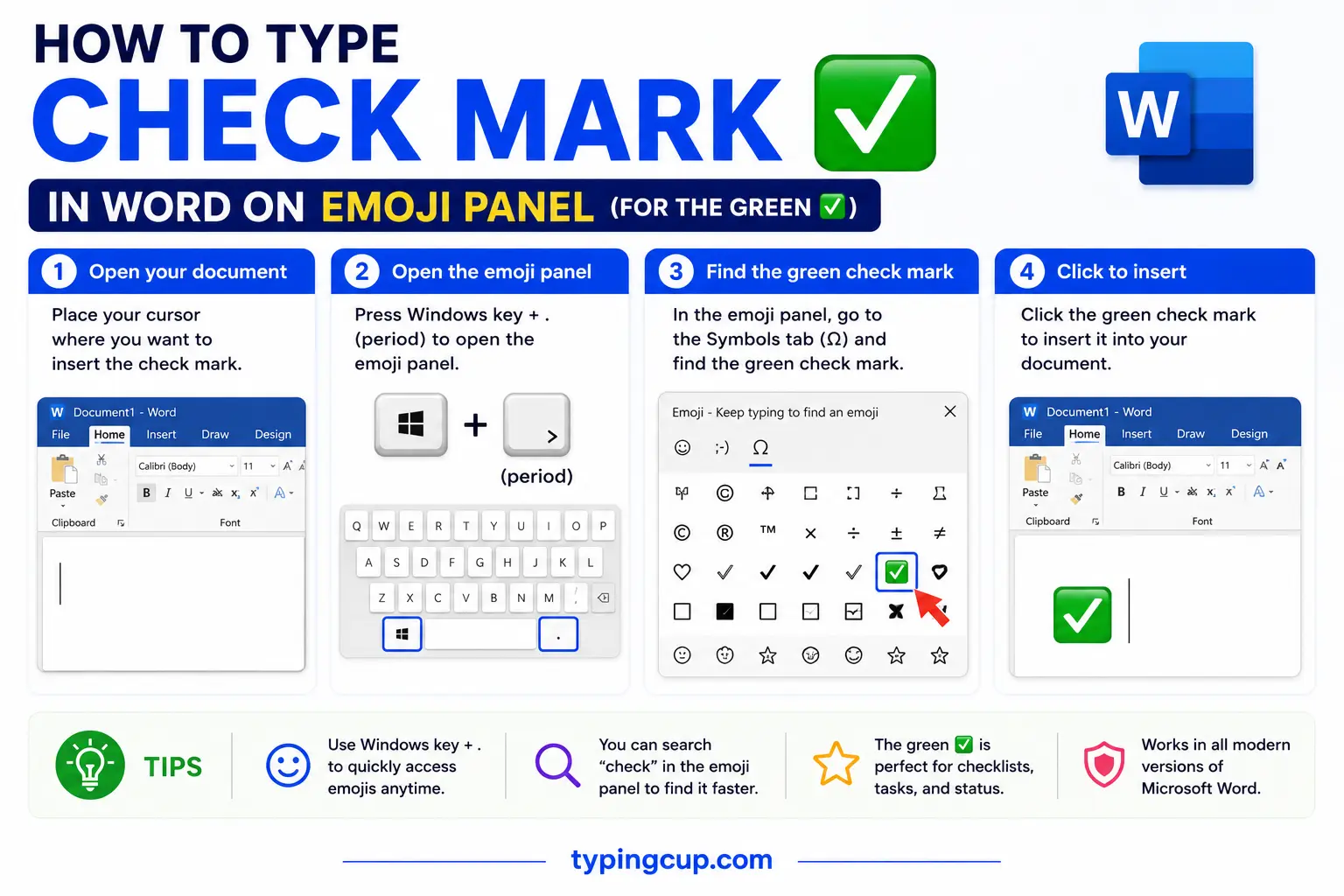
For the colorful green check, press Windows + . (period) on Windows or Control + Command + Space on a Mac, search “check,” and pick ✅. This inserts the emoji, which is drawn in color rather than taking your text color — good for a splash of green, less good for print.
Method 6: Copy and paste
The no-fuss option: copy ✓ (or any mark) from the grid at the top of this page and paste it into Word with Ctrl + V. If the formatting looks off, paste with Ctrl + Shift + V (keep text only) so the mark takes on your document’s font and size.
When to use a check mark
A check mark is shorthand for “yes, done, correct.” It earns its place in a few specific spots.
- Checklists and to-do lists: a ✓ next to a task means it is finished; pair it with a ✗ or an empty box for the ones that are not.
- Comparison tables: ✓ for “has this feature,” ✗ for “does not” — far clearer than the words “yes” and “no” repeated down a column.
- Approvals and sign-off: a check mark beside a name or step signals reviewed and approved.
- Marking work: teachers and editors use ✓ for correct and ✗ for wrong.
- Forms and surveys: a check shows a chosen option — though for something readers actually click, use a real checkbox, covered below.
Check mark vs checkbox: a symbol or a clickable box?
This trips people up, so it is worth being clear. A check mark (✓) is a symbol — a picture of a tick that sits in your text and does nothing when clicked. A checkbox is a control — a little box a reader can click to toggle between empty and checked. If you are printing a form for people to tick with a pen, or just showing that something is done, the symbol is right. If you are sending a Word file that people will fill in on screen, you want the interactive checkbox from the Developer tab. They look similar; they behave completely differently.
Check mark vs heavy check vs boxed check vs green check
There is more than one check mark, and the right one depends on the look you want.
| Symbol | Name | Best for |
| ✓ | Check mark | plain text, tables, print |
| ✔ | Heavy check mark | when a thin check looks too faint |
| ☑ | Check in a box | checklists shown as ticked boxes |
| ✅ | Green check (emoji) | chats, slides, a splash of color |
| ✗ ☒ | Cross / boxed cross | the “no” side of a comparison |
Two things to know: the plain ✓ and heavy ✔ take your text color, so they turn green or any color you apply, while the ✅ emoji is always green and cartoon-styled. For documents and tables, use ✓ or ✔; save ✅ for on-screen color.
Examples: check marks in lists and tables
Two of the most common ways check marks show up in a Word document.
In a checklist, a mark sits at the start of each finished line:
- ✓ Book the venue
- ✓ Send the invitations
- ✗ Order the cake
In a comparison table, checks and crosses replace “yes” and “no” so the eye scans it instantly:
| Feature | Basic | Pro |
| Reports | ✓ | ✓ |
| Custom branding | ✗ | ✓ |
| Priority support | ✗ | ✓ |
In both cases the mark is the plain ✓ so it takes the table or list’s font and color; drop in ✔ if you want it bolder.
The Wingdings letter map: ü = ✓ (and the stray-letter fix)
Here is the part behind the “type a letter, change the font” trick. In the Wingdings font, ordinary letters are drawn as pictures, and a few of them are check marks and crosses:
| Type this letter | In Wingdings it shows as |
| ü | ✓ check mark |
| û | ✗ cross (X) |
| þ | ☑ check in a box |
| ý | ☒ cross in a box |
So you can type ü, select it, and set the font to Wingdings to get a ✓. But this is also the cause of a classic mystery: if a document made this way is opened somewhere that lacks Wingdings, the check turns back into a plain ü. The fix is to use a real Unicode check (2713 then Alt + X, or copy ✓ from the grid) for anything you share — it looks the same and never depends on a font being installed.
How to make a clickable checkbox in Word
For a box readers can tick on screen, you need the Developer tab. Turn it on with File → Options → Customize Ribbon and tick Developer. Then place your cursor and click the Check Box Content Control in the Controls group. It drops in a box that toggles between empty and checked when clicked. Use this for interactive forms; keep the ✓ symbol for static or printed documents where people tick with a pen.
How to get a green check mark in Word
Two easy routes. For a quick colored tick, insert the emoji ✅ from the panel (Windows + .), which is always green. For a check that matches your document’s font and any shade of green you like, insert the plain ✓ or heavy ✔, select it, and set the font color to green from the Home tab — that way it prints cleanly and you control the exact color.
Check-mark bullets for a whole list
To turn every bullet in a list into a check mark, select the list and open the Bullets dropdown on the Home tab, then Define New Bullet → Symbol. Pick the check mark (font “(normal text),” or Wingdings), and every item now starts with a ✓ instead of a dot. It is the tidy way to build a “done” list without inserting a mark on every line by hand.
Check mark codes for Word and the web
Every code you might need, in one place — the Word Alt + X code, the Unicode point, and the HTML entity for web use.
| Symbol | Name | Word (Alt + X) | Unicode | HTML |
| ✓ | Check mark | 2713 | U+2713 | ✓ |
| ✔ | Heavy check mark | 2714 | U+2714 | ✔ |
| ☑ | Boxed check | 2611 | U+2611 | ☑ |
| ✅ | Green check (emoji) | 2705 | U+2705 | ✅ |
| ✗ | Cross | 2717 | U+2717 | ✗ |
| ☒ | Boxed cross | 2612 | U+2612 | ☒ |
For related symbols and every code, see the copy and paste symbols tool, the empty checkbox symbol guide, and the cross symbol guide.
Troubleshooting
My check mark turned into the letter ü or a box
The mark was made with the Wingdings font, and the device it opened on does not have that font, so it fell back to the underlying letter (ü) or an empty box. Replace it with a real Unicode check — type 2713 then Alt + X, or copy ✓ from the grid above — and it will survive anywhere.
Alt + X did nothing
Alt + X only works in Word and a few Office apps, not in every text box. Make sure the code 2713 has no letter or number touching it (put a space before it, then remove the space after it converts). Elsewhere, use Insert → Symbol or copy the mark instead.
My checkbox will not tick when I click it
A pasted ✓ or ☑ is a symbol, not a control, so it does nothing on click. For a box that toggles, use the Developer tab’s Check Box Content Control, described above.
Frequently asked questions
What is the fastest way to insert a check mark in Word?
Type 2713 and press Alt + X — it turns into ✓ without opening any menu. For the heavy version, use 2714; for the green emoji, 2705.
How do I type a check mark in Word without Wingdings?
Use the Unicode method: type 2713 then Alt + X, or Insert → Symbol with the font set to “(normal text).” Both give a check that does not depend on the Wingdings font, so it stays a ✓ when shared.
What is the difference between ✓ and ✅?
✓ is a plain text check mark that takes your font’s color and size, ideal for documents. ✅ is the green check emoji, drawn in color by the device, better for chats and slides than for print.
How do I add a clickable checkbox in Word?
Turn on the Developer tab (File → Options → Customize Ribbon), then click the Check Box Content Control. It inserts a box readers can tick on screen — different from the static ☑ symbol.
How do I write a check mark in HTML?
Use ✓ for ✓ or ✔ for the heavy ✔. The boxed check is ☑ and the green emoji is ✅.
