Check Mark Symbol (✓): How to Type, Copy, and Use It
The check mark, ✓, is the little tick that means “yes,” “done,” or “correct.” It comes in a few weights — the light ✓, the bold ✔, the boxed ☑, and the green ✅ — and none of them sit on a standard keyboard, so most people copy one or use a shortcut. This page has all of them, plus the parts other guides skip, like the old Wingdings trick and how to make a checkbox you can actually click.
If you just need a tick, copy one from the grid below: the plain ✓, the heavy ✔, the checked box ☑, or the green check ✅.
Below you’ll find how to type a check mark on every device, which version to use where, the Wingdings shortcut for Word and Excel, the difference between a checkmark and a real checkbox, and how ticks work in to-do lists and code.
In a hurry?
- Copy it: click a tick in the grid below.
- On Windows: hold Alt and type 10003 for ✓ (or 10004 for ✔).
- In Word/Excel: switch the font to Wingdings and press Alt + 0252.
- On a phone: open the emoji keyboard and search “check.”
- In HTML: write ✓ (or ✓).
Click to copy: check marks
Grab the plain ✓, the heavy ✔, the checked box ☑, or the green check ✅
Table of Contents
Copy and paste the check mark
Every common check mark with the codes you’re likely to need. Use the grid above to copy with one click; this table is the reference.
| Symbol | Name | Unicode | Windows (Alt) | HTML |
|---|---|---|---|---|
| ✓ | check mark | U+2713 | Alt + 10003 | ✓ |
| ✔ | heavy check mark | U+2714 | Alt + 10004 | ✔ |
| ☑ | check in a box | U+2611 | Alt + 9745 | ☑ |
| ✅ | green check | U+2705 | Alt + 9989 | ✅ |
None of these sit on a standard keyboard, so each takes a shortcut, a code, or a copy. The sections below cover every device, then which tick to use where, and the font trick that predates all of these codes.
How to type a check mark on any device
The tick isn’t on the keys, so here’s the quickest way to make one on each system.
Type a check mark on Windows
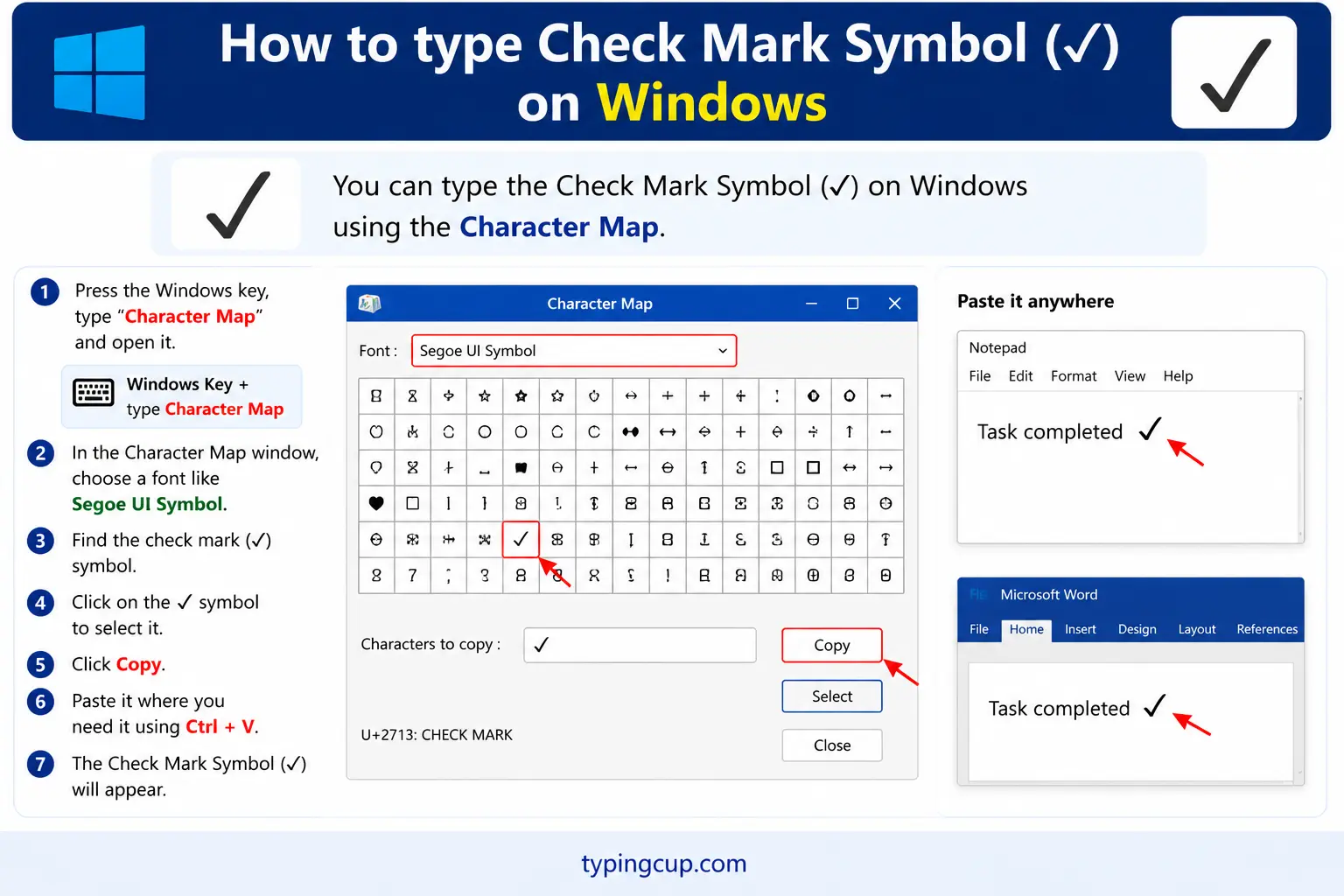
Use the Alt code: turn on Num Lock, hold Alt, and type 10003 on the numeric keypad for ✓, or 10004 for the heavy ✔. The quickest all-round method, though, is the emoji panel: press Windows + . and search “check” to get every tick, including the green ✅.
Type a check mark on Mac
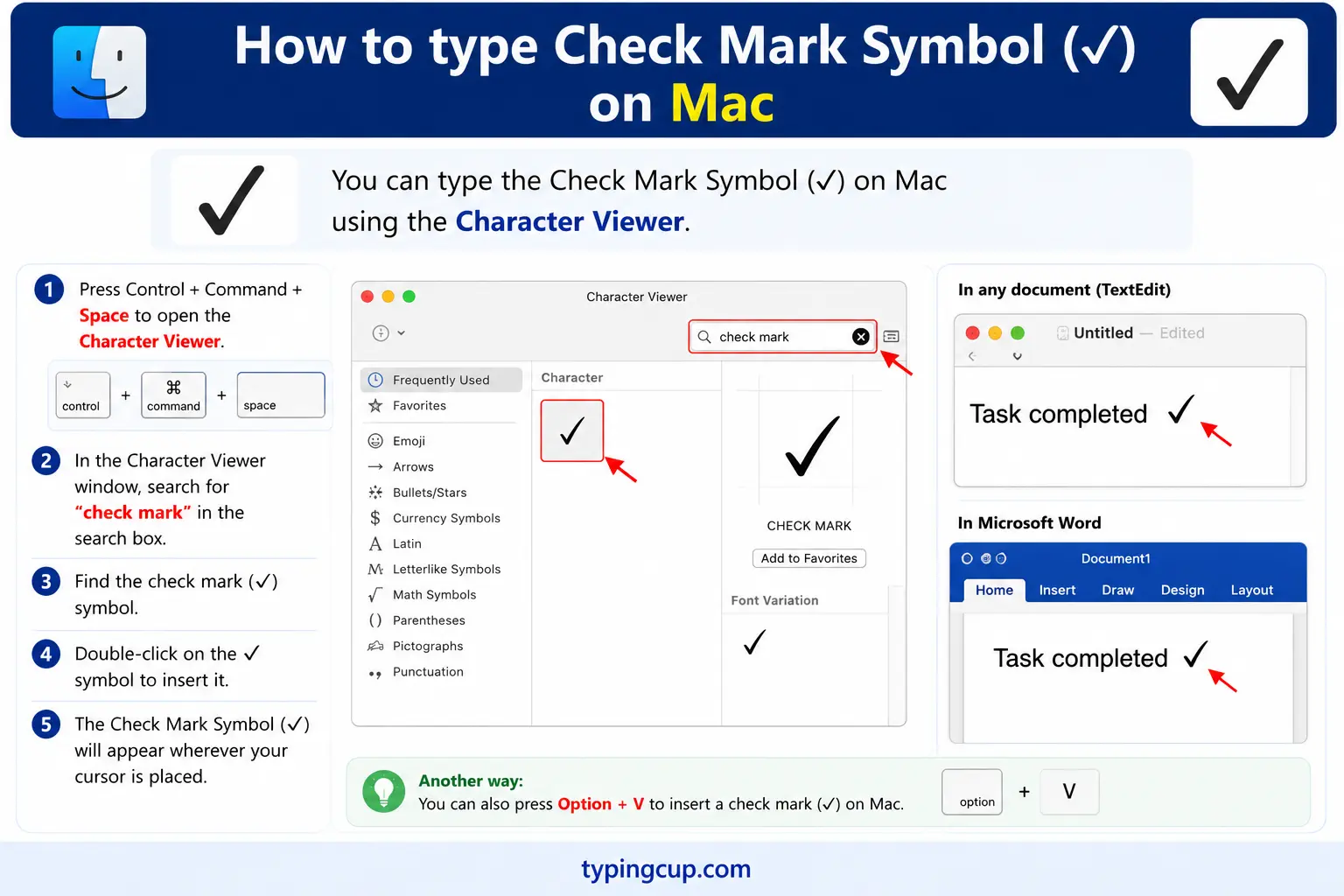
The Mac has no dedicated tick key. Press Control + Command + Space to open the Character Viewer (or the emoji picker), search “check,” and double-click the one you want. It’s the fastest route to all the variants, from the plain ✓ to the green ✅.
Type a check mark on iPhone and Android
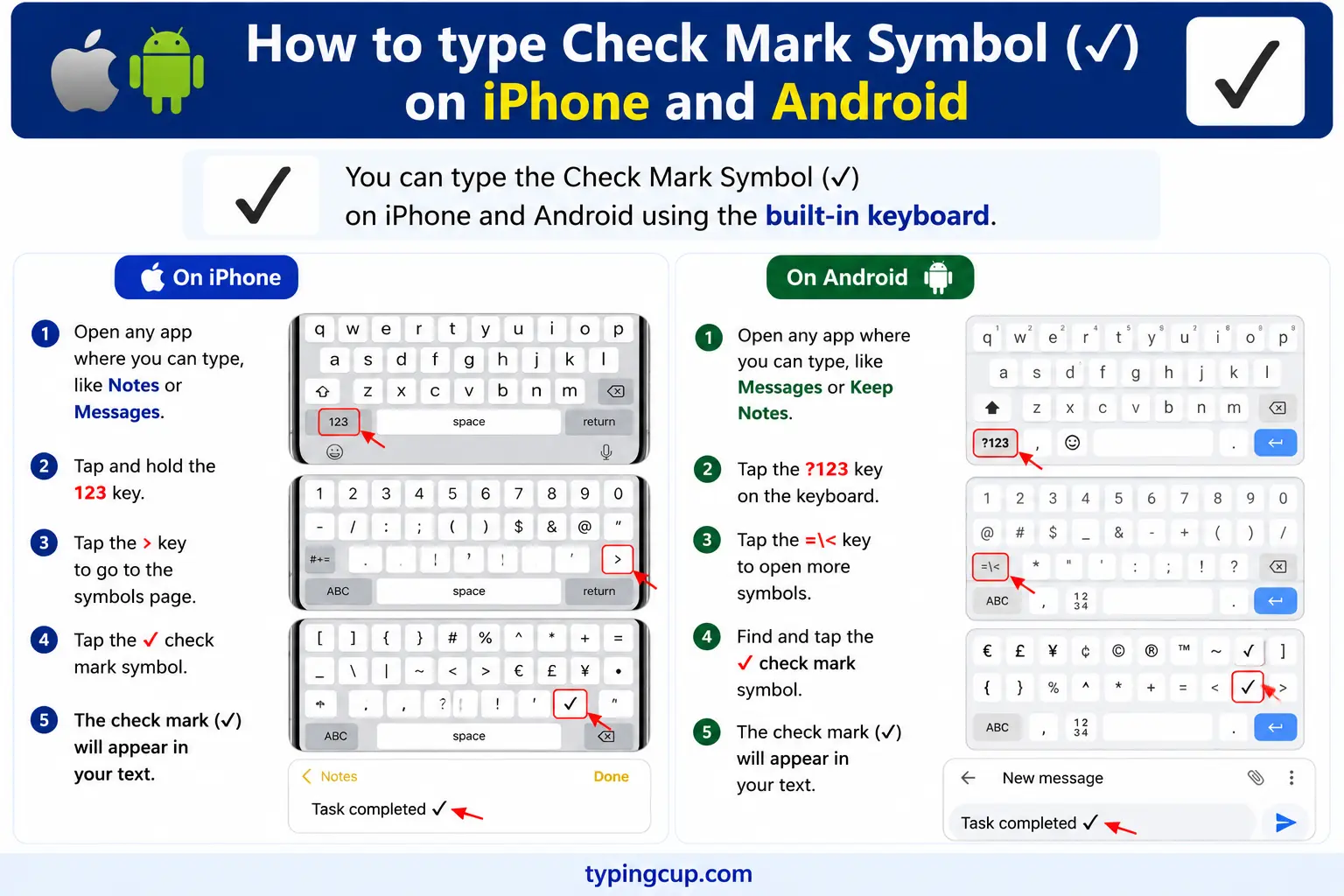
Open the emoji keyboard and search “check.” You’ll find the check mark ✔️ and the green ✅ ready to tap. There’s no tick on the letter keyboard, so the emoji picker is the way in on mobile.
Type a check mark in Microsoft Word
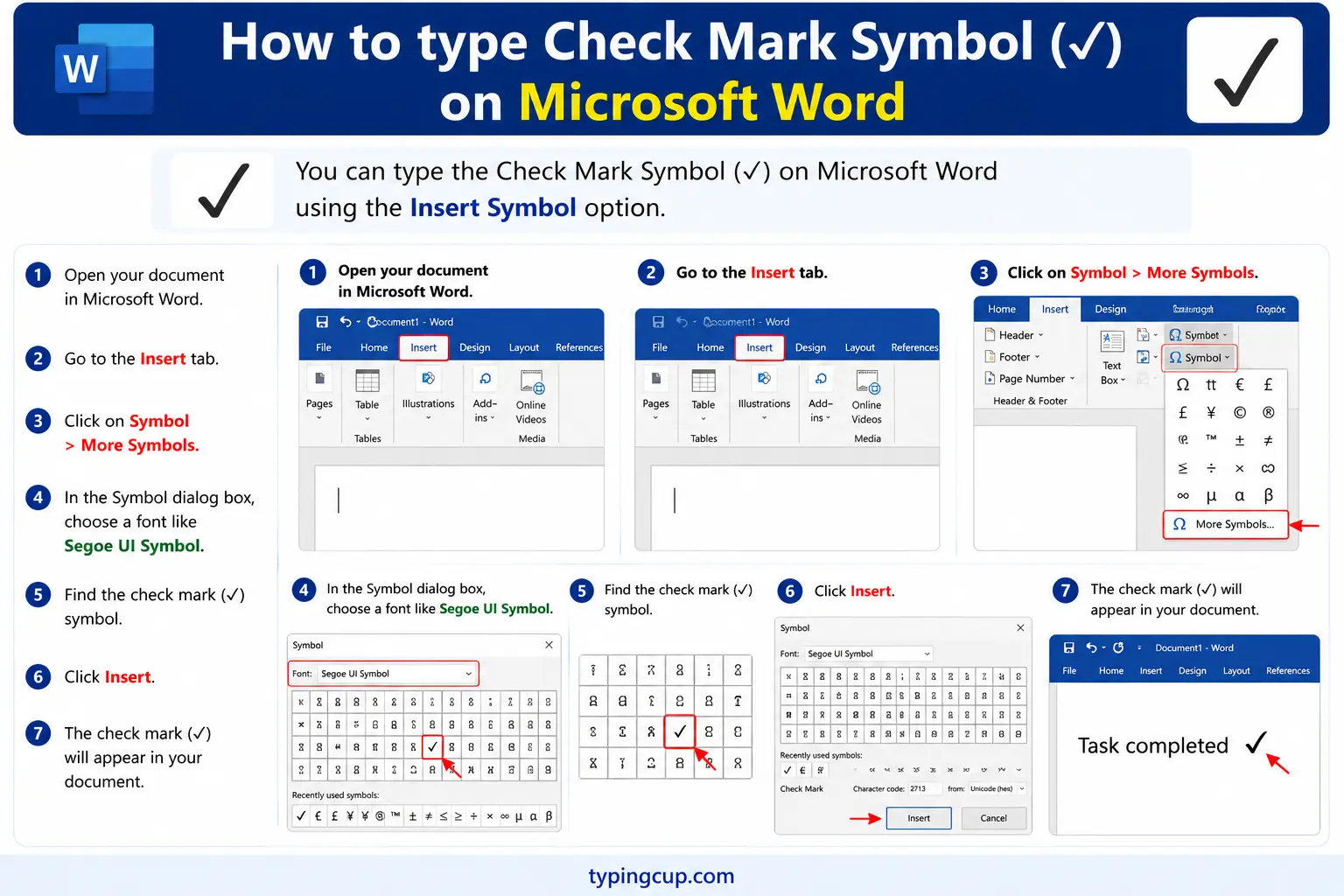
Three routes. Type 2713 and press Alt + X for ✓ (or 2714 for ✔). Use Insert → Symbol and pick a tick. Or use the classic Wingdings trick covered below, which is still the handiest for checklists.
Type a check mark in Excel and Google Sheets
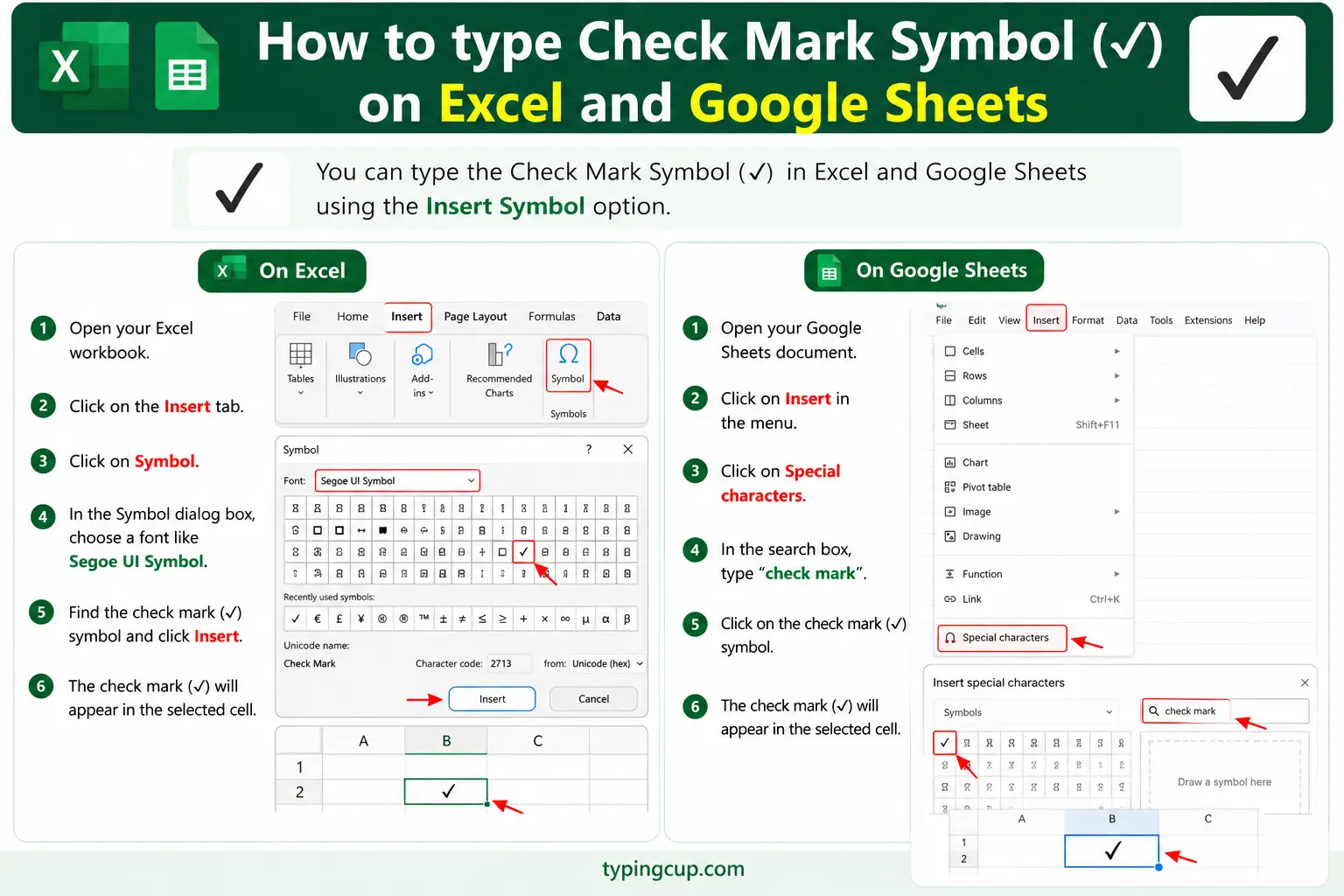
In both, =UNICHAR(10003) (Excel) or =CHAR(10003) (Google Sheets) prints a ✓. In Excel, the Wingdings 2 font turns a capital P into a tick and O into a boxed tick. For status columns, many people pair a checkmark with conditional formatting.
Type a check mark on Linux
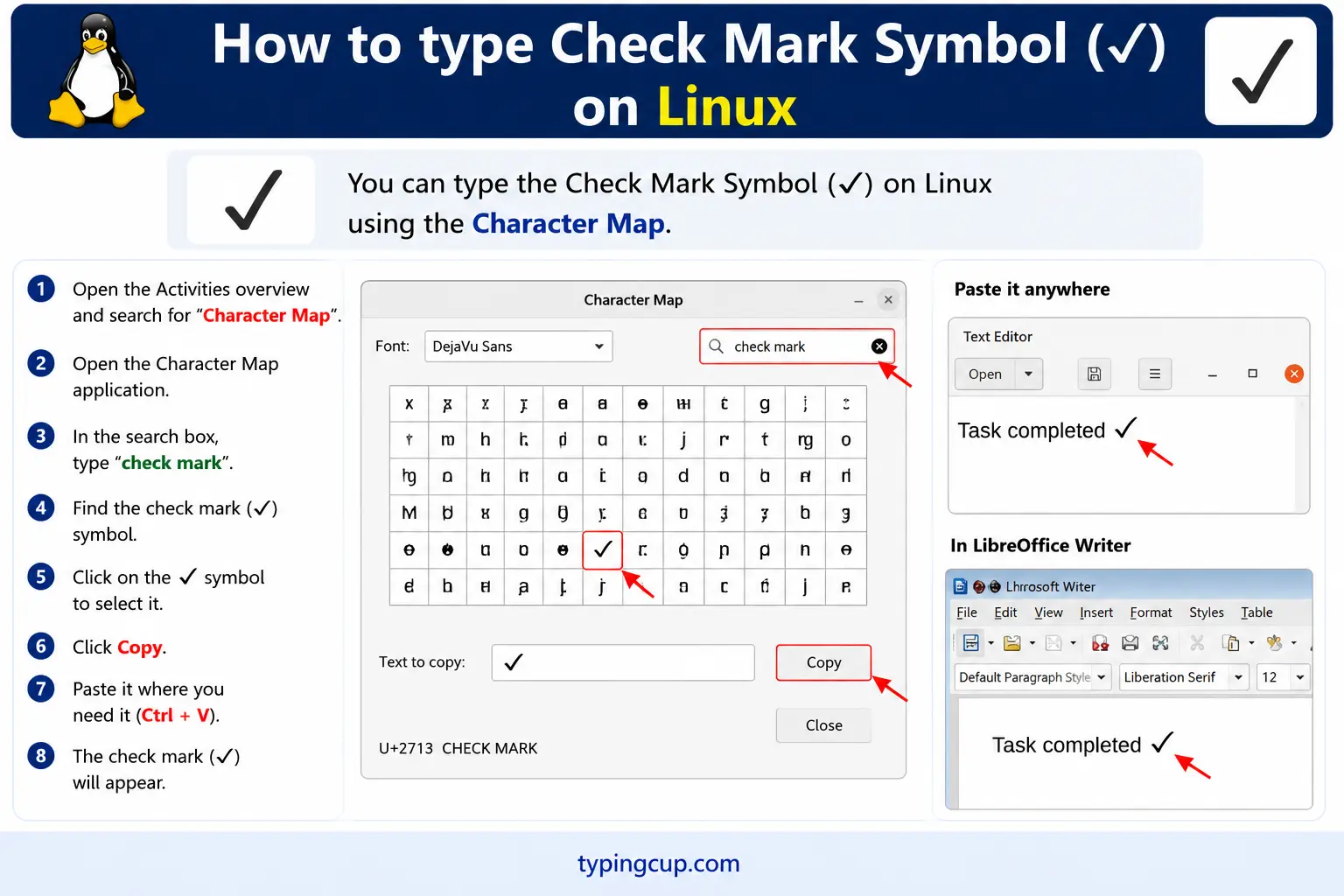
Press Ctrl + Shift + U, type 2713, then Enter for ✓ (use 2714 for the heavy tick). This Unicode input works in most GTK and Qt apps.
Add a check mark in HTML and CSS
In HTML, ✓ is ✓ or numeric ✓, and the heavy ✔ is ✔. In CSS, a tick in a content value is the escaped code point \2713 — handy for styling list bullets as ticks.
The check mark family: which one to use
There isn’t one check mark, there are several, and picking the right one saves you from a tick that looks too faint or an emoji that clashes with your text. Here’s the quick guide.
The plain ✓ is the everyday tick: clean, neutral, good in body text and tables. The heavy ✔ is the same shape with more weight, better when the tick needs to stand out or the font renders the light one too thin. The boxed ☑ shows a tick inside a square, which reads as “this option is selected.” And the green ✅ is an emoji, bright and colourful, perfect for chat and social but often too loud for a formal document, where it also can’t be recoloured.
| Symbol | Name | Best for |
|---|---|---|
| ✓ | check mark | body text, tables |
| ✔ | heavy check | emphasis, headings |
| ☑ | checked box | selected options |
| ✅ | green check emoji | chat, social, lists |
| ✗ | cross / ballot X | the “no” counterpart |
One tip: keep the weights consistent. If you’re marking a list of yes/no items, pair the plain ✓ with the plain ✗, or the heavy ✔ with the heavy ✘ — mixing a delicate tick with a bold cross looks off.
The Wingdings check mark trick (Word and Excel)
Long before Unicode had tick characters, there was one reliable way to get a check mark in Office, and it still works today: the Wingdings font. It’s the trick every spreadsheet veteran knows.
Switch a cell or some selected text to the Wingdings font, then type the right character and it appears as a symbol. In plain Wingdings, lowercase ü (which you can enter as Alt + 0252) becomes a ✓, and û (Alt + 0254) becomes a boxed tick ☑. In Wingdings 2, a capital P is a tick and O is a boxed tick.
| Font | Type this | You get |
|---|---|---|
| Wingdings | Alt + 0252 | ✓ |
| Wingdings | Alt + 0254 | a boxed tick |
| Wingdings 2 | P | ✓ |
| Wingdings 2 | O | a boxed tick |
The one catch: because it’s a font, the character underneath is still a plain letter. If you copy that tick into a different font, it turns back into a ü or a P. For a tick that travels anywhere, use the real ✓ character from the grid above instead; for a quick checklist inside one Office document, the Wingdings route is faster.
A check mark is not a checkbox
This is the distinction that sends people in circles: a check mark is a picture of a tick, while a checkbox is a control you can actually click to tick and untick. If you want a box people can check off, pasting a ☑ won’t do it — you need a real checkbox, and each app makes one differently.
In Word, turn on the Developer tab and insert a Check Box Content Control; it toggles when clicked. In Excel, the Developer tab has a Form Control checkbox you can link to a cell. In Google Docs, use Format → Bullets & numbering → Checklist, and in Google Sheets, Insert → Checkbox. On the web, it’s <input type="checkbox">.
So the rule is simple: if it just needs to show that something’s done, a ✓ or ☑ symbol is perfect. If someone needs to toggle it, reach for the checkbox control in whatever app you’re using, not the symbol.
Where the check mark came from
The tick’s meaning is older than the computer. One common explanation traces it to the Roman practice of marking items with a V, for veritas (“truth”) or simply as shorthand for “verified,” with the short-then-long stroke of the modern ✓ being a fast handwritten version of that letter.
However it started, the shape settled into a near-universal convention: a tick means yes, present, correct, or complete, and its partner the cross (✗) means no, absent, or wrong. That pairing is so widely understood that ballots, schoolwork, checklists, and software all rely on it without needing a caption — one of the few symbols that reads the same across most of the world.
Check marks in Markdown, GitHub, and to-do lists
If you write in Markdown, you get an interactive tick almost for free. A task list is written with square brackets: - [ ] to do for an empty box and - [x] done for a ticked one. On GitHub, GitLab, and many note apps, those render as real checkboxes you can click, and GitHub even counts how many are done.
Away from task lists, people drop the green ✅ emoji straight into commit messages, pull requests, and Slack to mean “passed” or “done,” and the ❌ for “failed.” It’s informal but instantly readable. So for a checklist that others tick off, use Markdown’s - [ ] syntax; for a quick visual “yes,” the ✓ or ✅ does the job.
Copy-paste HTML codes
Every code for the common check marks in one place. Click a cell and copy.
| Symbol | Named entity | Numeric entity | URL (percent) code |
|---|---|---|---|
| ✓ | ✓ | ✓ | %E2%9C%93 |
| ✔ | — | ✔ | %E2%9C%94 |
| ☑ | — | ☑ | %E2%98%91 |
| ✅ | — | ✅ | %E2%9C%85 |
In a CSS content value, use \2713 for a tick, handy for turning list bullets into check marks. For its opposite, the cross, and other symbols, the square root guide notes how the tick ✓ differs from the radical √.
Troubleshooting
My check mark shows as a box or the wrong glyph
Either an encoding mismatch (set everything to UTF-8) or a font without that symbol. The plain ✓ is widely supported; the green ✅ needs an emoji-capable font, so on older systems it may show as an empty box.
My Wingdings tick turned into a letter
That’s expected: the Wingdings tick is really a ü or P displayed in the Wingdings font. Copied into another font, it reverts. Use the real ✓ character from the grid above for a tick that survives anywhere.
I pasted ☑ but it won’t check or uncheck
☑ is a static picture, not a control. For a clickable box, insert a real checkbox: the Developer-tab control in Word or Excel, Insert → Checkbox in Google Sheets, or <input type="checkbox"> on the web.
The green check looks different on another device
Emoji like ✅ are drawn by each platform, so the green check looks slightly different on iPhone, Android, and Windows. For a consistent look everywhere, use the plain ✓ or heavy ✔ instead of the emoji.
FAQ
How do I type a check mark?
On Windows, hold Alt and type 10003 for ✓ (or 10004 for ✔), or press Windows + . and search “check.” On a Mac, use Control + Command + Space. On a phone, use the emoji keyboard. Or click a tick in the grid above.
How do I get a check mark in Excel or Word?
Fastest is the Wingdings font: switch to it and press Alt + 0252 for ✓. Or use the character’s own code (2713 then Alt + X in Word), or =UNICHAR(10003) in Excel.
What’s the difference between ✓, ✔, and ✅?
✓ is the plain check mark, ✔ is the heavier version for emphasis, and ✅ is a green emoji for chat and social. They mean the same “yes” but differ in weight and colour; the emoji can’t be recoloured and varies by device.
How do I make a checkbox people can click?
A ✓ symbol only shows a tick. For a clickable box, use a real control: the Developer-tab checkbox in Word or Excel, Insert → Checkbox in Google Sheets, or <input type="checkbox"> on the web.
How do I write a check mark in HTML?
Use ✓ or ✓ for ✓, and ✔ for the heavy ✔. In a URL, ✓ is %E2%9C%93.
