@ Key Not Working? How to Fix It (and Type @ Now)
If your @ key isn’t working — you press Shift + 2 and get a quote mark “, or nothing at all — the good news is that it’s almost never a broken keyboard. Nine times out of ten it’s a keyboard layout mismatch, and it takes about ten seconds to fix. This page shows the fix, explains why it happens, and lets you copy an @ right now so you can keep working.
Grab an @ from the box below to paste into your email or login, then follow the steps to fix the key properly.
In a hurry?
- Copy an @ now: click it in the grid below and paste it.
- Quick fix (Windows): press Windows + Space to switch keyboard layout, then test Shift + 2.
- Quick test: if Shift + 2 gives “, it’s a layout problem, not hardware.
- On a UK layout: @ is Shift + ‘ (the apostrophe key), not Shift + 2.
- Type it another way: on Windows, Alt + 64 gives @.
Click to copy: the @ sign
Grab an @ to paste while you fix your key, or its HTML and URL codes
Table of Contents
Quick test: is it the layout or the hardware?
Before you change anything, do this ten-second test, because it tells you exactly which problem you have. Press Shift + 2 and watch what appears:
| What you get | What it means | Fix |
|---|---|---|
| A quote mark “ | Wrong keyboard layout (software) | switch the layout, below |
| A different symbol | Wrong layout (software) | switch the layout, below |
| Nothing at all | Possibly Filter Keys, or hardware | see the sections below |
| @ works here but not one app | That app or field | restart the app |
The key insight: if you press the @ key and a different character comes out, the key is working perfectly — your computer just thinks the keyboard is a different model. That’s a software setting, not a fault, and it’s the most common cause by far.
Why your @ key types a quote mark
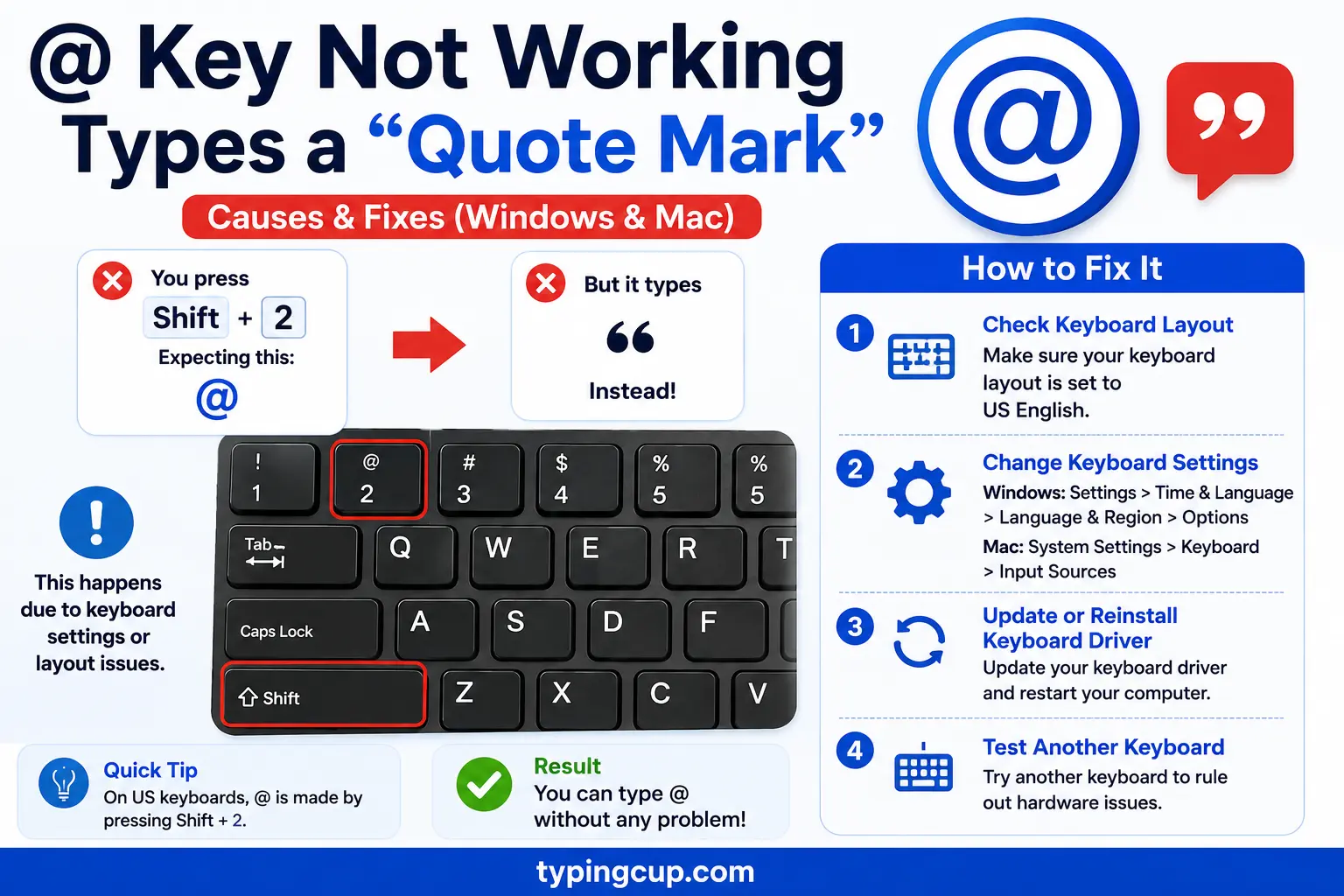
Here’s the reason almost no troubleshooting page explains properly. Keyboards are physically similar around the world, but the layout — which character each key produces — differs by country. On a US layout, @ is Shift + 2 and the double quote is Shift + ‘. On a UK layout, those two are swapped: @ moves to Shift + ‘ (the apostrophe key), and Shift + 2 gives the quote instead.
So if you have a physical US keyboard but Windows is set to UK English (or the reverse), pressing the key labelled @ produces a “, because the software is following the other country’s map. Nothing is broken — the layout just doesn’t match the printing on your keys. The same thing gives people a £ instead of #, or a swapped @ and “, and it’s all the same underlying mismatch.
Fix it on Windows: switch the keyboard layout
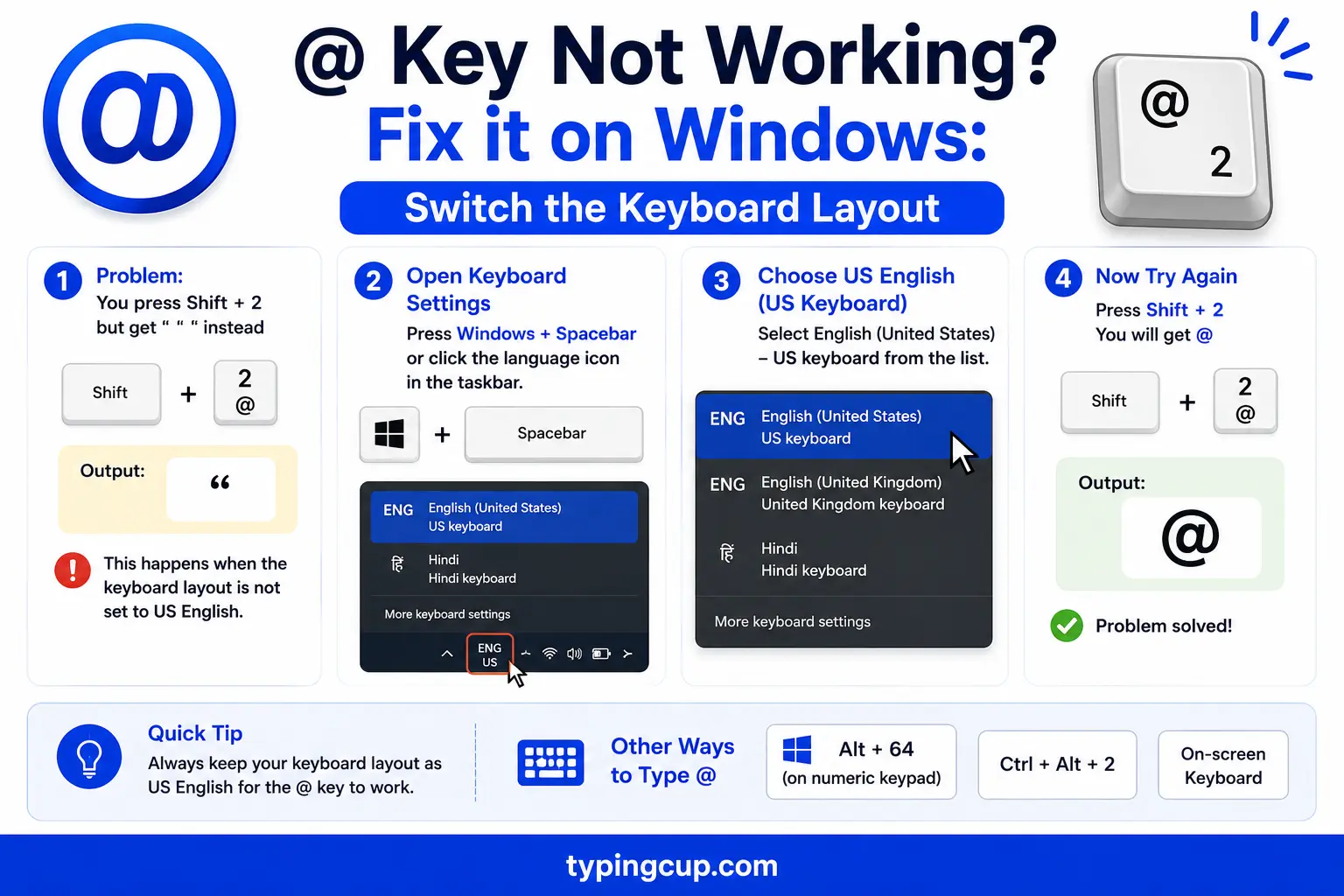
The fastest fix is the shortcut Windows + Space: hold the Windows key and tap Space to cycle through your installed keyboard layouts, then test Shift + 2 after each until @ appears. The layout name shows near the clock as you switch (ENG US, ENG UK, and so on).
To set it permanently, go to Settings → Time & Language → Language & Region, click your language, open Language options, and under Keyboards make sure the layout matches your physical keyboard — US for a US keyboard, United Kingdom for a UK one. Remove any layout you don’t use so Windows can’t switch to it by accident, which is often what caused the problem in the first place (Windows + Space is easy to hit by mistake).
Fix it on a Mac: check the input source
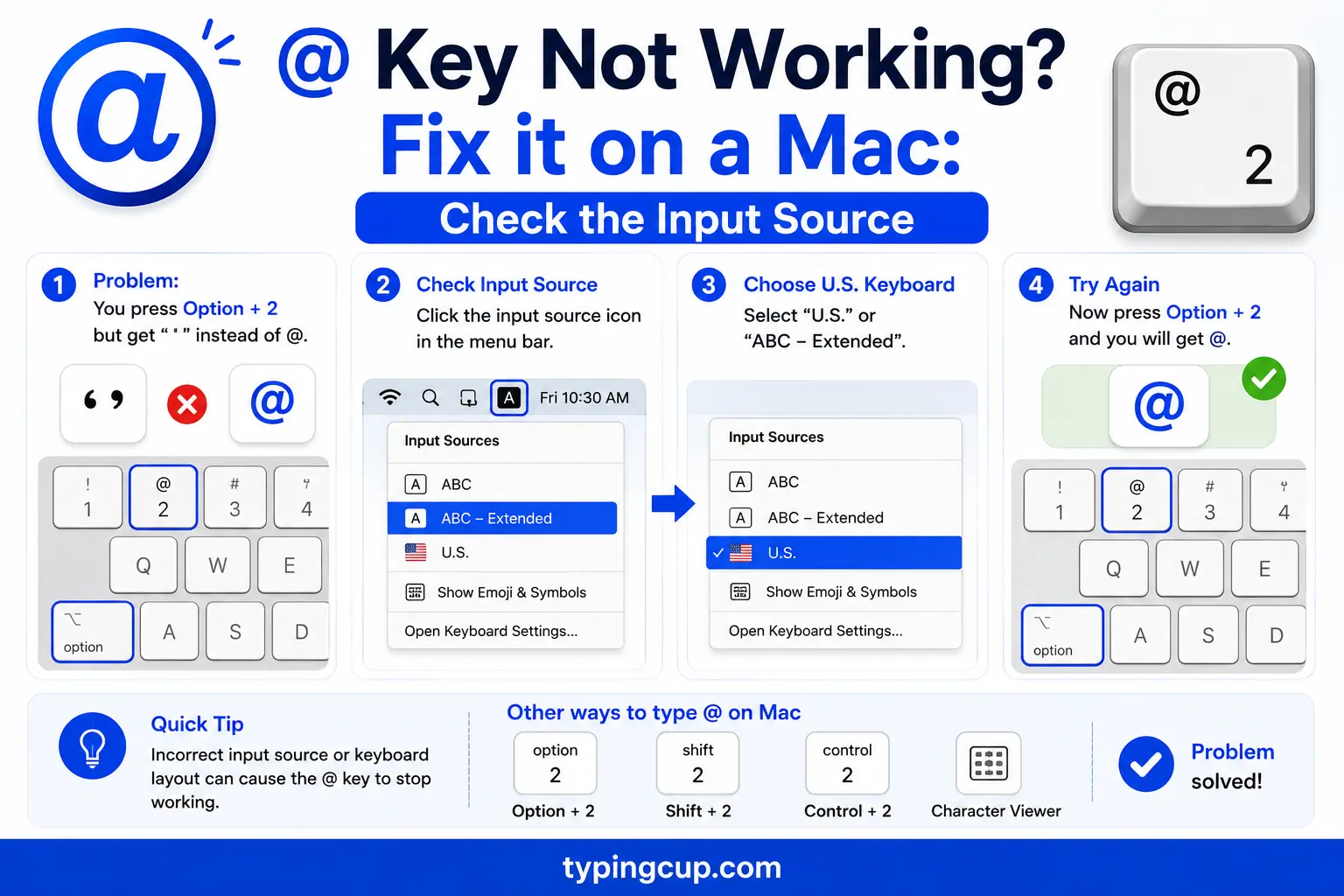
On a Mac, open System Settings → Keyboard → Text Input → Edit (or Input Sources) and confirm the selected source matches your keyboard — ABC or US for a US layout, British for a UK one. You can also add the input menu to the menu bar and switch with Control + Space or by clicking the flag.
On a US Mac layout, @ is Shift + 2; on a British Mac layout, @ is Option + 2 and Shift + 2 gives the quote. So if your Mac @ is misbehaving, either switch the input source to match your keyboard, or use the shortcut that belongs to the layout you’re actually on.
When it really is the key: other causes
If Shift + 2 produces nothing at all (not a wrong character), the layout is probably fine and something else is stopping the keypress. Run through these:
Filter Keys. A Windows accessibility feature that ignores brief or repeated keypresses; if it switched on by accident (holding right Shift for eight seconds does it), keys can seem dead. Turn it off in Settings → Accessibility → Keyboard. Sticky Keys can also make Shift behave oddly, so check that too. A stuck or dirty key, or crumbs under the keycap, can block the press — test the same key in an on-screen keyboard: if the on-screen @ works but the physical one doesn’t, it’s hardware. A loose connection on an external keyboard — reseat the USB plug or try another port. And on a laptop, a spilled drink or a driver glitch can affect one key, which a reboot or a keyboard-driver reinstall often clears.
@ on different keyboard layouts
Where the @ lives depends entirely on your layout. If yours isn’t US, this is likely where your @ actually is.
| Layout | Type @ with |
|---|---|
| US | Shift + 2 |
| UK | Shift + ‘ (apostrophe) |
| UK Mac | Option + 2 |
| German (QWERTZ) | AltGr + Q |
| Spanish | AltGr + 2 |
| French (AZERTY) | AltGr + 0 (à key) |
| Italian | AltGr + ò |
On many European layouts the @ is a third symbol on a key, reached with the right-hand Alt Gr key rather than Shift. If Shift isn’t giving you @, try Alt Gr with the number or letter shown above for your layout.
How to type @ right now while you fix it
You don’t have to solve the layout problem before you can send that email. Any of these gets an @ immediately: copy it from the grid at the top of this page; on Windows press Alt + 64 (hold Alt, type 64 on the numeric keypad); open the on-screen keyboard (search “on-screen keyboard”) and click the @; or open Character Map, find @, and copy it. On a phone, the @ is on the symbols keyboard (the 123 key) and often long-pressable on the period or a letter.
For a permanent-feeling shortcut without changing your layout, you can set up a text replacement so a trigger like atat expands to @ — handy if your layout is genuinely missing an easy @.
Copy-paste HTML and codes
The @ sign in every code you might need. Click a cell and copy.
| Symbol | Named entity | Numeric entity | URL (percent) code |
|---|---|---|---|
| @ | @ | @ | %40 |
In a URL, @ separates a username from a host and is percent-encoded as %40 when it’s part of the data. For everything about the character itself — its history, its uses, and how to type it on every device — see the [at symbol](/at-symbol/) guide, and for other keys the [keyboard shortcuts for symbols](/keyboard-shortcuts-for-symbols/) hub.
FAQ
Why does my @ key make a quote mark?
Your keyboard layout doesn’t match your physical keyboard, usually US vs UK. On a UK layout, Shift + 2 is the quote and @ moves to Shift + ‘. Switch the layout with Windows + Space, or press @ where the UK layout puts it.
How do I fix the @ key on Windows?
Press Windows + Space to switch keyboard layout and test Shift + 2. To fix it for good, set the keyboard layout to match your keyboard in Settings, Time & Language, Language & Region, and remove any layout you don’t use.
How do I type @ without the key?
Copy it from the grid above, press Alt + 64 on Windows, use the on-screen keyboard, or open Character Map. On a phone, it’s on the symbols (123) keyboard.
Is my keyboard broken if @ doesn’t work?
Almost certainly not. If pressing the key gives a different character, the key works and it’s a layout setting. Only if it gives nothing should you suspect Filter Keys, a stuck key, or a loose connection.
Where is @ on a UK keyboard?
On a UK layout, @ is Shift + ‘ (the apostrophe key, to the right of the semicolon), not Shift + 2. Shift + 2 gives a quote mark on UK layouts.
