How to Type Spanish Letters (á é í ó ú ñ ü ¡ ¿) on Any Device
Spanish adds only a handful of characters to the standard keyboard, but they carry weight: the accented vowels á é í ó ú, the ü with two dots, the ñ, and the upside-down ¡ and ¿. Miss one and a word can change meaning, or a sentence can lose its opening mark.
The quickest way to drop one in is to click it in the grid below. If you type Spanish regularly, though, it’s worth setting up a keyboard layout, and this guide covers that too.
Below you’ll find every Spanish character to copy, the codes for each device, ready-made HTML entities, and a short guide to when the accent actually goes on.
In a hurry?
- Copy it: click any character in the grid below.
- On Windows: hold Alt and type the code, like 0241 for ñ or 0225 for á.
- On a Mac: press Option + e then a vowel for accents, and Option + n then n for ñ.
- On a phone: press and hold the vowel, the n, or the ? and ! keys.
- Best for daily use: switch on the Spanish or US-International keyboard layout.
Click to copy: Spanish letters
Tap any character and it is copied to your clipboard
Table of Contents
Copy and paste Spanish letters
Every Spanish character, lowercase and capital, with the codes to type each one. Use the grid above for one-click copying; this table is the reference for typing them yourself. Handily, all of them have both a Windows Alt code and a named HTML entity.
| Character | Name | Unicode | Windows | Mac |
|---|---|---|---|---|
| á | a with acute | U+00E1 | Alt + 0225 | Option + e, a |
| é | e with acute | U+00E9 | Alt + 0233 | Option + e, e |
| í | i with acute | U+00ED | Alt + 0237 | Option + e, i |
| ó | o with acute | U+00F3 | Alt + 0243 | Option + e, o |
| ú | u with acute | U+00FA | Alt + 0250 | Option + e, u |
| ü | u with diaeresis | U+00FC | Alt + 0252 | Option + u, u |
| ñ | n with tilde | U+00F1 | Alt + 0241 | Option + n, n |
| Á | A with acute | U+00C1 | Alt + 0193 | Option + e, Shift + A |
| É | E with acute | U+00C9 | Alt + 0201 | Option + e, Shift + E |
| Í | I with acute | U+00CD | Alt + 0205 | Option + e, Shift + I |
| Ó | O with acute | U+00D3 | Alt + 0211 | Option + e, Shift + O |
| Ú | U with acute | U+00DA | Alt + 0218 | Option + e, Shift + U |
| Ü | U with diaeresis | U+00DC | Alt + 0220 | Option + u, Shift + U |
| Ñ | N with tilde | U+00D1 | Alt + 0209 | Option + n, Shift + N |
| ¡ | Inverted exclamation | U+00A1 | Alt + 0161 | Option + 1 |
| ¿ | Inverted question mark | U+00BF | Alt + 0191 | Option + Shift + ? |
When Spanish uses each mark
Spanish keeps its extra marks to a short, consistent set, which makes them easier to learn than they first look.
The accent on the vowels is always an acute, leaning right, and it does one main job: it shows which syllable is stressed when the word breaks the normal rules, as in adiós and café. It also tells look-alike words apart, so tú (“you”) is not tu (“your”), él (“he”) is not el (“the”), and sí (“yes”) is not si (“if”). A Spanish word never carries more than one of these, and never a grave or a circumflex.
The ñ is a letter in its own right, the fifteenth in the Spanish alphabet, not an n with a decoration. It grew out of a medieval habit of writing a small n above another n, and it stands for the “ny” sound in español and mañana. The two dots on ü show up only in güe and güi, where they tell you to actually pronounce the u, as in pingüino and vergüenza.
Finally, the upside-down ¡ and ¿ open an exclamation or a question, with the normal mark still closing it. Spanish brackets the whole phrase, so it’s ¿Cómo estás? and ¡Hola!. That opening mark is easy to forget and one of the clearest signs a text was typed by someone new to the language.
| Character | What it does | Example |
|---|---|---|
| á é í ó ú | mark the stressed syllable | adiós, café |
| ü | sound the u after g | pingüino |
| ñ | the “ny” sound, its own letter | español |
| ¡ … ! | open and close an exclamation | ¡Hola! |
| ¿ … ? | open and close a question | ¿Qué tal? |
How to type Spanish letters on any device
Because every Spanish character sits in the old Latin range, they’re some of the easiest accented letters to type. Pick your device.
Windows
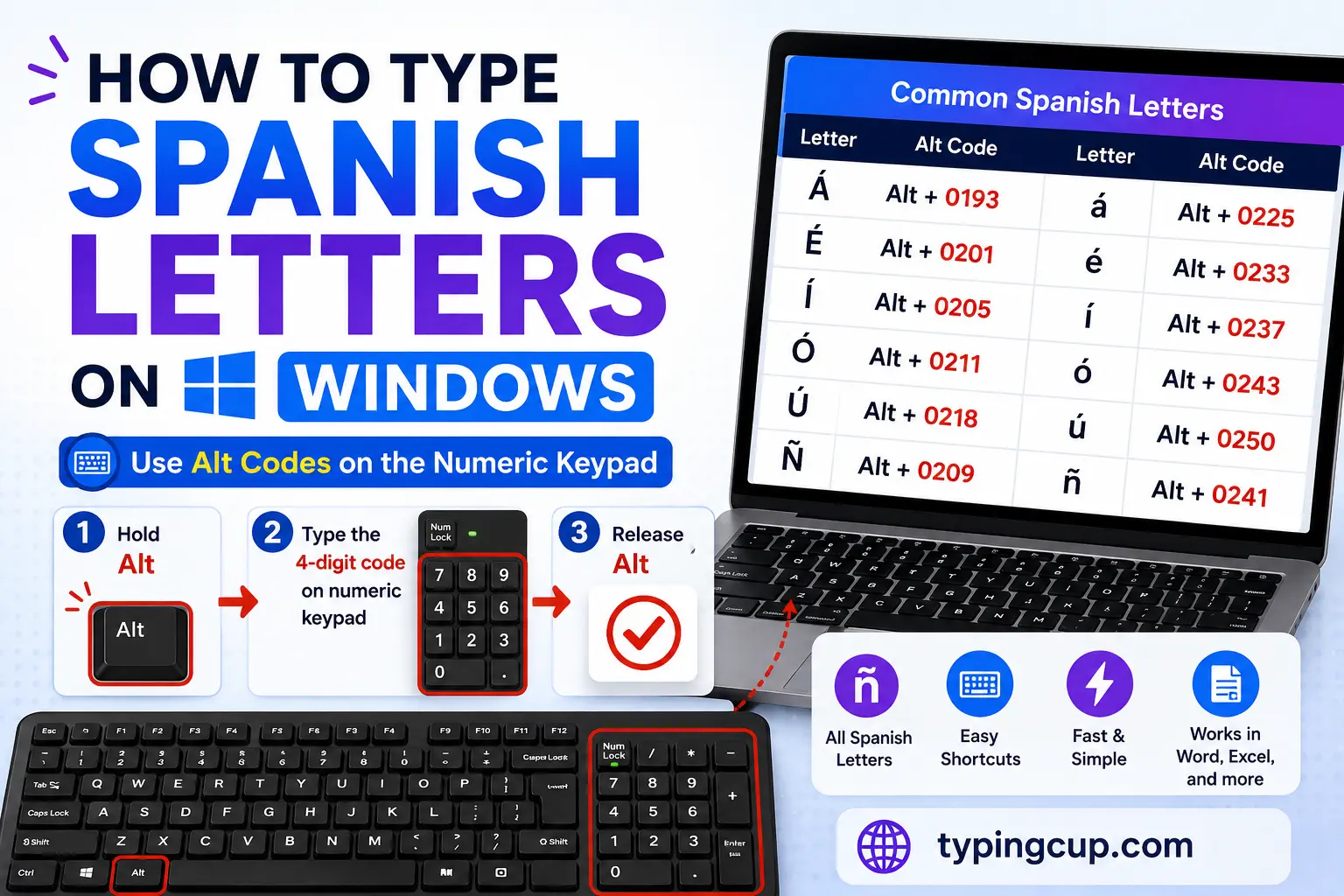
The direct route is the Alt code. Turn on Num Lock, hold Alt, and type the four-digit code on the numeric keypad: 0225 for á, 0233 for é, 0241 for ñ, and so on down the table above. The capitals and the ¡ and ¿ have their own codes there too.
For anything more than the odd word, switch to the US-International layout (Settings, then Time & Language, then keyboard options). Then an apostrophe followed by a vowel gives the accent, a tilde then n gives ñ, and the right Alt plus 1 or / produces ¡ and ¿.
The Spanish keyboard layout
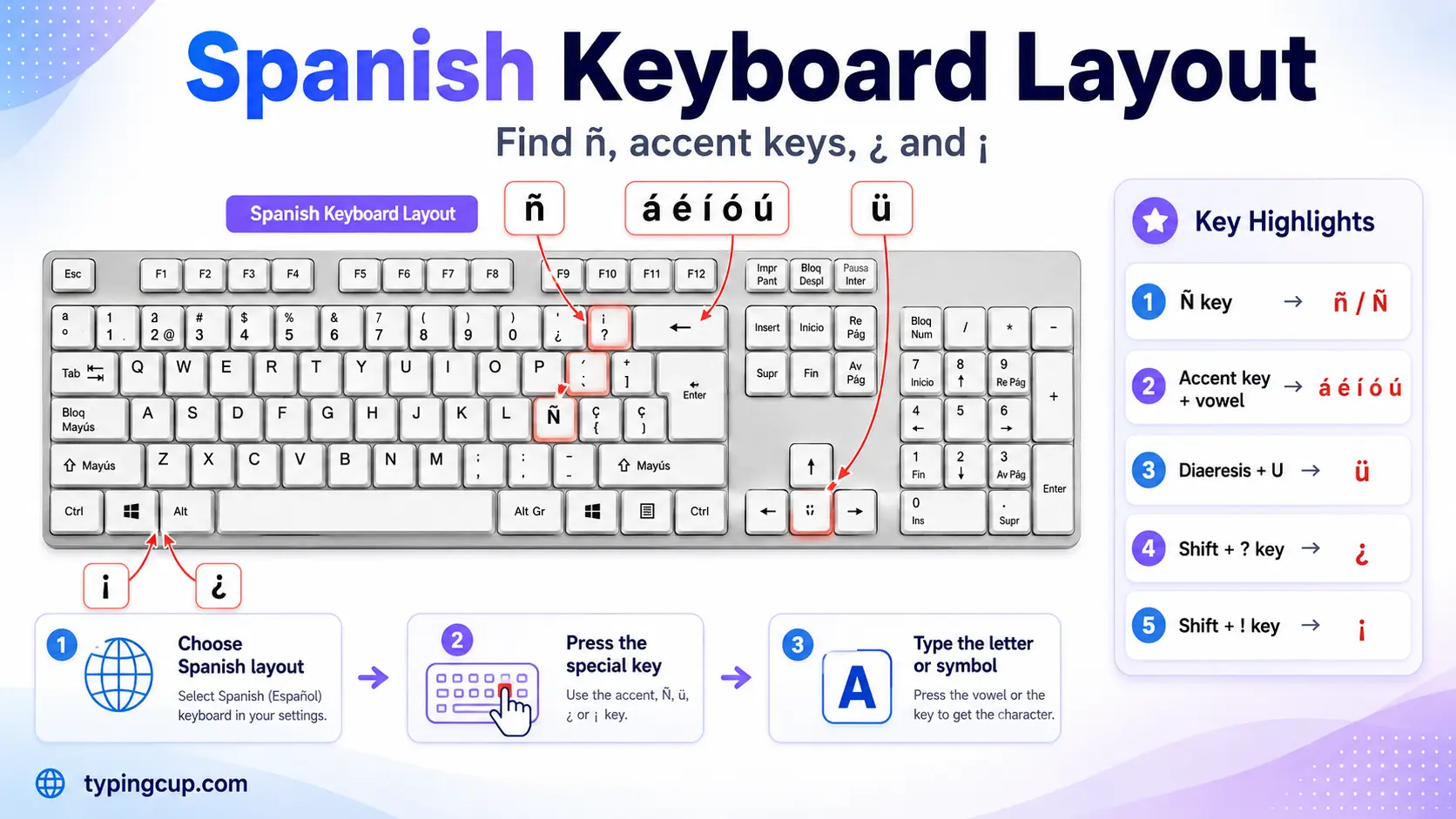
If you write a lot of Spanish, the real answer is the Spanish keyboard itself. Add it under Settings on Windows, System Settings on a Mac, or your keyboard’s language list on a phone.
On that layout, ñ has its own dedicated key (just right of the L), the accent is a dead key you press before the vowel, and ¡ and ¿ sit within easy reach. Nothing to memorise once your fingers learn it.
Mac
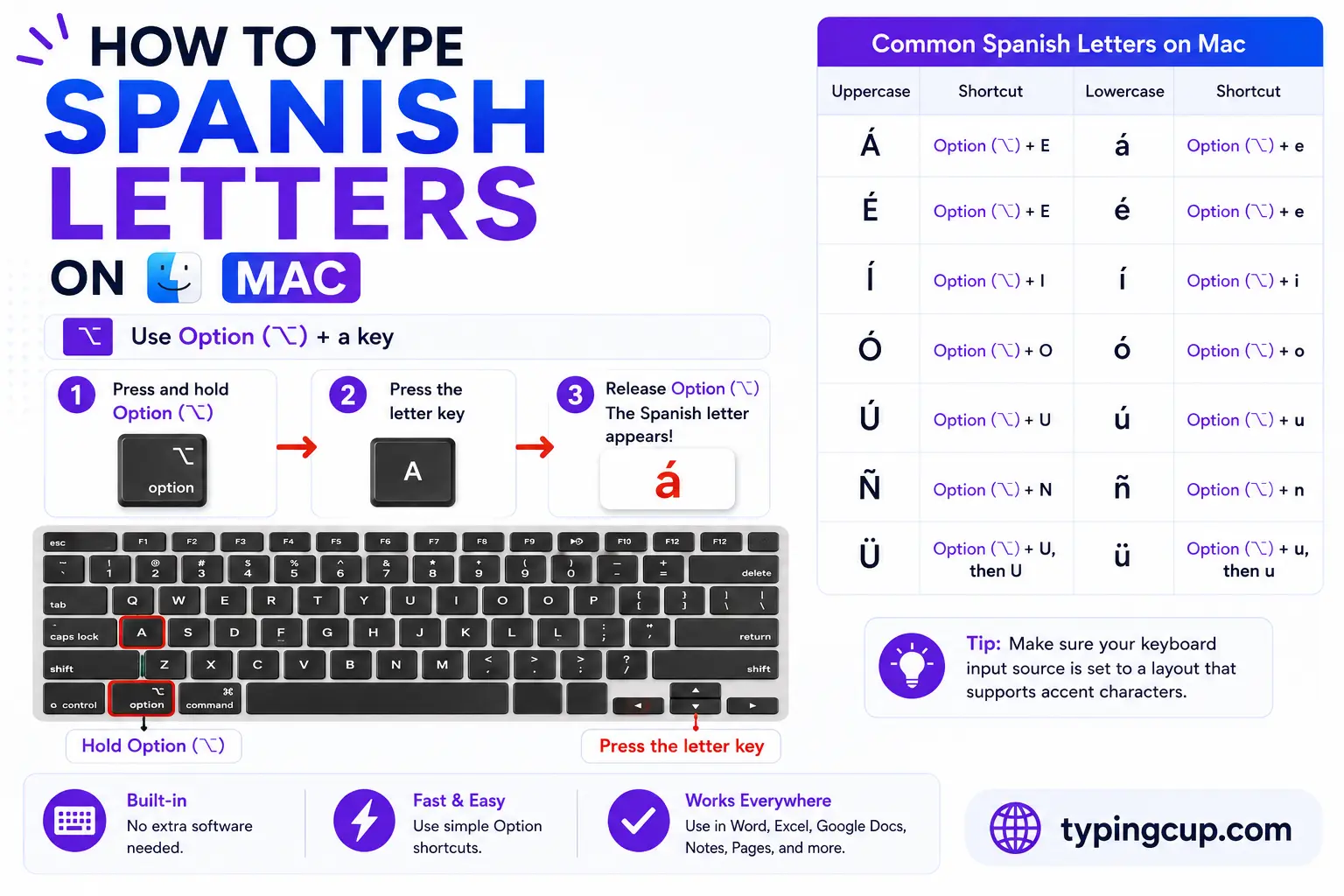
Hold Option + e and let go, then press a vowel for the accent: Option + e, then a, gives á. For ñ, press Option + n then n; for ü, Option + u then u. Add Shift on the final key for capitals.
The punctuation is a single shortcut each: Option + 1 gives ¡, and Option + Shift + ? gives ¿. You can also hold a vowel key down and pick the accented version from the pop-up menu.
iPhone and Android
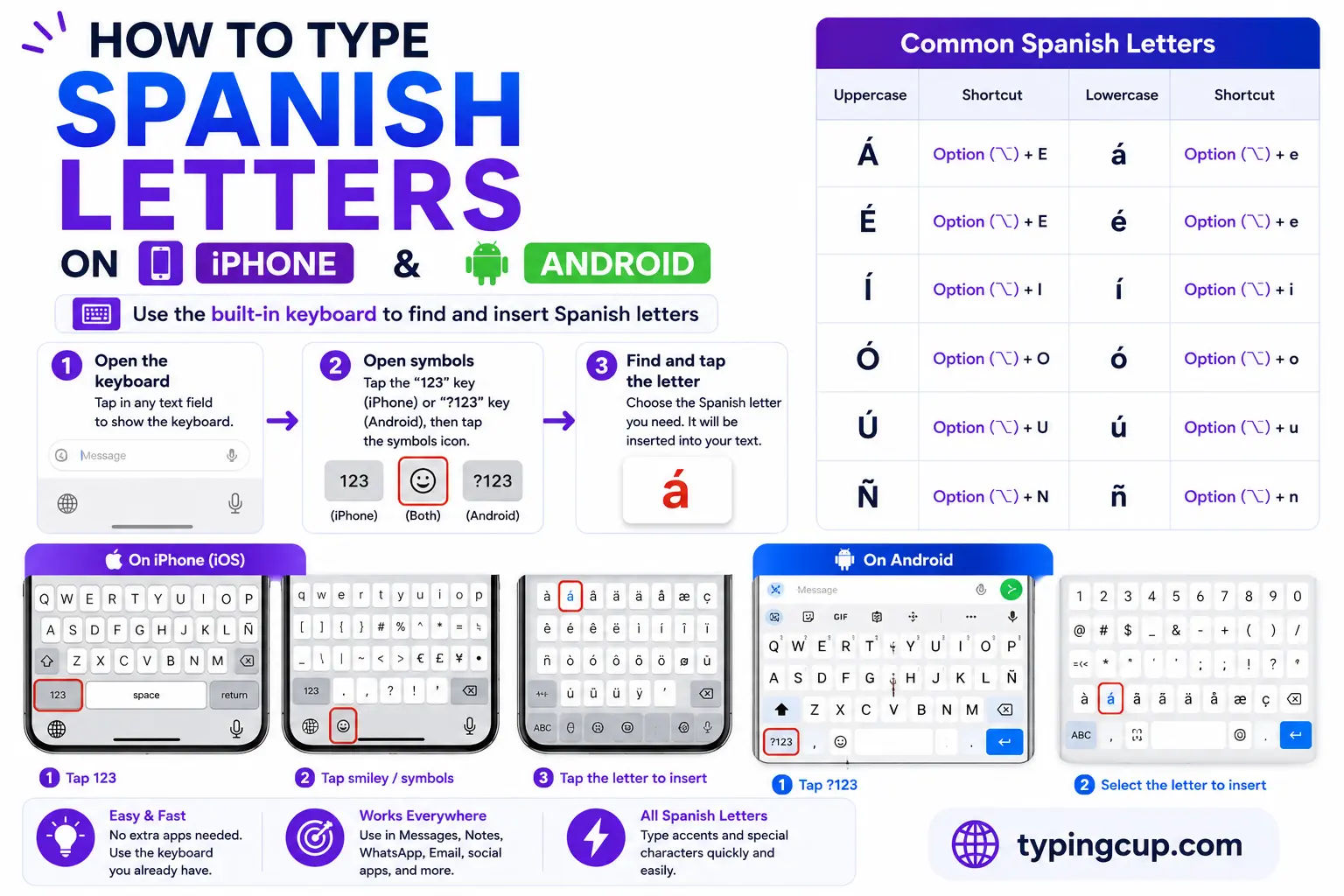
Press and hold the vowel you need, and the accented versions appear above your finger; slide onto á, é, í, ó, or ú. Hold the n key for ñ, and hold the ? and ! keys to reach ¿ and ¡.
It needs no setup and works in almost every app. If you type Spanish constantly, adding the Spanish keyboard puts ñ and the punctuation right on the layout.
Microsoft Word
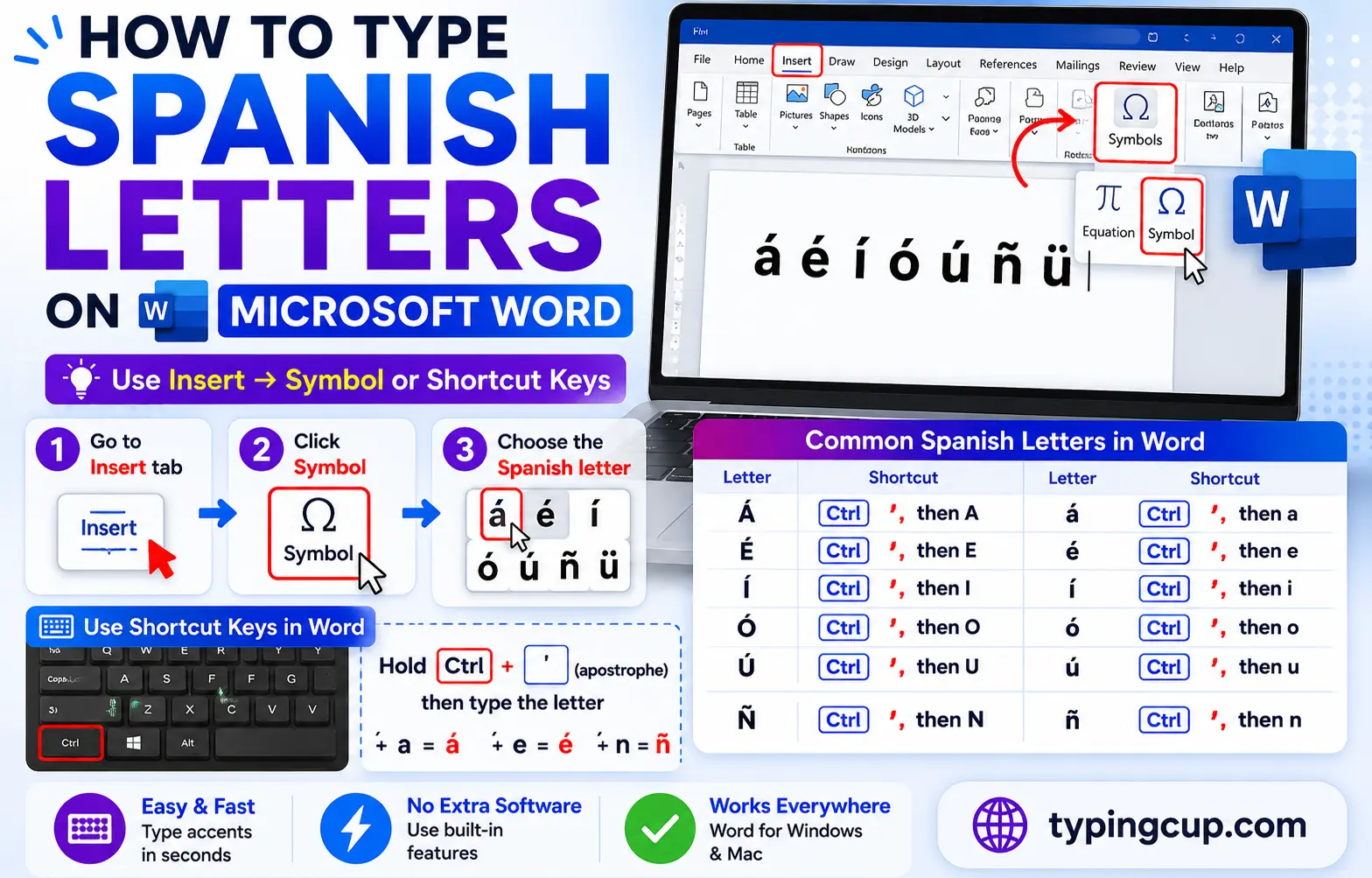
Word has its own shortcuts. Press Ctrl + ‘ (apostrophe) then a vowel for the accent, Ctrl + Shift + ~ then n for ñ, and Ctrl + Shift + : then u for ü. For the punctuation, Ctrl + Alt + Shift + ! gives ¡ and Ctrl + Alt + Shift + ? gives ¿.
If a shortcut slips your mind, the Alt codes from the table above work here too, or use Insert, then Symbol.
Linux
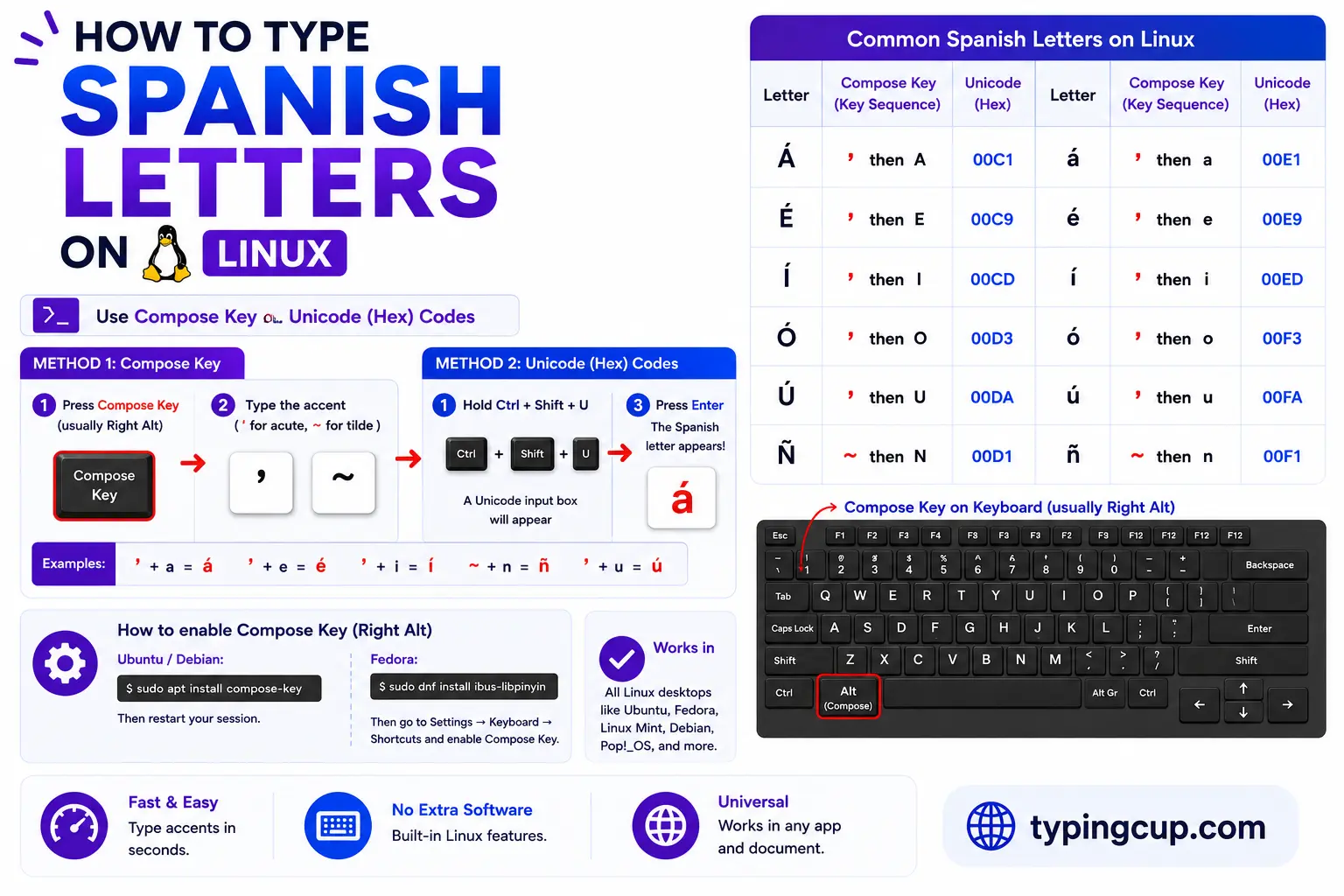
Press Ctrl + Shift + U, type the hex code, then press Enter: 00f1 for ñ, 00e1 for á. With a Compose key, it’s Compose, then ‘, then the vowel for accents, and Compose, then ~, then n for ñ.
Excel and Google Sheets
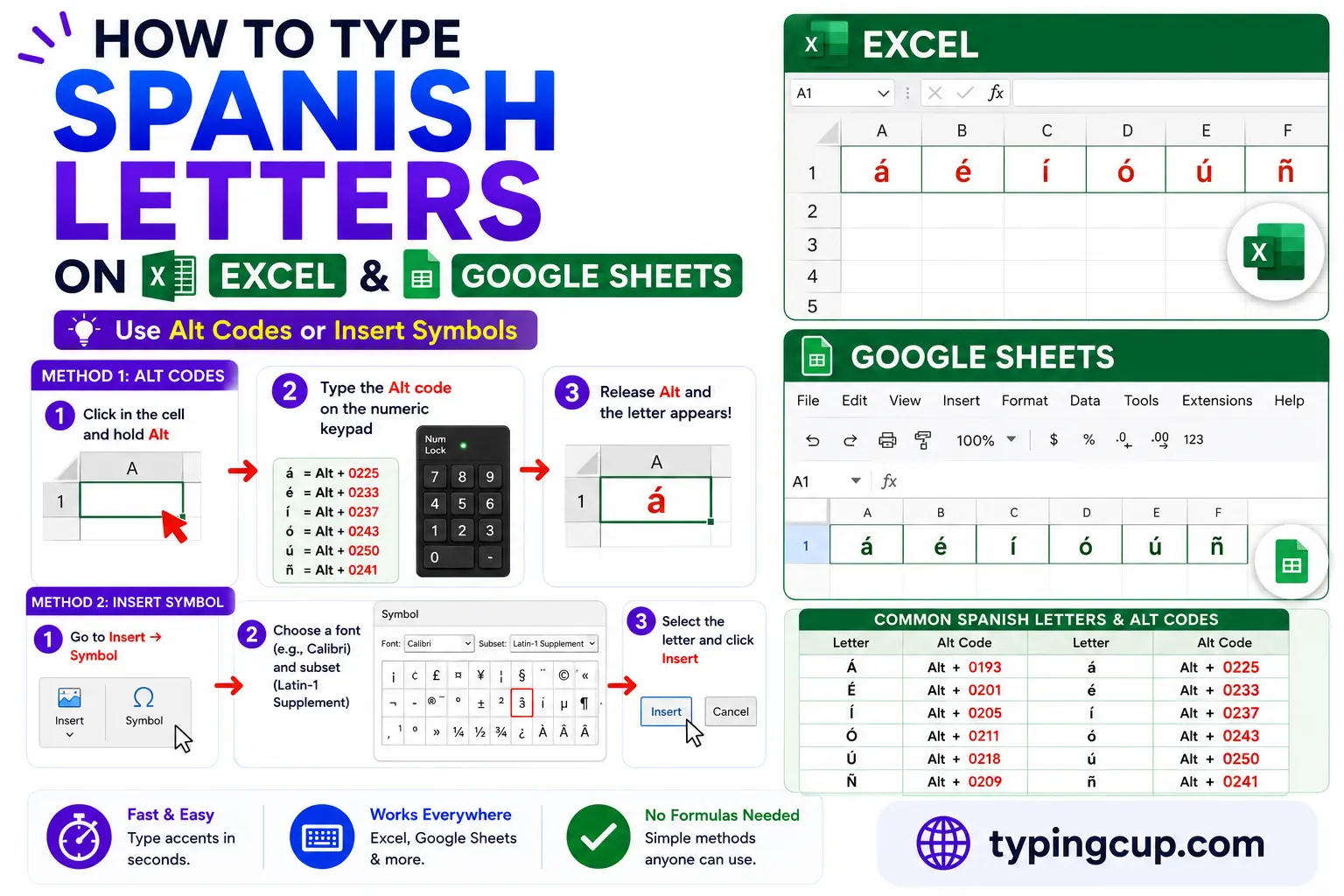
In Excel, the Alt codes work on the numeric keypad, or use the UNICHAR formula: =UNICHAR(241) returns ñ, =UNICHAR(225) returns á, and =UNICHAR(161) returns ¡. The same formulas work in Google Sheets.
Copy-paste HTML codes
Every Spanish character has a named HTML entity as well as a numeric one. Click a cell and copy.
| Character | Named entity | Numeric entity |
|---|---|---|
| á | á | á |
| é | é | é |
| í | í | í |
| ó | ó | ó |
| ú | ú | ú |
| ü | ü | ü |
| ñ | ñ | ñ |
| Ñ | Ñ | Ñ |
| ¡ | ¡ | ¡ |
| ¿ | ¿ | ¿ |
In a CSS content value, use the escaped code point, like \00f1 for ñ. Serve the page as UTF-8 so the characters hold everywhere.
Each of these letters has its own detailed guide too: á, é, ñ, and the ü in the umlaut letters guide. For every other accented character, see the full letters-with-accents list.
Troubleshooting
“My Alt code just beeps or types nothing.”
Usually Num Lock is off, you’re using the top-row numbers instead of the keypad, or the laptop has no keypad at all. Turn Num Lock on and use the keypad. No keypad? Use the copy grid, the US-International layout, or Windows + .
“I get a floating accent, like ´a.”
On US-International the apostrophe and the vowel were too far apart, or a space slipped in. Type the accent and the vowel back to back. For a plain apostrophe, press it and then a space.
“Shift with the Alt code gives the wrong letter.”
Capitals have their own codes. Don’t hold Shift with 0225; type 0193 on its own for Á, or 0209 for Ñ.
“The upside-down ¿ and ¡ are hard to reach.”
On a phone, long-press the ? and ! keys. On Windows, use Alt + 0191 and Alt + 0161, or the US-International layout. The Spanish keyboard puts them on dedicated keys.
“It pastes as a box or a question mark.”
The other program is using an older text encoding. Save or paste as UTF-8 and the characters will survive.
FAQ
How do I type ñ?
On Windows, Alt + 0241 (Alt + 0209 for Ñ). On a Mac, Option + n then n. On a phone, long-press the n key. Or click it in the grid above.
How do I type the upside-down question mark ¿?
On Windows, Alt + 0191, or the US-International layout. On a Mac, Option + Shift + ?. On a phone, long-press the ? key. It opens the question; the normal ? still closes it.
Does Spanish ever use grave or circumflex accents?
No. Spanish uses only the acute accent on vowels, plus the two dots on ü and the tilde on ñ. If you see è or ê, it isn’t Spanish.
Why do I need an accent on words like tú and él?
The accent separates words that are otherwise spelled the same. tú means “you” and tu means “your”; él means “he” and el means “the.” The mark, called the tilde diacrítica, carries the difference.
What’s the fastest way to type Spanish letters?
For a one-off, click them in the grid above. For regular writing, switch on the Spanish or US-International keyboard layout so the accents and ñ are always a keystroke away.
