How to Type Symbols Without a Numpad (7 Easy Ways)
No numeric keypad? Then the classic Alt codes are out — they need the keypad on the right of a full keyboard, which most laptops and compact keyboards do not have. The good news: there are faster ways to type symbols anyway, and several are built right into Windows. This guide covers every method, when to use each, examples like é and ©, and how the built-in symbol pickers compare.
In a hurry?
- Copy it: click the symbol you need in the grid below — works on any keyboard.
- Windows: press Windows + . (period) to open the emoji and symbol panel.
- Accents: switch to the US-International layout and type ‘ then e for é.
- Revive Alt codes: many laptops hide a keypad on the letter keys — press Fn + Num Lock.
- In Word: type the hex code and press Alt + X.
Table of Contents
The grid is the quickest fix for a one-off. For symbols you type often, one of the built-in methods below is worth setting up once.
Type symbols without a numpad: the quick options
Every method here works with no numeric keypad at all. Pick by what you are doing.
| Method | How | Best for |
| Emoji & symbol panel | Windows + . | a quick pick of any symbol or emoji |
| Character Map | search “charmap” | browsing every character with its code |
| US-International layout | ‘ then e = é | accented letters, all the time |
| Fn embedded keypad | Fn + Num Lock | keeping Alt codes on a laptop |
| Word Alt + X | hex code, then Alt + X | any Unicode character in Word |
| Copy-paste | from the grid above | one-offs and high-Unicode symbols |
None of these needs the keypad. The first two are built into Windows and cover almost everything; the rest suit specific habits, covered below.
How to type symbols without a numpad
Method 1: The emoji & symbol panel (Windows + .)
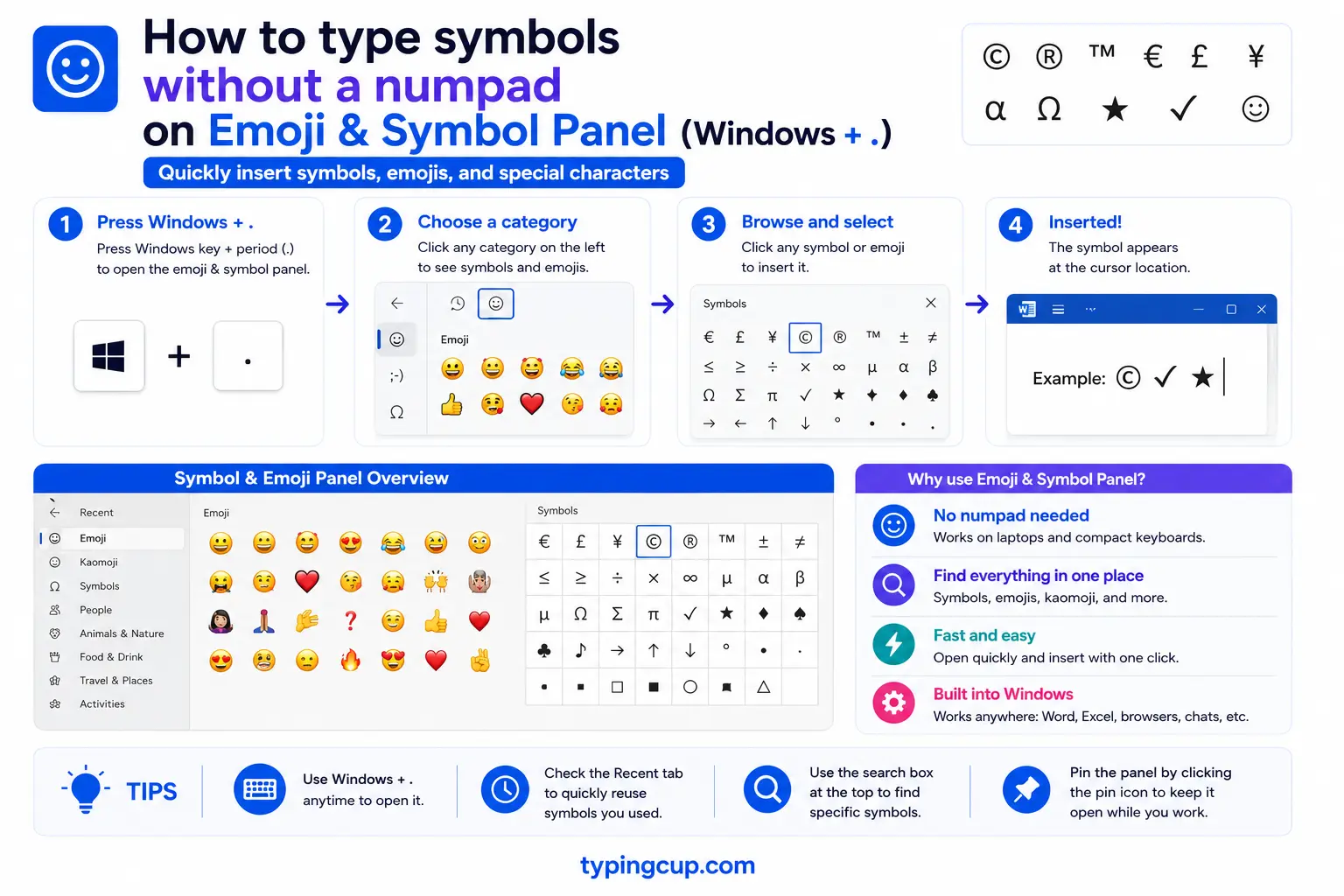
The quickest built-in option. Press Windows + . (period) — or Windows + ; (semicolon), they do the same thing — and a small panel opens. Click the Ω symbols tab and you get currency, math, language, and punctuation characters; the emoji tab covers emoji. Click one to drop it in at your cursor. It works in almost every app and needs no keypad at all, which makes it the go-to on a laptop.
Method 2: Character Map
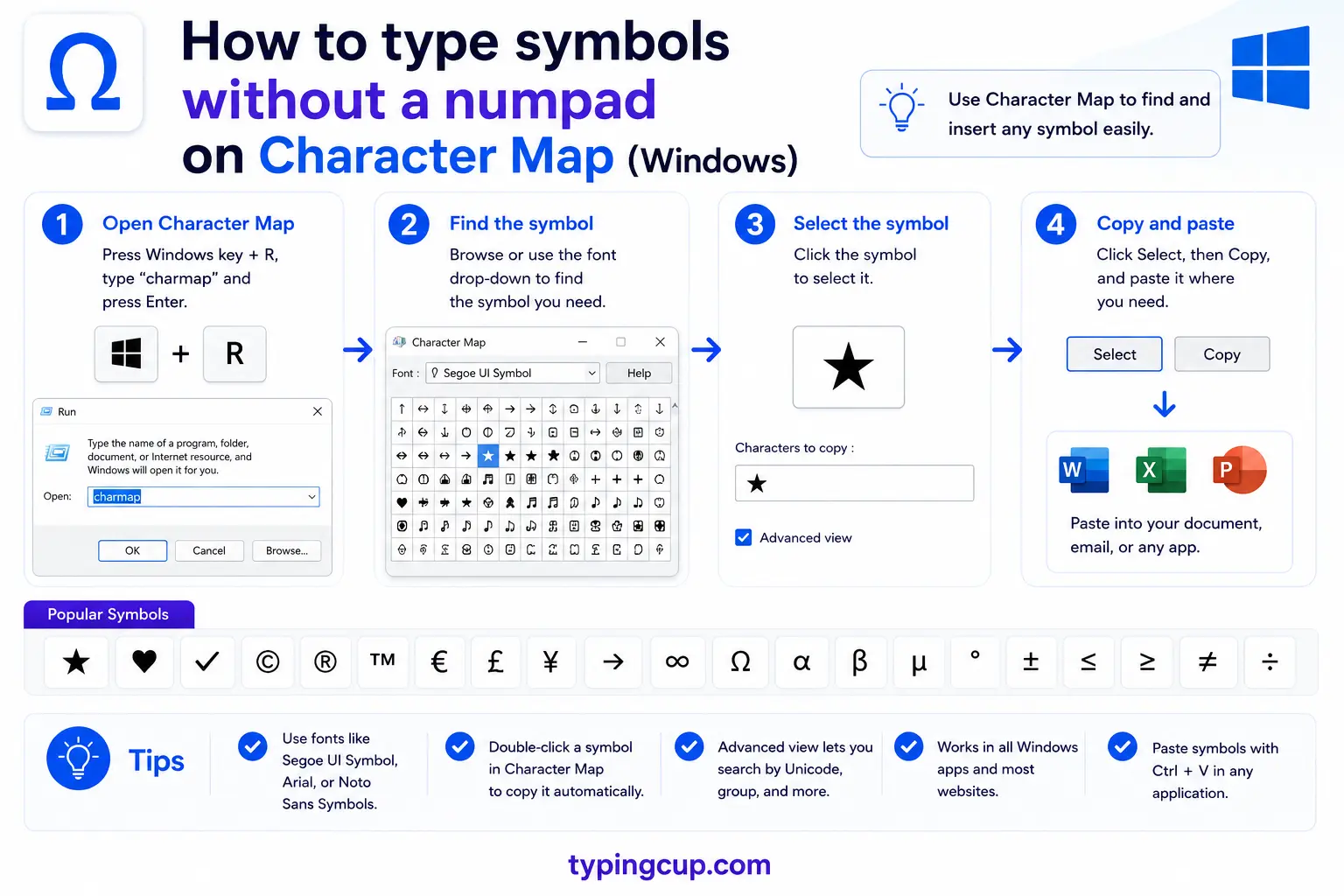
For the full catalog, open Character Map (press Start and type charmap). Pick a font, scroll or search by name, click a character, hit Select, then Copy, and paste it in. Character Map also shows each character’s code in the corner, so it doubles as a reference when you do want the Alt code later. It is slower than the Windows + . panel but complete.
Method 3: The US-International keyboard (for accents)
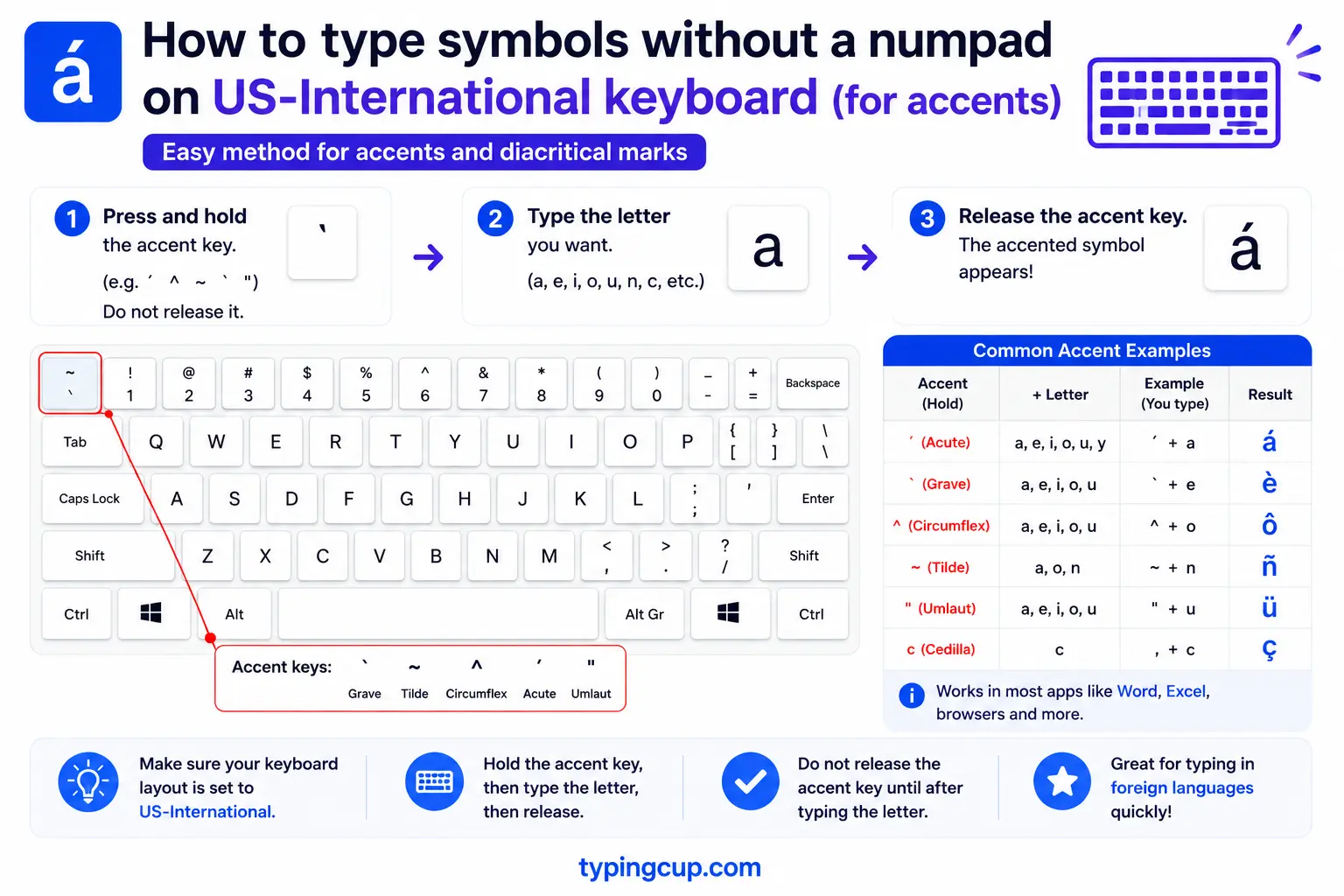
If you mostly need accented letters, add the US-International layout in Settings → Time & language → Language → your language → Options. Then the punctuation keys become dead keys: type ‘ then e for é, ` then a for à, ~ then n for ñ, and “ then u for ü. No keypad, no menus — you just type, which makes it the best method for anyone writing another language often.
Method 4: Revive Alt codes with the Fn embedded keypad
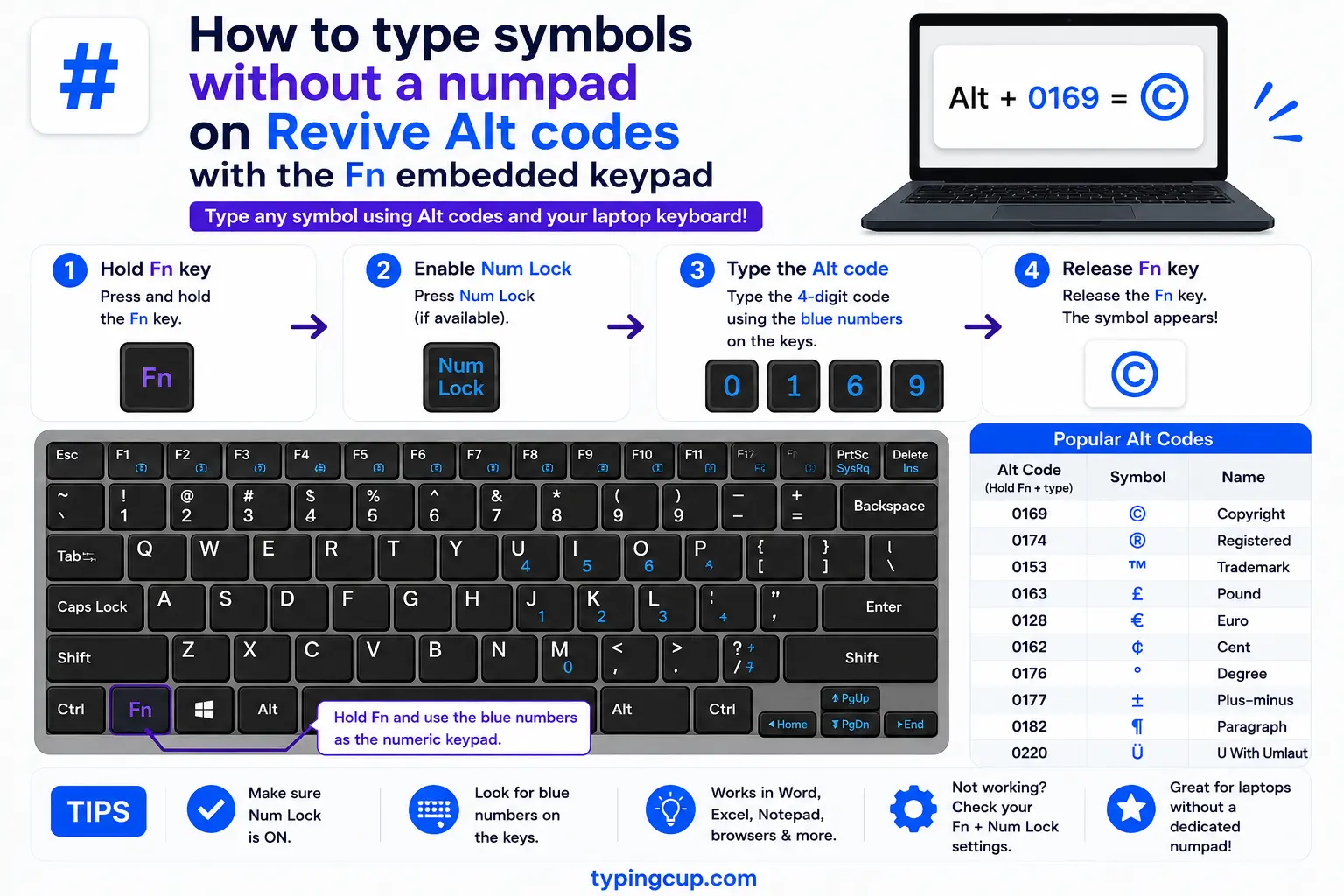
Many laptops still have a numeric keypad — it is just hidden on the letter keys. Look for small numbers printed on M, J, K, L, U, I, O and nearby keys. Turn it on with Fn + Num Lock (or Fn + F11 on some models), then hold Fn and type the Alt code on those keys. It brings the classic Alt codes back on a laptop, no external keypad required.
Method 5: The On-Screen Keyboard
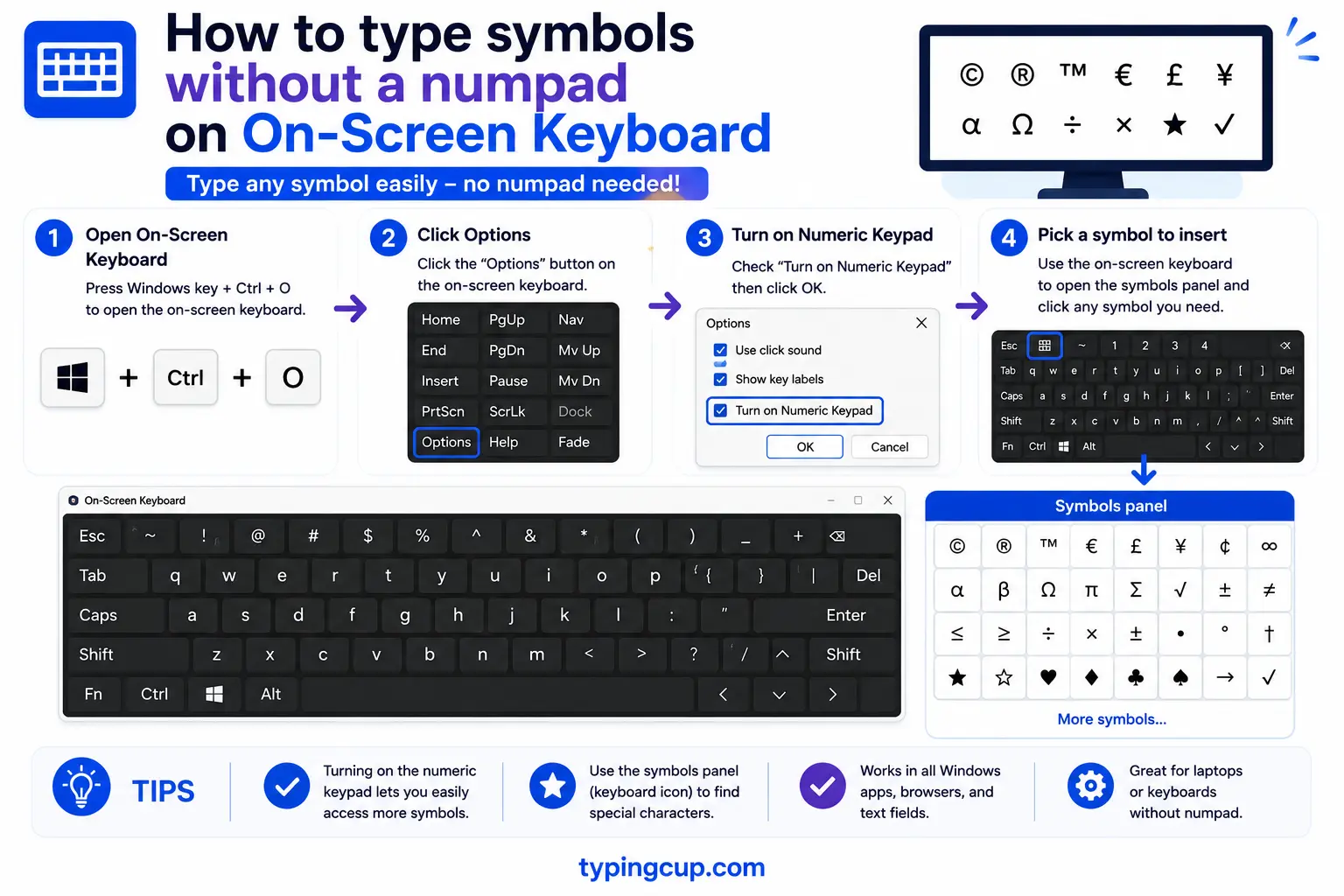
Windows has a full keyboard you can click with the mouse. Search for On-Screen Keyboard in Start and open it, click Options, tick “Turn on numeric key pad,” and a keypad appears. Hold Alt (on your real keyboard) and click the numbers on screen to enter an Alt code. It is fiddly but always available, even on a machine with no keypad at all.
Method 6: Word’s Alt + X
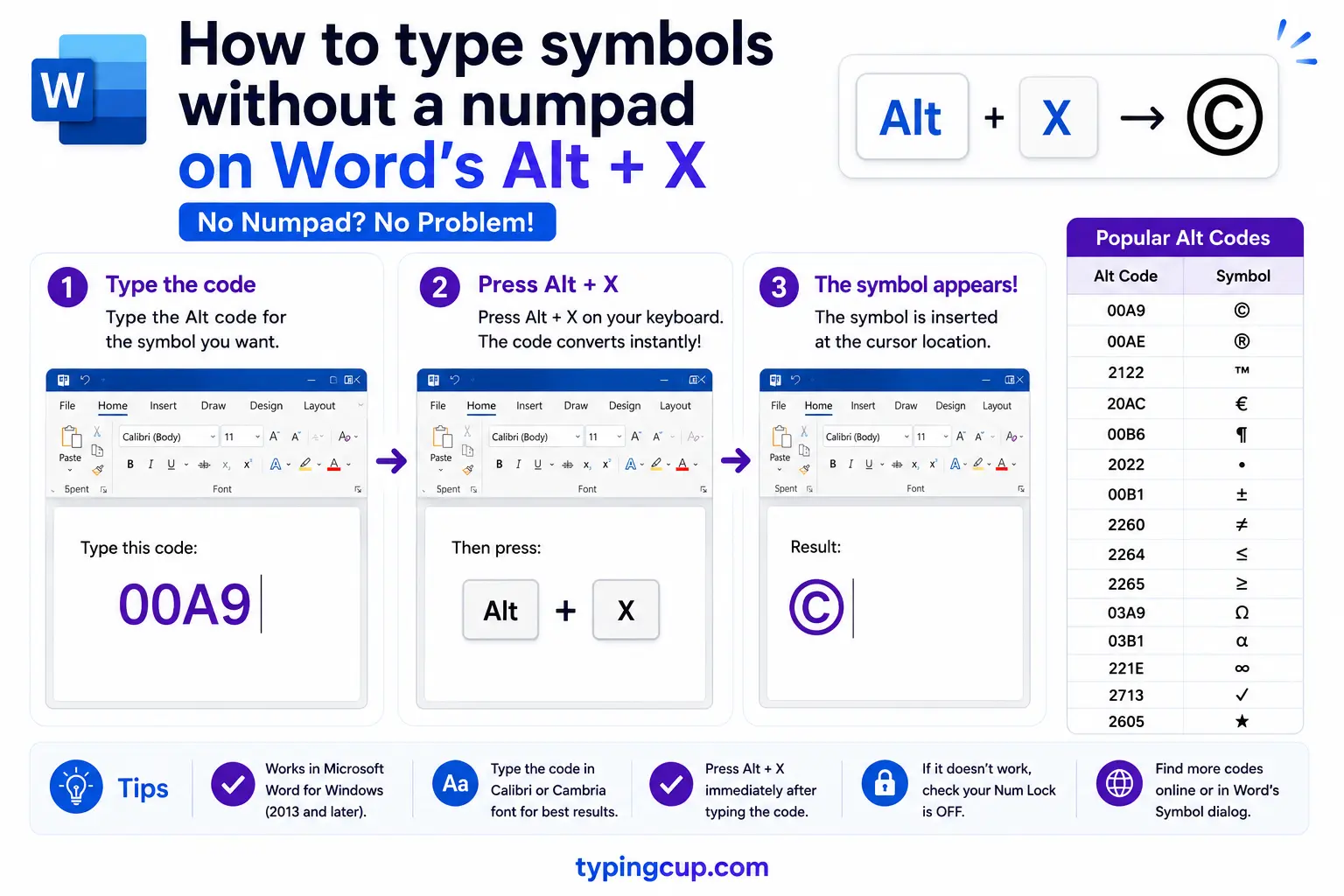
Inside Word (and some Office apps), you do not need the keypad: type a character’s hex code and press Alt + X. For example, 00E9 then Alt + X becomes é, and 2192 then Alt + X becomes →. Alt + X also works in reverse to reveal a character’s code. It is the fastest route for symbols when you are already writing in Word.
Method 7: Copy and paste
The universal fallback: copy the character from the grid at the top of this page (or any symbol reference) and paste it with Ctrl + V. It works in every app, on every keyboard, and on every operating system, with nothing to set up — ideal when you only need a symbol once.
When to use which method
Each method shines in a different situation. Match the method to how often you need symbols and where.
- Just need one symbol now? Copy it from the grid, or press Windows + . and click it. Nothing to set up.
- Type accents every day? Switch to the US-International layout — it is the fastest for é, ñ, ü and friends once you learn the dead keys.
- Want your old Alt codes back? Turn on the laptop’s Fn embedded keypad and use them as before.
- Writing in Word? Use Alt + X with the hex code — no keypad, any character.
- Need an obscure or high-Unicode symbol (arrows, stars, math)? Character Map or copy-paste, since those rarely have a simple shortcut.
Windows + . vs Character Map: which symbol picker?
Both are built into Windows and both let you pick a symbol with the mouse, but they suit different moments.
| Windows + . | Character Map | |
| Speed | instant, floats over your app | a separate window to open |
| Coverage | common symbols + emoji | every character in every font |
| Shows the code | no | yes (Alt code and Unicode) |
| Inserts directly | yes, at the cursor | copy, then paste |
| Best for | quick everyday symbols | rare characters and looking up codes |
Reach for Windows + . first — it is quicker and drops the symbol straight in. Fall back to Character Map when you need something unusual or want to see the character’s code.
US-International layout vs copy-paste: for accents
For accented letters specifically, these are the two realistic options without a keypad.
| US-International layout | Copy-paste | |
| Setup | add the layout once | none |
| Speed after setup | very fast, you just type | slower, one symbol at a time |
| Good for | writing whole passages | the occasional accent |
| Downside | ‘ and ” become dead keys | breaks your typing flow |
If you write in French, Spanish, or Portuguese regularly, the US-International layout wins easily — typing café is just c, a, f, ‘, e. For a stray accent here and there, copy-paste is simpler than changing your whole layout.
Examples: typing é, ©, °, and → without a numpad
Four common characters, and the easiest way to make each with no keypad.
| Symbol | Easiest no-numpad way |
| é | US-International: ‘ then e — or copy it |
| © | Windows + ., search “copyright” — or Word: 00A9 then Alt + X |
| ° | Windows + ., search “degree” — or copy it |
| → | Windows + ., search “arrow” — or Word: 2192 then Alt + X |
The Compose key for Windows (WinCompose)
Here is a method almost no guide mentions. Linux has long had a Compose key — press it, then a short, memorable sequence, and you get a symbol: Compose then ‘ e gives é, Compose then o c gives ©, Compose then -> gives →. A free, open-source tool called WinCompose brings this to Windows. You install it, pick a Compose key (many people use the right Alt), and then type thousands of symbols by their sequence — no keypad, no codes to memorize, just intuitive combinations. For anyone who types a wide range of symbols, it is the most pleasant method there is, and it works the same in every app.
AutoHotkey: make your own symbol shortcuts
If you want a symbol on a shortcut of your choosing, AutoHotkey (also free) lets you build it. With a couple of lines in a script, you can make a text trigger expand into a symbol — type (c) and have it become ©, or -> become → — or bind a symbol to a key combination. It is the power-user route: more setup than the built-in options, but once your shortcuts exist, they are instant and follow you across every program. Handy if you type the same handful of special characters all day.
On a Mac or Chromebook (no numpad needed)
If you are not on Windows, the whole “no numpad” problem mostly disappears. On a Mac, Alt codes never existed anyway — you use the Option key (Option + e then a vowel for accents, Option + g for ©, Option + Shift + 8 for °) or the Character Viewer (Control + Command + Space). On a Chromebook, hold Ctrl + Shift + U, type the four-character Unicode hex, and press Enter, or use the built-in emoji picker with Everything button + Shift + Space. Neither platform needs a numeric keypad to produce symbols.
Copy the symbols you need
Common characters with their name and HTML code — click any in the grid at the top to copy, no keypad required.
| Symbol | Name | Windows + . search | HTML |
| é | e acute | accent / e | é |
| ñ | n tilde | tilde / n | ñ |
| ° | degree | degree | ° |
| © | copyright | copyright | © |
| ™ | trademark | trademark | ™ |
| € | euro | euro | € |
| ± | plus-minus | plus minus | ± |
| → | arrow | arrow | → |
For the full set and every code, see the symbol Alt codes list and the copy and paste symbols tool. If you do have a keypad but the codes still fail, see Alt codes not working.
Frequently asked questions
How do I type symbols without a number pad?
The easiest built-in way on Windows is Windows + . (the emoji and symbol panel). For accents, use the US-International layout; in Word, use Alt + X with the hex code; and for anything, copy the symbol from the grid above.
Can I still use Alt codes on a laptop?
Yes, if your laptop has an embedded keypad — small numbers printed on keys like M, J, K, L. Turn it on with Fn + Num Lock and hold Fn while typing the code. Otherwise use the On-Screen Keyboard’s numeric pad, or one of the other methods here.
How do I type accents without a numpad?
Add the US-International keyboard layout, then type the accent key and the letter — ‘ then e gives é, ~ then n gives ñ. It is the fastest way for accented letters and needs no keypad.
What is the fastest way if I only need a symbol once?
Copy it — click the character in the grid at the top of this page and paste it in. It works on any keyboard, laptop, or operating system with nothing to install.
Is there a Compose key for Windows?
Yes — install the free WinCompose tool. It adds a Compose key so you can type symbols by short sequences, like Compose then ‘ e for é or Compose then o c for ©, with no keypad or codes.
