Alt Codes Not Working? Here’s How to Fix It (7 Causes)
Alt codes are handy until they suddenly stop working — you hold Alt, type the number, and nothing appears, or the wrong character shows up. Nine times out of ten it is one of a few simple causes: Num Lock is off, you used the number row instead of the keypad, your laptop has no numeric keypad, or the app does not support the code. This guide walks through every cause and fix, when Alt codes are worth it versus just copying, and the details (like the leading zero) that trip people up.
In a hurry?
- Copy it now: click the symbol you needed in the grid below — that works even while Alt codes are broken.
- Turn on Num Lock, then use the numeric keypad, not the top-row numbers.
- No keypad (laptop)? Press Fn + Num Lock for the embedded keypad, or use the On-Screen Keyboard.
- Keep the leading zero: Alt + 0233 and Alt + 233 give different characters.
- On a Mac? Alt codes do not exist there — use Option shortcuts instead.
Table of Contents
If you just need the character right now, copy it above. To make Alt codes work again, run through the fixes below in order — the first three solve most cases.
Alt codes not working? The quick checklist
Match your symptom to the likely cause and its fix. The full how-to for each follows below.
| Symptom | Likely cause | Fix |
| Nothing appears at all | Num Lock off, or using the number row | Turn on Num Lock; use the numeric keypad |
| You have no numeric keypad | Laptop keyboard | Fn + Num Lock, or the On-Screen Keyboard |
| The wrong character shows up | Missing or extra leading zero | Match the code exactly (0233 vs 233) |
| Works in Word but not elsewhere | App does not support the code | Character Map, Windows + ., or copy |
| Nothing works and you are on a Mac | Alt codes are Windows-only | Use Option shortcuts or Character Viewer |
Most “Alt codes not working” problems are the first two rows — Num Lock and the wrong set of number keys. Start there before anything else.
Why Alt codes stop working
An Alt code is not magic — it tells Windows “while I hold Alt, read these keypad digits as a character number.” That means several things all have to line up: you need a numeric keypad, Num Lock has to make it type numbers, the app has to accept the result, and the number itself has to be right for the table Windows is using. Break any one of those and the code fails silently or hands you the wrong character. The fixes below tackle each link in that chain.
How to fix Alt codes (step by step)
Fix 1: Turn on Num Lock
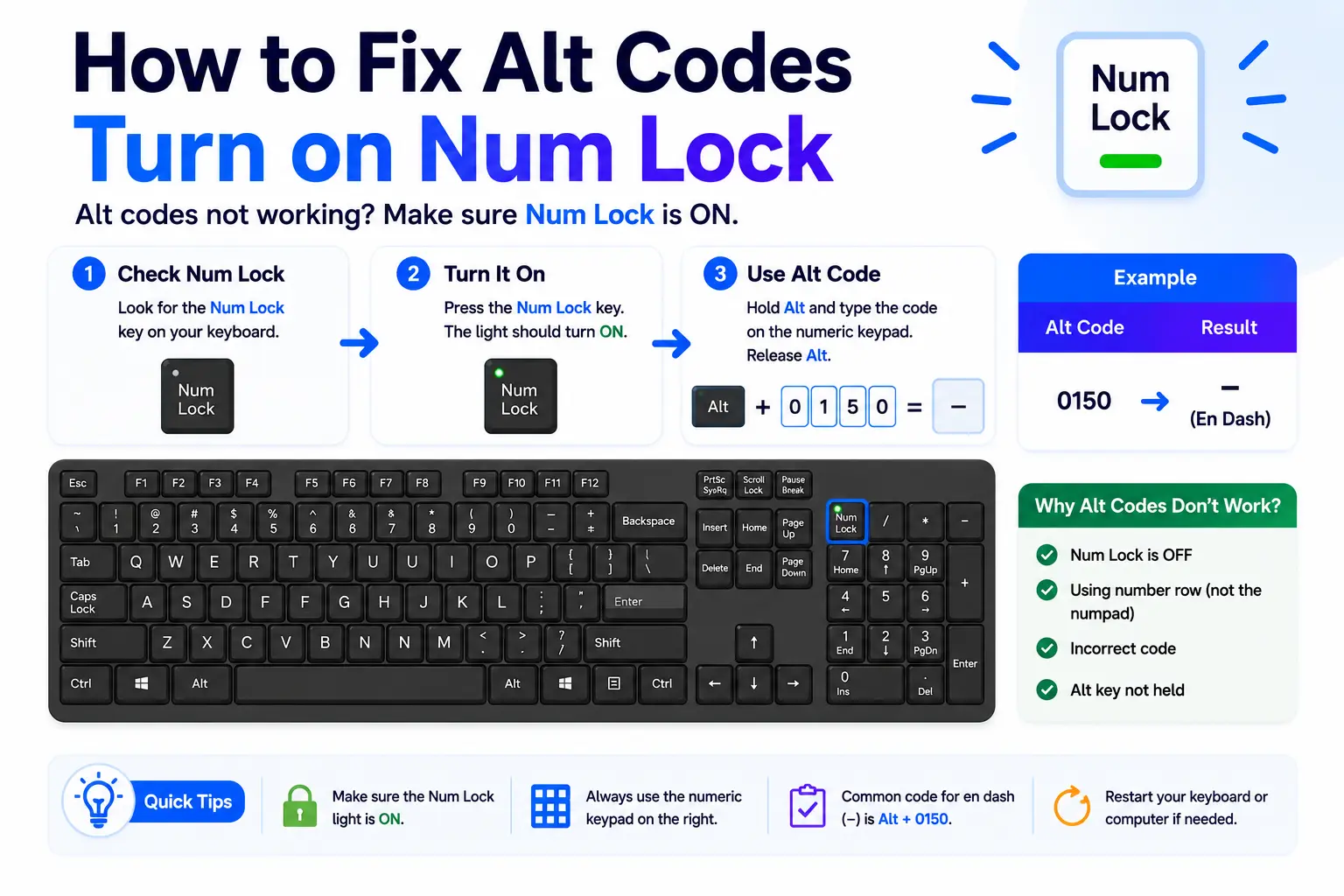
Alt codes read the numeric keypad, and the keypad only types numbers when Num Lock is on. Press the Num Lock key (often labeled Num Lk) and look for its light. If Num Lock is off, the keypad sends arrows and Home/End instead of digits, so the code never registers. This one fix solves a large share of “nothing happens” cases.
Fix 2: Use the numeric keypad, not the top-row numbers
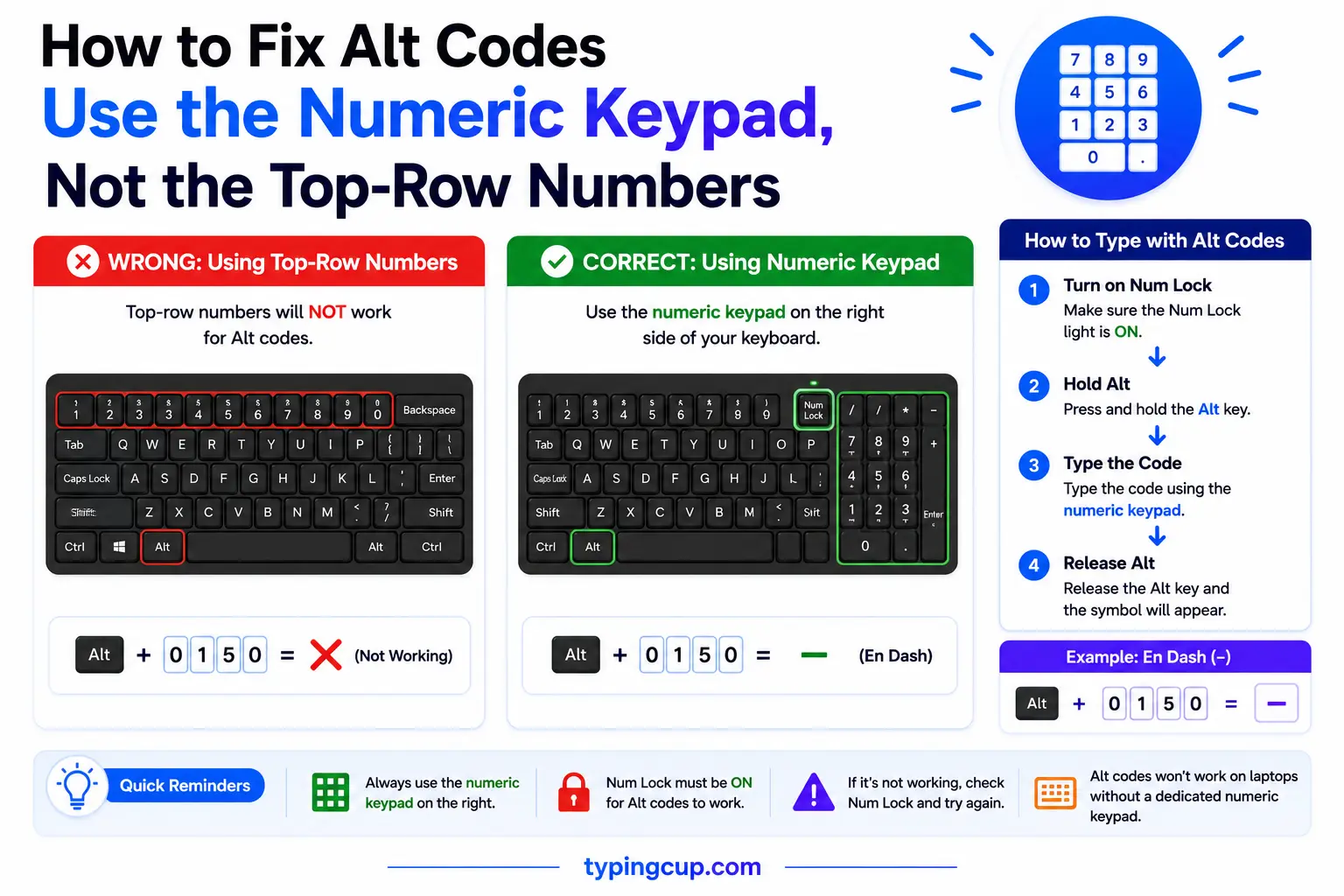
This is the single most common mistake. Alt codes work only from the dedicated numeric keypad on the right of a full keyboard — never from the row of numbers above the letters. The top-row numbers do nothing with Alt held down. If your keyboard has a separate keypad, use it; if it does not, see the next fix.
Fix 3: No numpad? Use the Fn keypad or On-Screen Keyboard
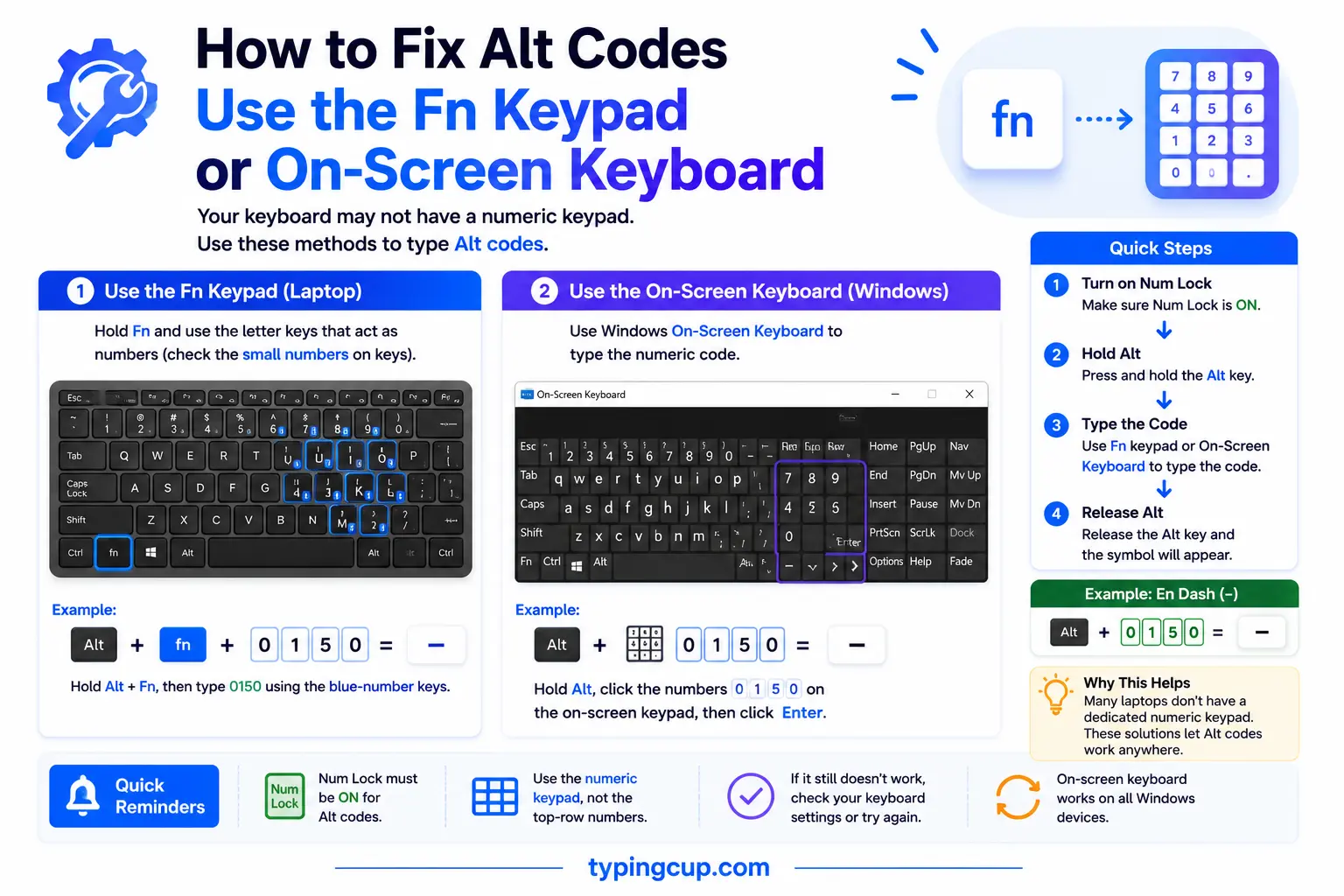
Most laptops drop the numeric keypad to save space, which is why Alt codes seem broken on them. Two ways around it: many laptops have an embedded keypad hidden on the letter keys (look for small numbers on keys like M, J, K, L) — turn it on with Fn + Num Lock and hold Fn while typing the code. Or open the On-Screen Keyboard (search for it in Start), click Options, tick “Turn on numeric key pad,” and click those digits with the mouse while holding Alt.
Fix 4: Check the leading zero
If a code produces the wrong character, the leading zero is usually why. Alt + 0233 (with the zero) and Alt + 233 (without) use two different character tables and give different results. Symbol guides almost always list the four-digit, leading-zero version (like 0233 for é), so match the code exactly as written — do not drop or add a zero.
Fix 5: Use an app that supports the code (or Alt + X in Word)

Some codes work in Word but not in a browser or Notepad, because the higher Unicode codes need an app that accepts them. If a code fails in one place, try it in Word, or use Word’s own trick: type the hex code and press Alt + X (for example, 2713 then Alt + X). Where nothing works, fall back to Character Map, the Windows + . symbol panel, or simply copying the character from the grid at the top.
Fix 6: Turn off Sticky Keys and check remote sessions
Sticky Keys can change how Alt behaves — turn it off under Settings → Accessibility → Keyboard if pressing Alt feels odd. And if you are on Remote Desktop, in a virtual machine, or in a full-screen game, the Alt key and keypad are often intercepted by that session, so codes fail; type them in a local window instead.
Fix 7: Enable the hex numpad for Unicode codes
For entering characters by their hex Unicode value, Windows needs a one-time registry switch. In the Registry Editor, go to HKEY_CURRENT_USER\Control Panel\Input Method, add a string value named EnableHexNumpad, set it to 1, and reboot. Then hold Alt, press + on the numeric keypad, and type the hex code. This is only for hex entry — ordinary decimal Alt codes do not need it.
When to use Alt codes (and when to just copy)
Alt codes are a great tool for some jobs and the wrong tool for others. Knowing which is which saves the frustration in the first place.
- Use an Alt code when you type the same few symbols often on a full-size Windows keyboard — a ° or ± or é you can fire off from muscle memory beats opening a menu every time.
- Use an Alt code when you are offline or in a plain-text box where copy-paste is awkward.
- Just copy instead when you only need the symbol once — grabbing it from the grid above is faster than remembering a four-digit number.
- Just copy instead when the symbol is high in Unicode (arrows, stars, emoji), since those have no short Alt code and often fail.
- Skip Alt codes entirely when you are on a laptop with no keypad or on a Mac — the alternatives below are simply less hassle.
Alt + decimal vs Alt + 0decimal: the leading-zero difference
This is the detail behind most “wrong character” complaints, and almost no guide explains it. The two forms use different character tables.
| Form | Table it uses | Alt + 233 gives | Alt + 0233 gives |
| No leading zero | the old OEM code page (CP437) | a legacy character (Θ) | — |
| With leading zero | the Windows (ANSI) code page | — | é |
| Rule | always match the guide | use for legacy DOS symbols | use for accented letters & punctuation |
In short: Alt + 0233 (leading zero) gives the modern é, while Alt + 233 without the zero pulls a different, older character. Type the code exactly as the guide shows — the zero is not optional decoration, it selects which table Windows reads.
Alt codes vs Alt + X vs copy-paste: which to use
Three ways to get a symbol, each best in a different spot.
| Method | Where it works | Best for |
| Alt code | Windows, with a numeric keypad | frequent symbols, offline typing |
| Alt + X | Word and some Office apps | any Unicode character, by hex code |
| Copy-paste | everywhere | one-offs, high-Unicode symbols, Mac, laptops |
If an Alt code is failing and you cannot fix it quickly, Alt + X in Word or a plain copy-paste will get you the character every time — there is no situation where you are truly stuck.
Examples: common Alt codes and what trips them up
A quick reference to codes people reach for, with the reason each one sometimes fails.
| Symbol | Alt code | What trips it up |
| é | Alt + 0233 | dropping the zero gives a different character |
| ° | Alt + 0176 | fine on a keypad; nothing from the number row |
| € | Alt + 0128 | works in Word; may fail in some plain-text apps |
| ™ | Alt + 0153 | needs the leading zero |
| → | Alt + 26 | works (old code page), keypad only |
| ★ | Alt + 9733 | high Unicode — only works in apps that accept it, otherwise copy it |
The pattern: the four-digit 0xxx codes cover accented letters, currency, and punctuation and are the most reliable; the short codes (like Alt + 26) are legacy symbols; and the big five-digit codes (like 9733 for a star) are the ones most likely to fail, so copy those from the grid instead.
Why Alt codes fail on a Mac (and what to use instead)
If you are on a Mac, Alt codes will never work — and it is not something to fix, because they simply do not exist on macOS. Alt codes are a Windows feature tied to the numeric keypad and Windows code pages. The Mac “Alt” key is actually the Option key, and it does something different: it produces symbols directly. Press Option + e then a vowel for accents (é), Option + 2 for ™, Option + g for ©, Option + Shift + 8 for °. For anything else, open the Character Viewer with Control + Command + Space and search by name. So a Mac user searching “Alt codes not working” just needs the Option shortcuts or the Character Viewer — not a fix.
Copy the symbols you were trying to make
While you sort out the keys, here are the common ones with their codes — click any in the grid at the top to copy, or use the code once Alt is working again.
| Symbol | Name | Alt code | HTML |
| é | e acute | Alt + 0233 | é |
| ñ | n tilde | Alt + 0241 | ñ |
| ° | degree | Alt + 0176 | ° |
| © | copyright | Alt + 0169 | © |
| ™ | trademark | Alt + 0153 | ™ |
| € | euro | Alt + 0128 | € |
| ± | plus-minus | Alt + 0177 | ± |
| × | times | Alt + 0215 | × |
For the full set of codes and symbols, see the symbol Alt codes list and the copy and paste symbols tool.
Frequently asked questions
Why are my Alt codes not working?
The usual reasons, in order: Num Lock is off, you are using the top-row numbers instead of the numeric keypad, your laptop has no keypad, the leading zero is wrong, or the app does not support that code. Work through those five and almost every case is solved.
How do I use Alt codes on a laptop without a number pad?
Turn on the embedded keypad with Fn + Num Lock and hold Fn while typing the code on the letter keys that have small numbers (M, J, K, L, and so on). Or open the On-Screen Keyboard, enable its numeric keypad in Options, and click the digits with the mouse while holding Alt.
Do Alt codes work on a Mac?
No. Alt codes are a Windows feature. On a Mac, use the Option key shortcuts (Option + e then a vowel for accents, Option + g for ©) or the Character Viewer (Control + Command + Space).
Why does my Alt code give the wrong character?
Almost always the leading zero. Alt + 0233 and Alt + 233 read different character tables and produce different results. Type the code exactly as the guide lists it, usually the four-digit version with a zero.
My Alt code works in Word but not in my browser — why?
Higher Unicode codes need an app that accepts them, and Word does while many browsers and Notepad do not. Use Word’s Alt + X (type the hex code, press Alt + X), Character Map, the Windows + . panel, or copy the symbol from the grid above.
What is the fastest fix if I just need the symbol now?
Copy it. Click the character you need in the grid at the top of this page and paste it in — that works on any device, in any app, whether or not your Alt codes are behaving.
