Smiley Face Symbol (☺): How to Type, Copy, and Use It
The smiley face symbol is the little grin you drop into a message, and it comes in three flavors that people mix up: the plain text symbol ☺, the colorful emoji 🙂, and the typed emoticon 🙂. They all mean “smile,” but they are different things underneath, which matters when one quietly turns into another or shows up broken. Here is how to type each smiley, where to copy them, and the story behind the stray “J” that used to haunt email.
In a hurry?
- Copy it: click ☺, ☻, 🙂, or 😊 in the grid below.
- Windows: hold Alt and type 1 on the numeric keypad for ☺ (Alt + 2 for the filled ☻).
- Emoji: press Windows + . (or Control + Command + Space on a Mac) and search “smile”.
- Type it yourself: 🙂 or 🙂 still reads as a smile everywhere.
- In HTML the text smiley is
☺.
Table of Contents
☺ and ☻ are text symbols that take your font’s color; 🙂 and 😊 are full-color emoji; and 🙂 is just two keys. What separates them — and when one becomes another — is covered below.
Smiley face symbol: every code in one table
The text smileys and the popular emoji, with the code for each. Copy from the grid above, or use whichever method fits the app you are in.
| Symbol | Name | Unicode | Windows | HTML |
| ☺ | White smiling face | U+263A | Alt + 1 | ☺ |
| ☻ | Black smiling face | U+263B | Alt + 2 | ☻ |
| 🙂 | Slightly smiling face | U+1F642 | Emoji panel | 🙂 |
| 😊 | Smiling face, smiling eyes | U+1F60A | Emoji panel | 😊 |
| 😀 | Grinning face | U+1F600 | Emoji panel | 😀 |
The two text faces have genuine old-school Alt codes: Alt + 1 gives ☺ and Alt + 2 gives ☻, straight from the original PC code page. Some apps grab Alt + 1 for their own shortcut, so if nothing appears, type 263A then Alt + X in Word, or copy from the grid. The emoji have no Alt code — use the emoji picker.
How to type the smiley face on any device
On Windows
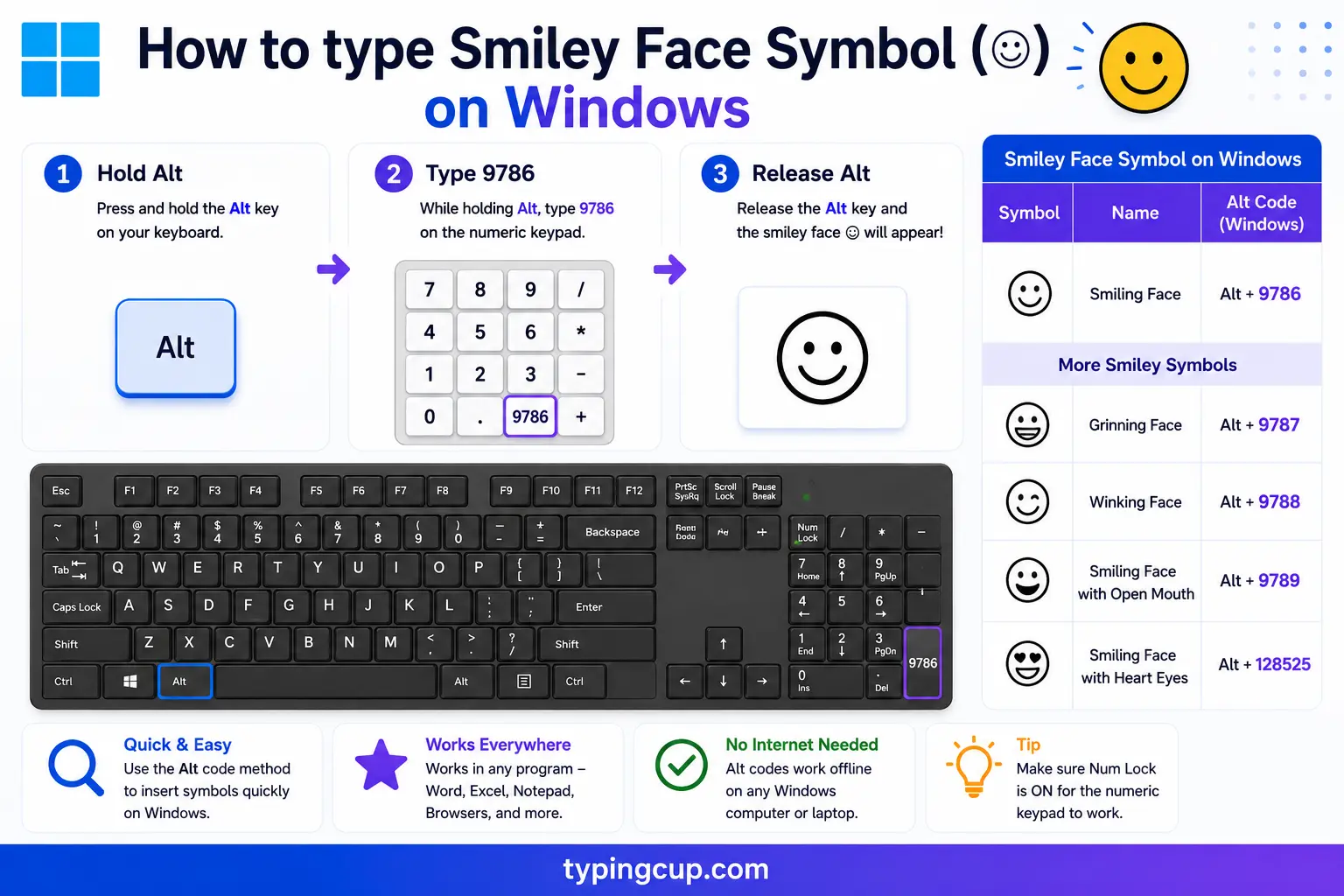
For the text face, hold Alt and type 1 on the numeric keypad for ☺, or 2 for ☻ (Num Lock on). For a color emoji, press Windows + . and search “smile” or “grin”. In Word, 263A then Alt + X gives ☺, and Character Map lists all the faces.
On Mac
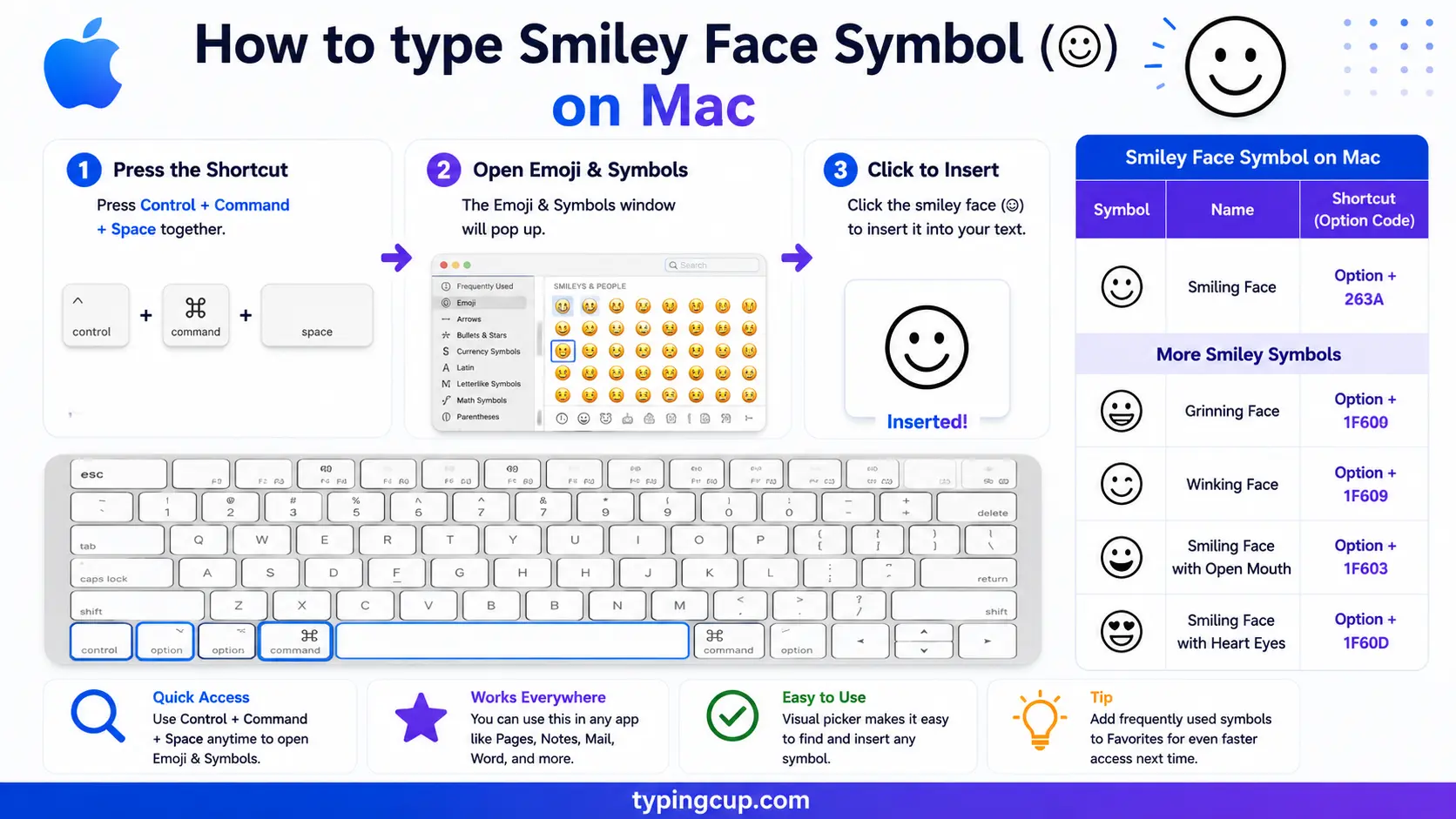
The quickest route to a color smiley is the emoji picker: press Control + Command + Space and search “smile”. For the plain text ☺, open the same picker’s Character Viewer, search “white smiling face”, and double-click it.
On iPhone and Android
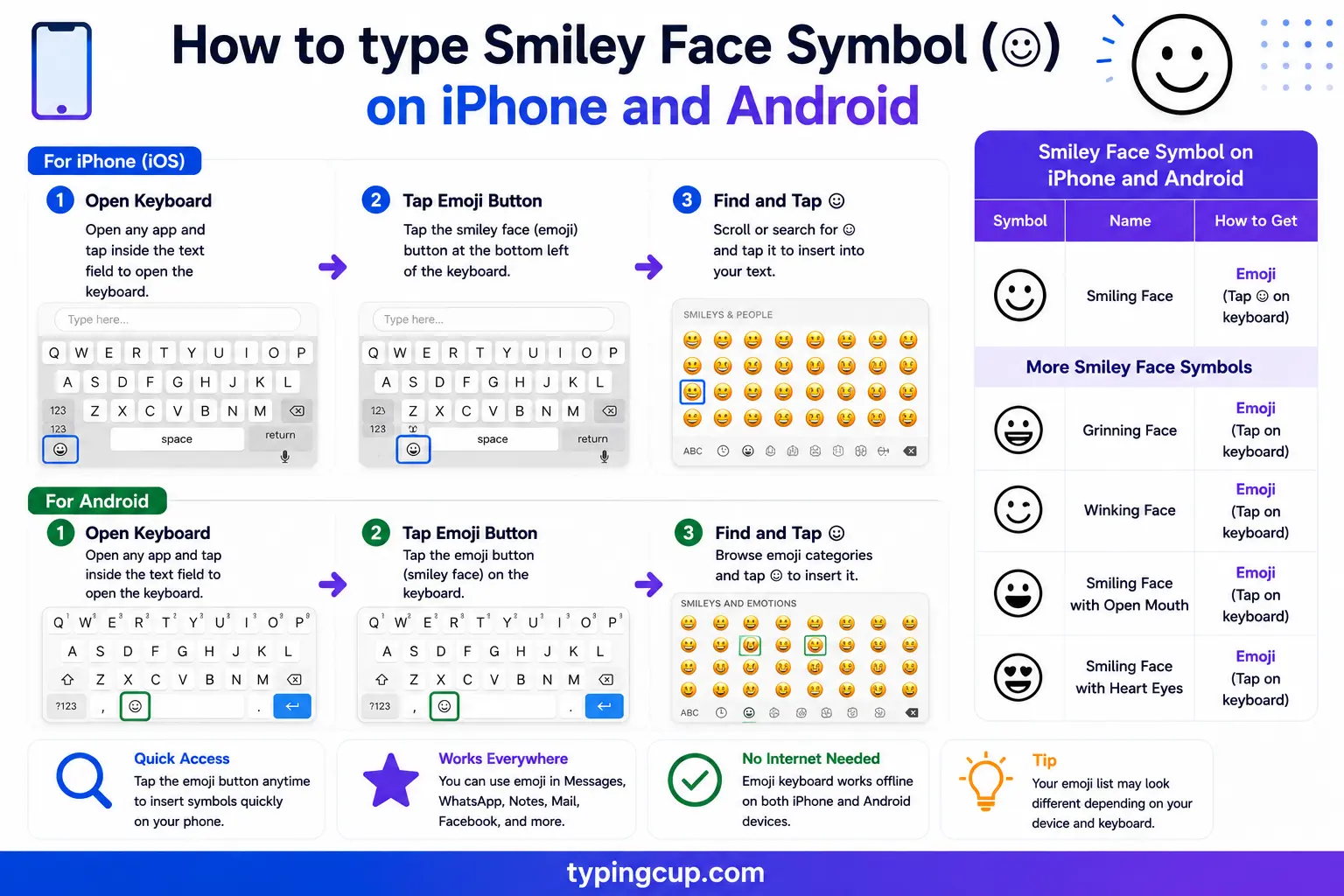
Open the emoji keyboard and tap the smiley you want — 🙂, 😊, and 😀 are all in the “Smileys” tab. Typing 🙂 also auto-suggests an emoji in most apps. For the flat text ☺, copy it from the grid above.
In Microsoft Word
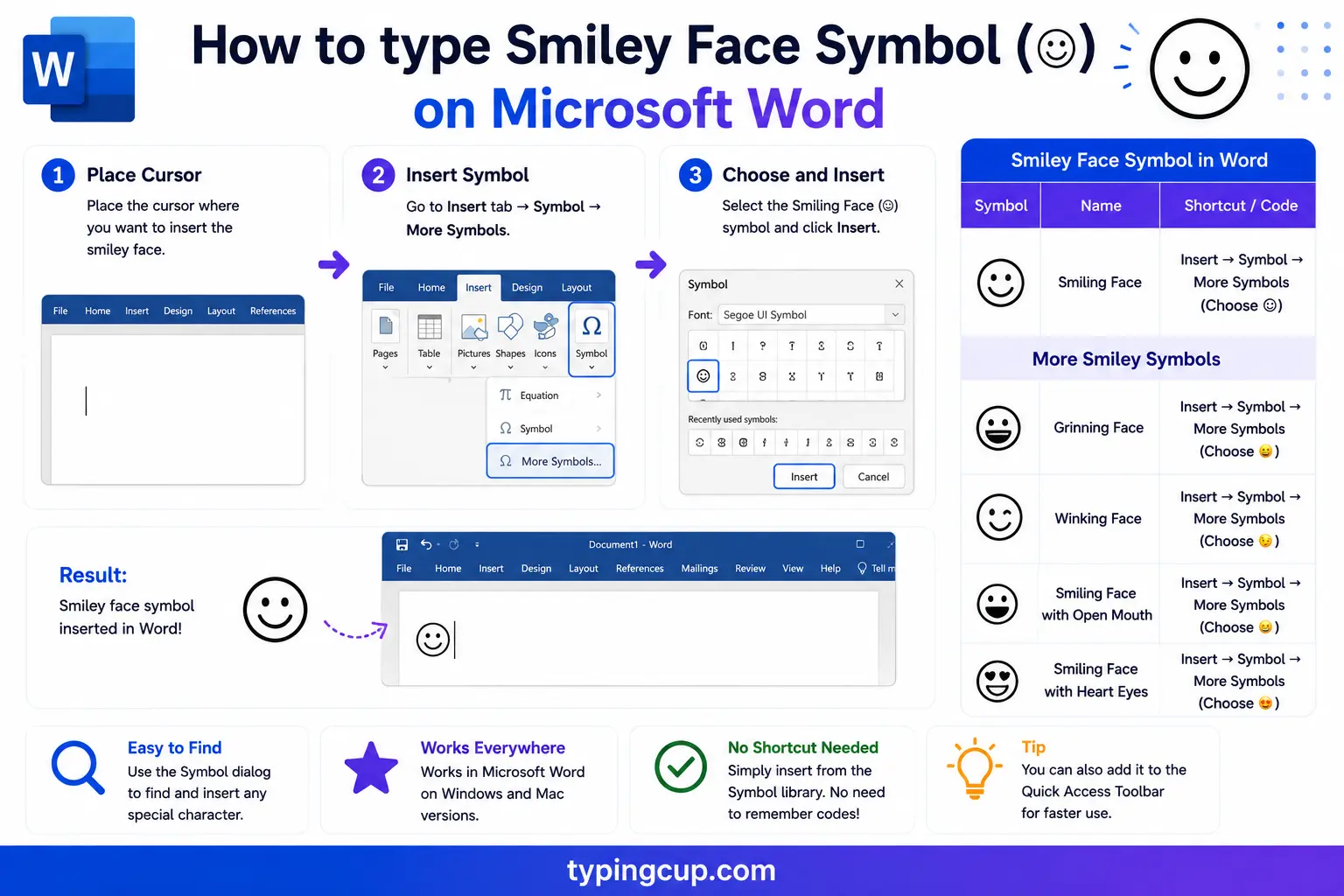
Type 263A then Alt + X for ☺. Word’s AutoCorrect also turns 🙂 into a smiley automatically — which is exactly the behavior behind the “stray J” email story below. To keep a plain 🙂, press Ctrl + Z right after it converts.
On Linux
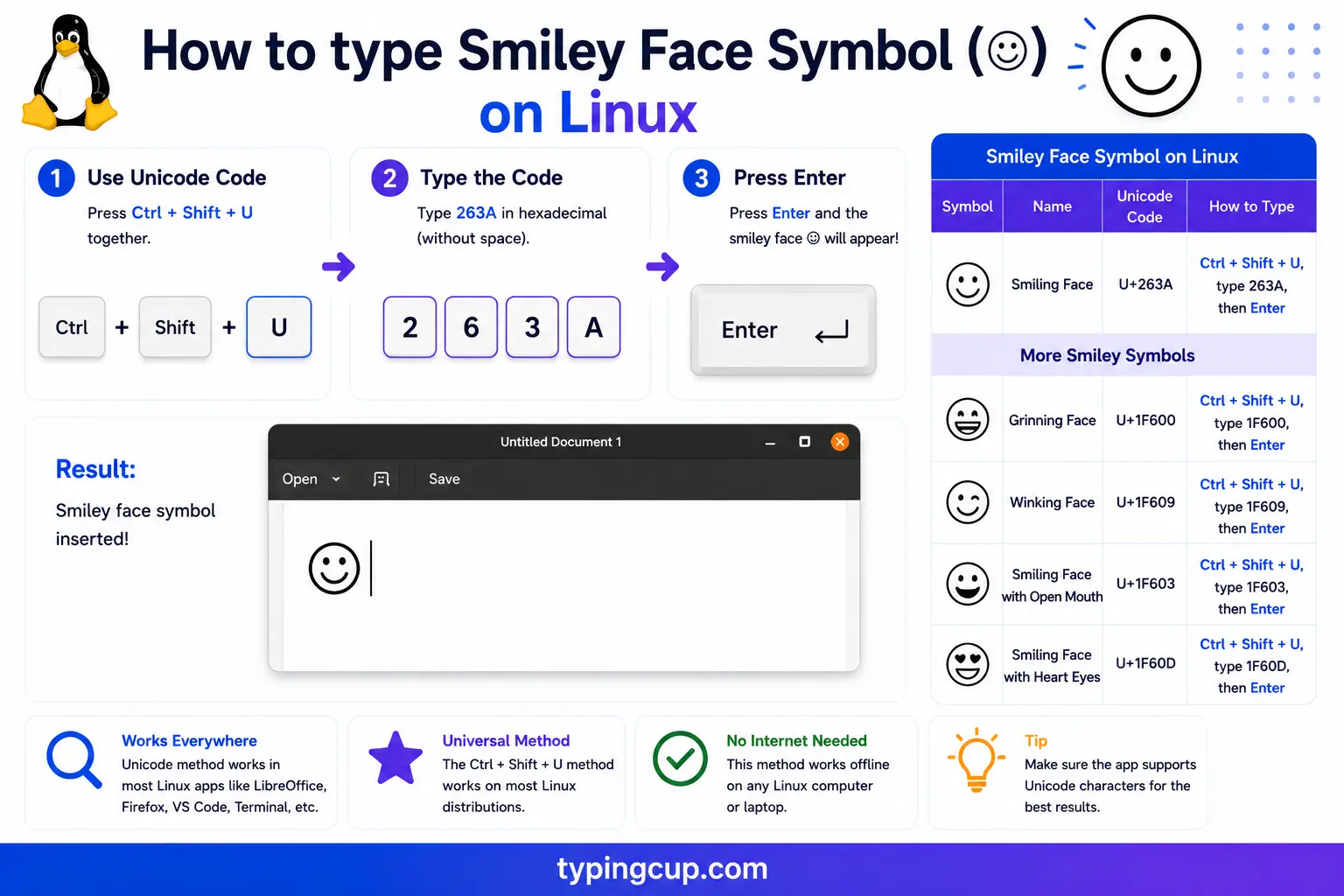
Press Ctrl + Shift + U, type 263a, then Enter for ☺. The emoji picker (for example Super + . in GNOME, or an IBus emoji shortcut) covers the color faces.
In Excel and Google Sheets
Use =UNICHAR(9786) to return ☺ in a cell, or =UNICHAR(128578) for the 🙂 emoji. Fun bit of history: setting a cell’s font to Wingdings and typing a capital J also draws a smiley — the same trick that once broke emails.
Emoticon, emoji, or text symbol: what is the difference?
These three get called “smiley face,” but they are not the same thing. An emoticon is a face built from ordinary punctuation you already have — 🙂, 🙂, =) — read by tilting your head. An emoji like 🙂 is a single character in its own right, drawn in color by your device, with thousands of them for faces, objects, and more. A text symbol like ☺ is also one character, but a plain monochrome one that takes your font’s color and size, so it behaves like a letter. Rough rule: type an emoticon in a pinch, use an emoji in chats, and use ☺ when you want a smile that stays flat and lines up with text.
The classic Alt + 1 smiley ☺ and the stray “J” in your emails
The text smiley is older than emoji. On the original IBM PC, character 1 in the code page was a smiling face, which is why Alt + 1 still types ☺ and Alt + 2 types ☻ today. That history caused a famous headache: for years, Microsoft Outlook used the Word engine, which auto-converted 🙂 into a smiley drawn from the Wingdings font — where a capital J is the smiley shape. If the person reading your email did not have Wingdings, the smiley fell back to a plain J. So a cheerful “thanks :)” arrived as “thanks J”. Microsoft finally fixed it after about seven years, but stray Js still turn up in old messages.
Kaomoji: Japanese smileys like ^_^ and the shrug
Japanese “kaomoji” (literally “face characters”) build expressions you read straight on, not sideways. A smile is ^_^ or ^-^; a happy face is (◕‿◕); and the internet’s favorite, the shrug, is ¯\_(ツ)_/¯. They are made from letters, brackets, and punctuation, so they paste anywhere without needing emoji support, which is part of why they stuck around. Copy the shrug and the smiles from here, or assemble your own from the pieces — the katakana ツ (tsu) is the classic shrugging face.
Where the smiley came from: Harvey Ball, :), and emoji
The round yellow smiley was designed by Harvey Ball in 1963 for a company morale campaign, and he never trademarked it. The digital smile arrived on September 19, 1982, when Scott Fahlman suggested 🙂 and 🙁 on a Carnegie Mellon message board to tell jokes from serious posts — the first documented emoticons. Emoji came later, from late-1990s Japanese mobile phones, and eventually into Unicode, which is how one tap now gives you 🙂. The plain ☺ sits in the middle of that story: a Unicode symbol old enough to predate emoji.
Making 🙂 stay text or become an emoji
Many apps quietly rewrite 🙂 as you type, turning it into 🙂 or the old Wingdings smiley. If you want the plain punctuation to stay, press Ctrl + Z (or Command + Z) right after it converts, or switch off AutoCorrect / autoformat in the app’s settings. If you want the emoji instead and it did not convert, delete the 🙂 and pick the face from the emoji keyboard. Knowing which way an app leans saves the “why did my smile change?” moment.
Which smiley? ☺ vs ☻ vs 🙂 vs 😊
They all smile, but they are different characters with different looks and uses. Pick the one that fits.
| Symbol | Name | Unicode | Where it fits |
| ☺ | White smiling face | U+263A | plain text, retro, bios |
| ☻ | Black smiling face | U+263B | filled text version |
| 🙂 | Slightly smiling face | U+1F642 | neutral-friendly emoji |
| 😊 | Smiling face, smiling eyes | U+1F60A | warm, happy emoji |
| 😀 | Grinning face | U+1F600 | big smile emoji |
| 😁 | Beaming face | U+1F601 | grin with teeth |
| 🙂 | Emoticon | punctuation | type-anywhere smile |
| ^_^ | Kaomoji | punctuation | Japanese-style smile |
☺ vs 🙂: the text symbol and the emoji
The core difference in one place. ☺ (U+263A) is a text symbol: monochrome, sized and colored like your surrounding letters, ideal for documents, usernames, and anywhere a flat, quiet smile fits. 🙂 (U+1F642) is an emoji: drawn in full color by the device, larger and expressive, made for chats and social posts. On a phone the two look very different; in plain code they can read the same. If you want the smile to blend into text, use ☺; if you want it to pop, use 🙂.
Smiley face in URLs and encoding
The text smiley ☺ is three UTF-8 bytes and percent-encodes as %E2%98%BA; the emoji 🙂 sits even higher and takes four bytes, %F0%9F%99%82. If a smiley shows as ☺ or an empty box, the text is being read in the wrong encoding or the font has no glyph. Set the file, database, and page to UTF-8, and use a font with symbol or emoji coverage so the face actually appears.
Copy-paste HTML codes
The main smileys with their web codes, in one place. Copy the code you need.
| Symbol | Numeric entity | Hex entity | URL (percent) code |
| ☺ | ☺ | ☺ | %E2%98%BA |
| ☻ | ☻ | ☻ | %E2%98%BB |
| 🙂 | 🙂 | 🙂 | %F0%9F%99%82 |
| 😊 | 😊 | 😊 | %F0%9F%98%8A |
In a CSS content value, use \263A for the text smiley. For every other symbol and its codes, see the copy and paste symbols tool and the symbol Alt codes list.
Troubleshooting
My smiley shows as a box or ☺
A box means the font has no glyph for that face; the ☺ pattern means UTF-8 bytes read as an older encoding. Set the file, database, and page to UTF-8, and use a font with symbol or emoji coverage. Older systems may show ☺ fine but display color emoji as plain outlines or boxes.
Alt + 1 does nothing
Some apps grab Alt + 1 for their own shortcut (switching tabs, for instance), so the code never reaches the text. Num Lock also has to be on and you must use the numeric keypad. If it still fails, type 263A then Alt + X in Word, use Character Map, or copy ☺ from the grid.
I got a J instead of a smiley
That is the old Outlook-and-Wingdings bug: a 🙂 was turned into a Wingdings smiley, and your device lacked the font, so it fell back to the letter the shape maps to — a capital J. Replace it with a real ☺ or 🙂, and if you send mail, keep smileys as plain text or emoji rather than Wingdings.
Frequently asked questions
How do I type the smiley face symbol ☺?
On Windows, hold Alt and type 1 on the numeric keypad for ☺ (Alt + 2 for ☻). In Word, type 263A then Alt + X. For a color emoji, press Windows + . or Control + Command + Space and search “smile”. Or copy it from the grid above.
What is the difference between 🙂 and 🙂?
🙂 is an emoticon — a smile built from a colon and a bracket. 🙂 is an emoji — a single character drawn in color. Many apps auto-convert 🙂 into the emoji as you type.
How do I type the shrug ¯\_(ツ)_/¯?
Copy it from the kaomoji section above — it is the easiest way. It is built from a macron (¯), a backslash, brackets, the katakana ツ, and a slash, so it pastes anywhere without needing emoji support.
Why do smiley faces turn into the letter J?
An old Microsoft Outlook behavior converted 🙂 into a Wingdings smiley, where a capital J is the smiley shape. Readers without the Wingdings font saw a plain J. Microsoft fixed it after about seven years.
How do I write a smiley in HTML?
Use ☺ for the text smiley ☺ or 🙂 for the emoji 🙂. In a CSS content value the text smiley is \263A, and in a URL it is %E2%98%BA.
